
Do not settle for just a chatbot. This Claude AI tutorial shows you how to manage big projects with Co-Work and build actual computer apps with Code.. Ai Tools, Prompt Engineering, 🔥 Ai Fire Academy.
TL;DR
Claude AI in 2026 is a multi-layered ecosystem consisting of three distinct products: Chat, Co-Work, and Code. While Chat handles quick daily tasks, Co-Work is designed for long-term project management with local file access, and Code provides terminal-level power for building software. By mastering Skills (repeatable instructions), Connectors (app integrations), and Plugins (bundled roles), you can transition from simple prompting to building an autonomous digital workforce that runs on a schedule.
Key points
Triple Product Strategy: Use the Chat for speed, Co-Work for project persistence, and Code for local software development.
Skill Packaging: Any successful manual conversation can be “packaged” into a reusable Skill to automate recurring weekly tasks.
Agentic Automation: The Co-Work “Schedule” feature allows Claude to autonomously check calendars and draft briefings while you sleep.
Critical insight
In 2026, the real productivity gap is between those who “chat” with AI and those who “architect” AI systems using local file integration and automated scheduling.
Table of Contents
Introduction
Claude is shipping new features, tools, and updates almost every single day. It’s moving so fast that most people can’t keep up, and end up only using a small part of what’s actually possible. Look at this calendar:

So instead of chasing every new update, this guide will give you the full picture at once.
You’ll see how everything fits together, so no matter what changes next, you already understand the system behind it.
Save this guide. You’ll come back to it more than once. By the end, you’ll clearly understand:
-
What the 3 main products are and when to use each one
-
How to use Chat, Cowork, and Code the right way
-
How Skills, Connectors, and Plugins work
-
Other places where you can use Claude in your daily work
Let’s get started.
I. Claude AI Tutorial: 3 Main Claude Products
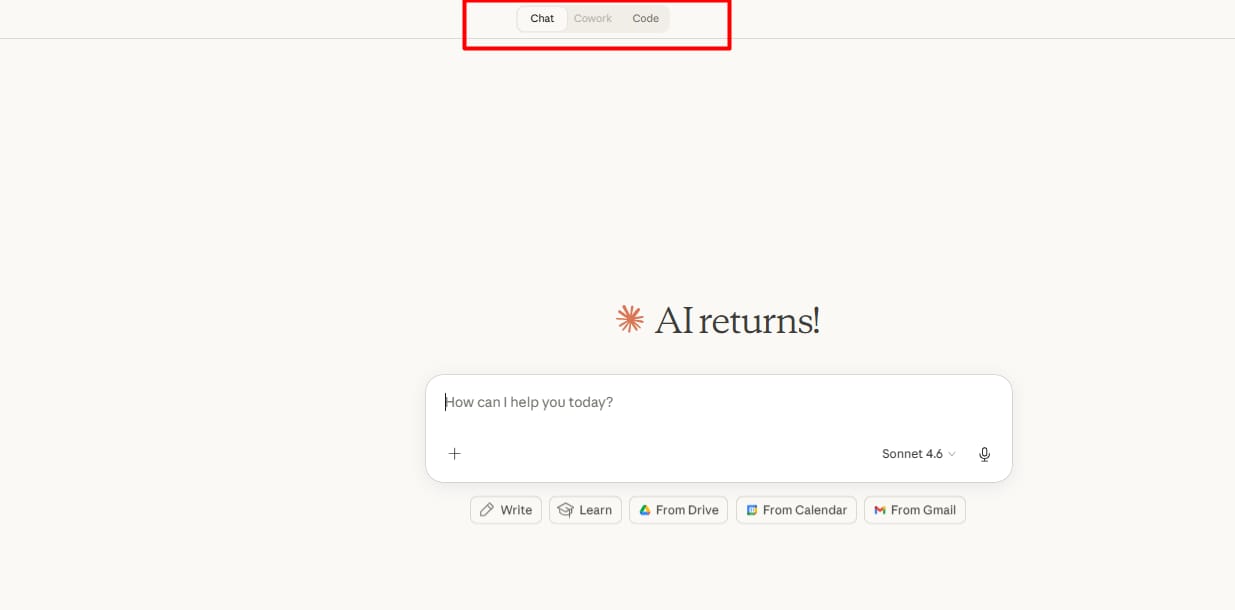
The Claude ecosystem is divided into 3 “rooms,” each optimized for a specific workload intensity and technical depth. Chat is the entry point for rapid, daily requests; Co-Work is the professional workspace for managing long-term projects with persistent memory; and Code is the high-power terminal for software development.
Key takeaways
-
Chat Product: Best for speed and tasks completed in under ten minutes, such as email drafting or quick brainstorming.
-
Co-Work Product: Designed for project management, allowing the AI to read and write directly into specific folders on your computer.
-
Code Product: A technical environment for building apps and automated scripts with direct terminal access.
-
Special Tools: Skills, Connectors, and Plugins can be integrated into these products to expand their functional reach.
Understanding when to switch between these rooms is the first step toward building a high-efficiency digital workflow.
1. Claude Chat For Fast Everyday Tasks
This is the version most people already use. You open Claude, type something, and get an answer. It’s best for:
-
Asking questions
-
Writing emails or content
-
Brainstorming ideas
-
Summarizing documents
-
Quick file analysis
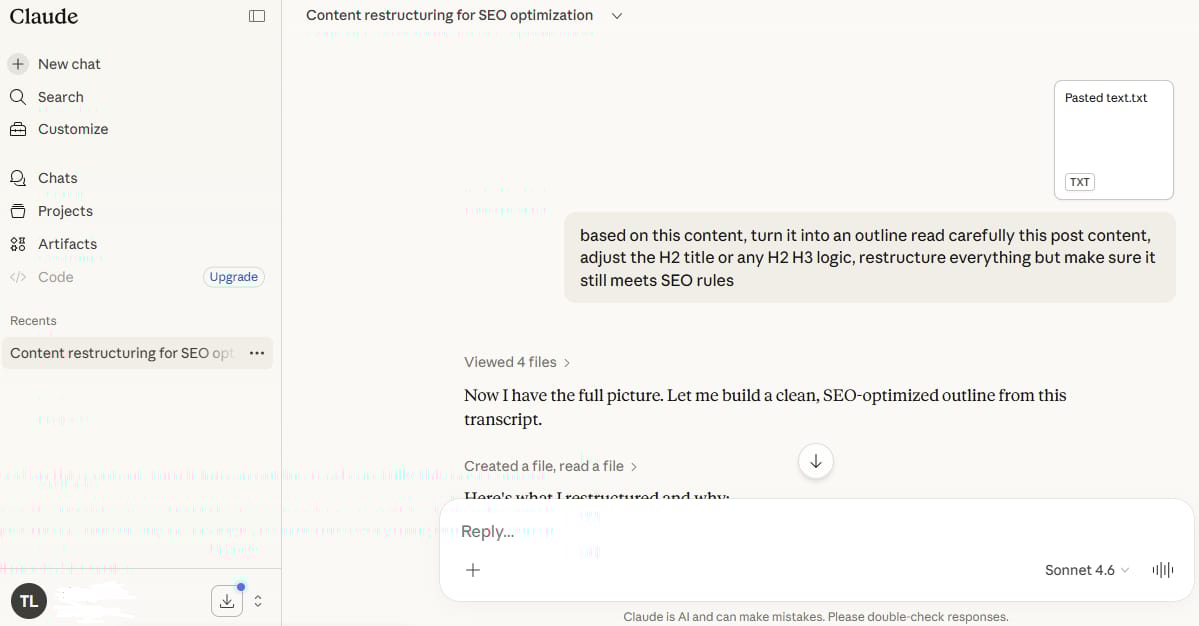
Think of Claude Chat like a fast assistant you talk to in real time. It works best when:
-
The task is simple
-
You can finish it in one session
-
You don’t need to come back to it later
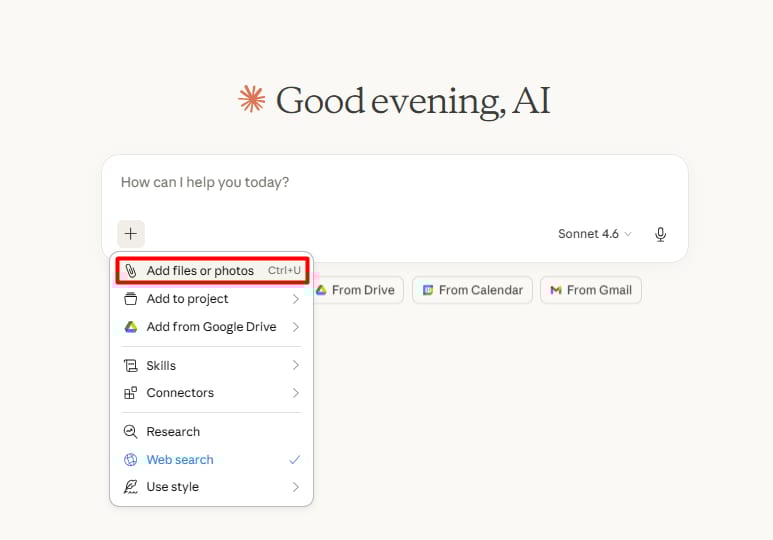
You can upload files, give instructions, and even create projects to keep things organized. Claude can also remember useful context over time and generate artifacts like small tools or visual outputs inside the chat.
2. Claude Co-Work For Bigger Ongoing Projects
Now this is where things start to change. Claude Cowork is what you use when your work doesn’t fit into a single conversation.
Instead of just chatting, you’re now working inside a project workspace, you organize your work into: Projects, Folders, and Sessions. This is built for:
-
Tasks that take multiple steps
-
Work you revisit over time
-
Projects with files, folders, and context
-
Things that need planning, tracking, and iteration
If Claude Chat feels like a quick conversation, Co-Work feels more like working with a system.
3. Claude Code For Software And Automations
Now we move into a different level.
This is the most powerful version, and also the one people underestimate the most. Claude Code is built for when you want Claude to actually work with systems, software, and code, not just generate text. It can:
-
Work with local files on your computer
-
Run terminal commands
-
Help you build apps and tools
-
Create automations that save time
There’s also more control here like permissions, execution steps, and things like hooks that trigger specific actions.
Unlike chat-based outputs, the things you build here can exist and keep working even after you close Claude. We will talk about all of them in detail soon.
If you remember nothing else, remember this:
-
Use Chat when the task is quick and self-contained → connectors + limited skills
-
Use Co-Work when the task is bigger and ongoing → skills + connectors + plugins + scheduled tasks
-
Use Code when the task involves building, systems, or execution → skills + connectors + plugins + hooks + remote control
II. Claude Chat Features: Projects, Memory, And Artifacts
Here’s the easiest way to remember everything:
-
Projects = where your work lives
-
Memory = what Claude remembers about you
-
Artifacts = what Claude creates for you to use
Let me walk you through each one.
1. Projects: Keep Your Work Organized And Focused
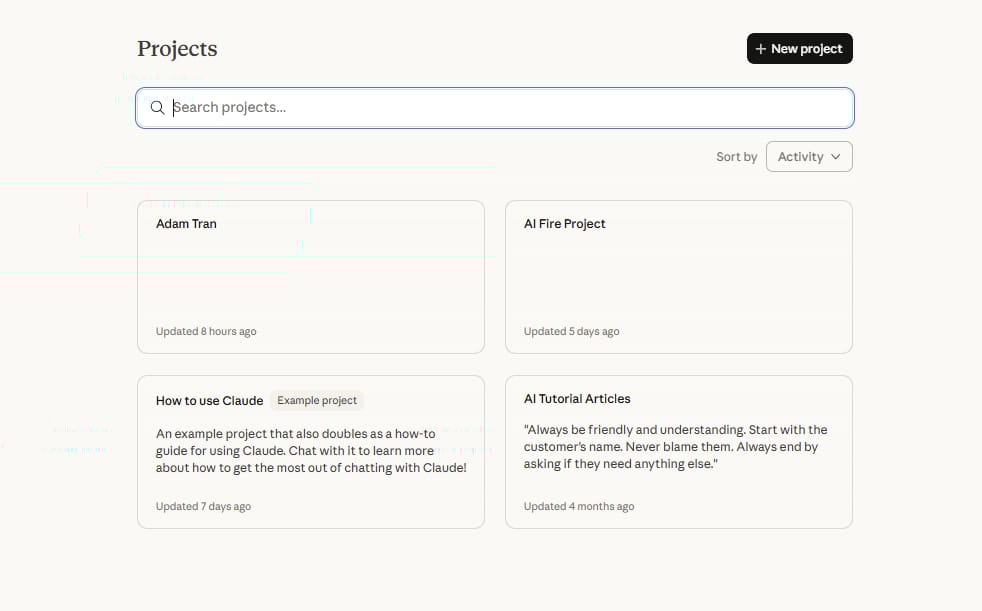
A really useful feature inside Claude Chat is Projects. Think of a project like creating a private room inside Claude. You can upload a set of files and write a set of custom instructions that only apply to conversations you have within that project.
For example, you might have:
-
One project for writing content
-
One project for studying
-
One project for work tasks
Inside each project, you can:
-
Upload files (documents, PDFs, notes)
-
Add custom instructions (how you want Claude to respond)
-
Keep all related conversations in one place
It doesn’t treat every message like a brand new conversation. It understands what you’re working on, what files you’re using, and how you like things done. It’s like custom GPTs.
2. Memory: Why Claude Gets Better Over Time
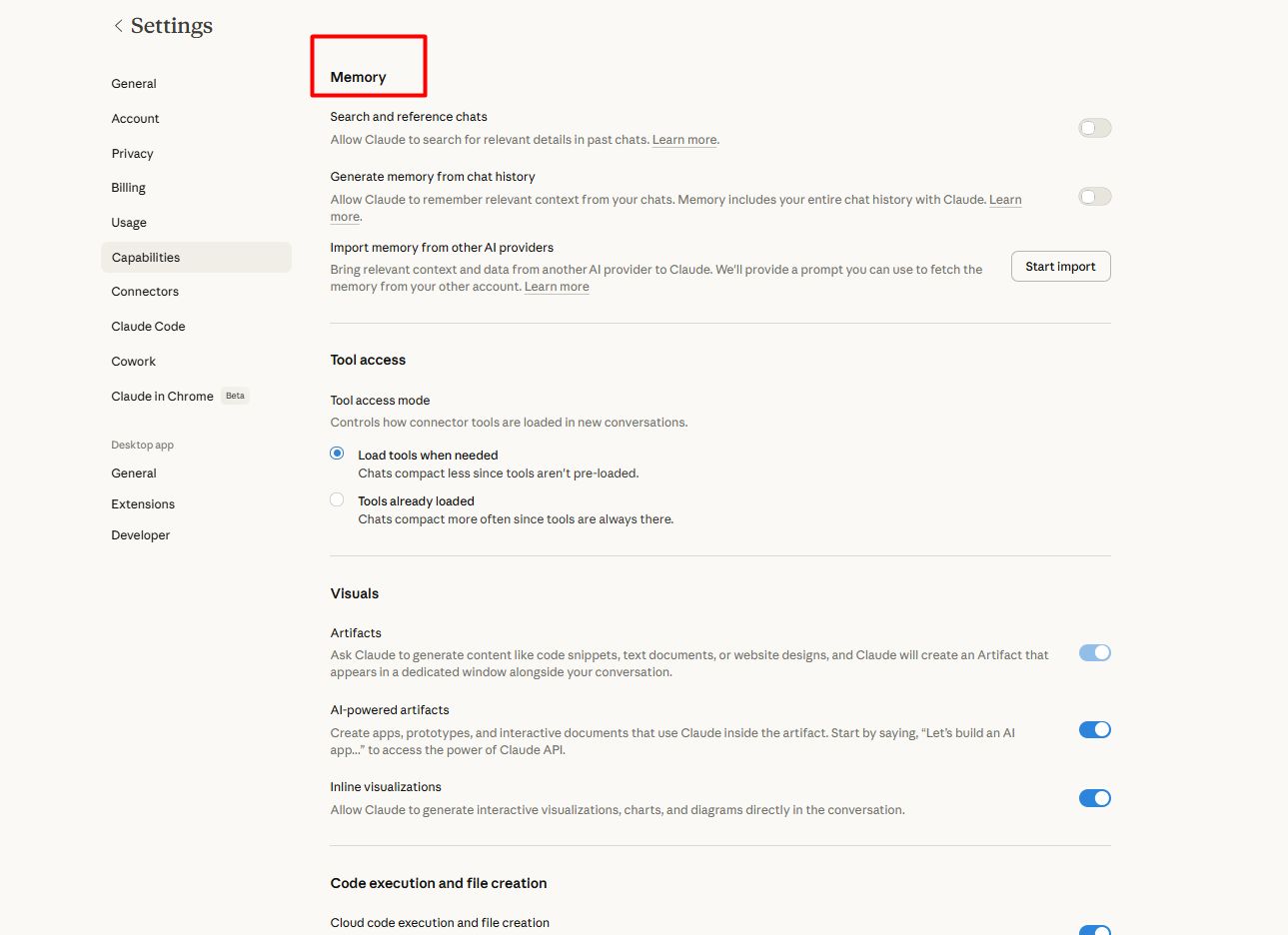
Memory is what allows Claude to remember useful information across conversations. For example, over time Claude can pick up things like:
-
Your writing style
-
Your preferences
-
The kind of tasks you usually do
This makes future responses feel more relevant and less generic. Memory is helpful, but it’s not perfect. You shouldn’t rely on it for important instructions or structured workflows. That’s what Projects are for. Instead:
-
Use Memory for general preferences and patterns
-
Use Projects for anything specific, important, or repeatable
That combination gives you the best results.
3. Artifacts: Turn Outputs Into Usable Tools
Another really fun feature is Artifacts. These are little interactive visual apps that Claude can create right inside your chat window. They can be genuinely useful.
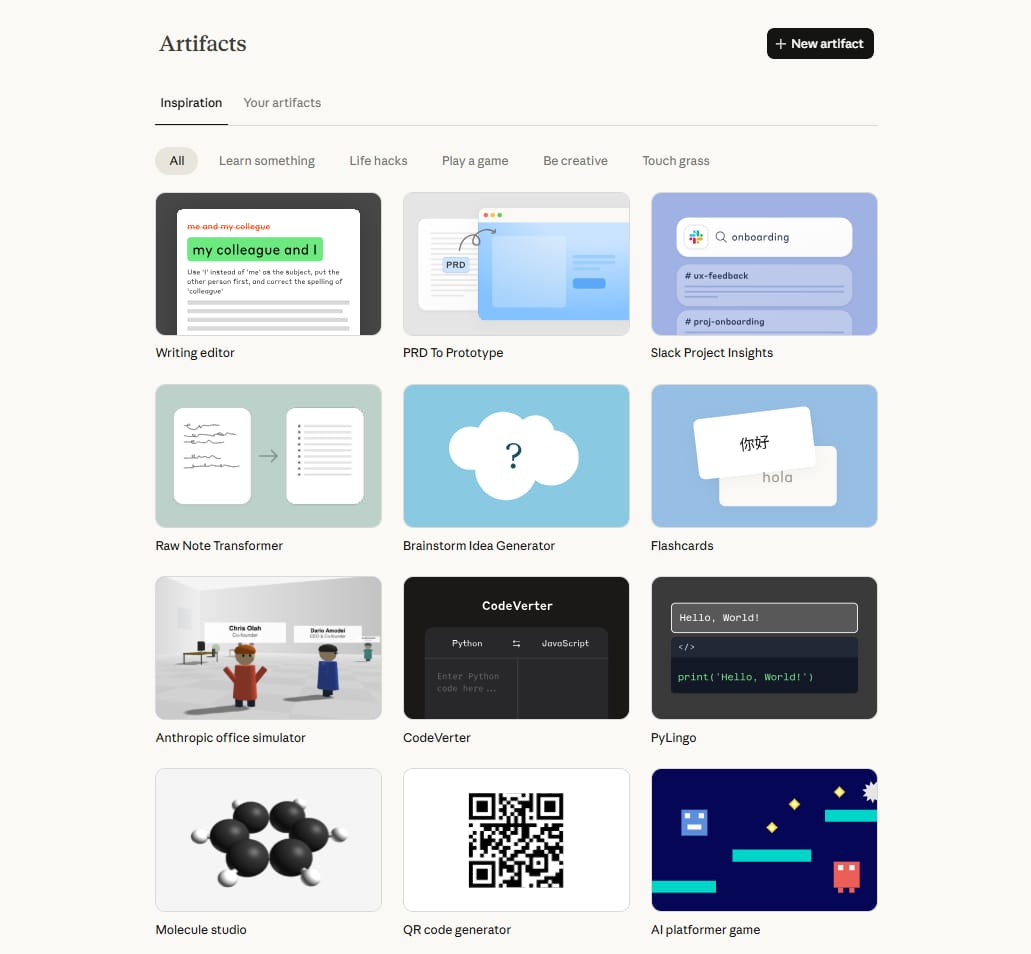
For example:
-
A small app
-
A tool or calculator
-
A formatted document
-
A simple interface (like an email simulator or dashboard)
These appear in a separate panel, not just inside the chat. Artifacts are best for lightweight tools. They’re great for quick prototypes or small utilities.
But if you want something more complex, long-term, or connected to real files and systems, you’ll want to move into Claude Cowork or Claude Code.
Prompt example:
Please act as an expert copywriter.

I am running an advertisement on Facebook to sell a new online course about artificial intelligence.

Please write three different short texts for the advertisement. Make the tone friendly and easy to understand for beginners.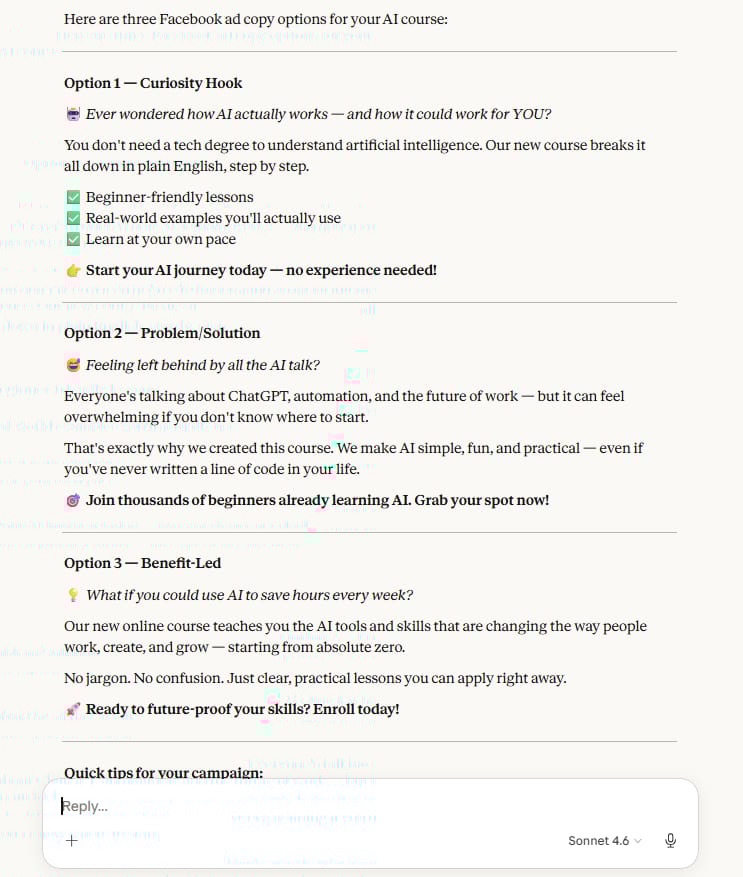
One limitation to know upfront
If you create a skill (more on skills shortly) inside Claude Chat, it only lasts for that session. As soon as you start a new conversation, it’s gone. If you want skills that stick around and work across all your sessions, you’ll want to use CoWork or Code instead. This is a small but important distinction, and we’ll come back to it.
III. Claude CoWork for Multi-Session, Bigger Projects
So what happens when your task can’t be solved in 10 minutes? What if it’s something that takes days, or weeks, with multiple rounds of work and check-ins along the way? That’s exactly what Claude CoWork is built for.
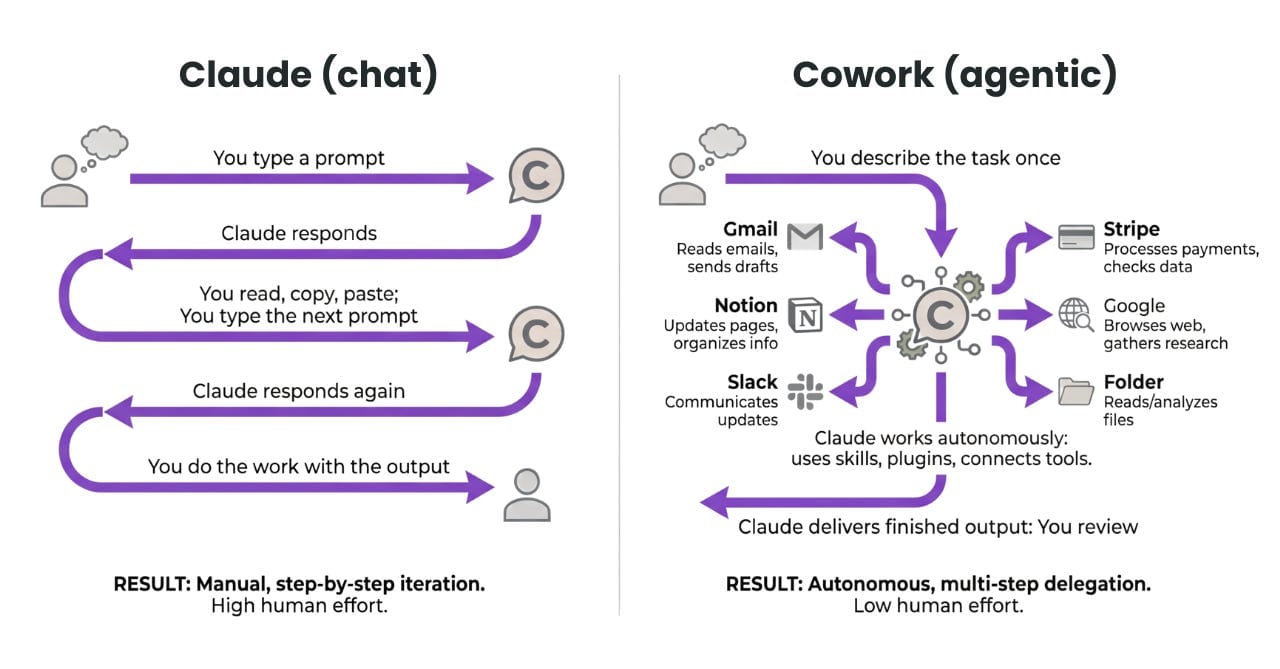
CoWork is accessed through the Claude desktop app (you can’t use it in the browser), and it’s designed for the kind of work where you need to keep coming back.
1. Working From a Folder on Your Computer
Unlike Claude Chat, CoWork actually has access to your computer’s file system. When you start a project in CoWork, the first thing you do is assign it a dedicated folder on your machine.
→ This is where Claude will read from and write to: saving files, creating documents, updating trackers, all right there on your computer.
And here’s a really important tip: create one folder per project. Don’t just make a single “CoWork” folder and dump everything into it. It gets messy fast.

Separate folders keep context clean, and it makes a huge difference when you come back to a project after a few days.
2. The claude.md File – Your Project’s Memory
CoWork sessions don’t persist on their own. When you close your laptop and come back the next day, that session is gone. So how does Claude remember where you left off?
The answer is the claude.md file. As you work through a session, Claude continuously writes important instructions, decisions, and context into this file inside your project folder.
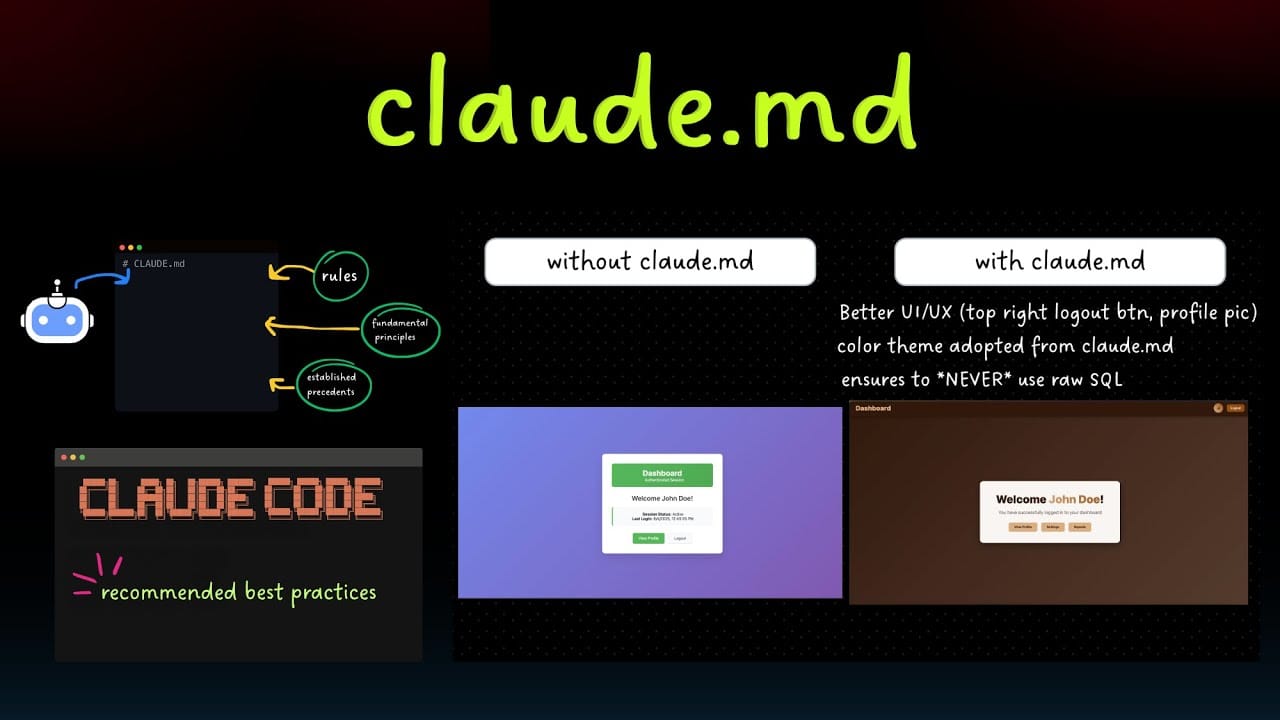
The next time you start a session in that same folder, Claude reads the file and picks up right where you left off. It’s basically your project’s long-term memory, stored as a file on your computer.
3. Scheduled Tasks: Set it and Forget it
One of the most powerful features in CoWork is the ability to schedule recurring tasks.
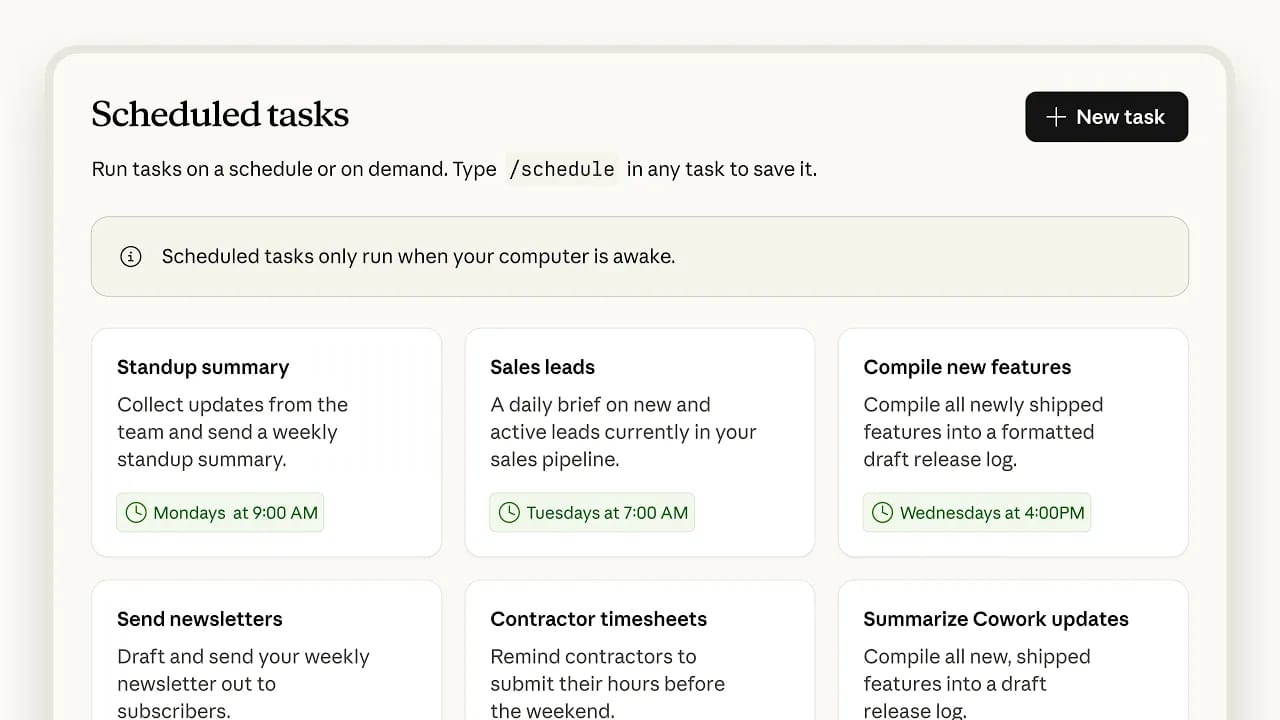
While you’re inside a session, you can ask Claude to send you a reminder at a specific time to prompt you to fill in your tracker, review your goals, or take any action you’ve been meaning to take.
You can also create standalone scheduled tasks that have nothing to do with an active project.
IV. Claude Code for Building Software and Automations
Claude Code runs on the same underlying engine as CoWork, but it’s been specifically optimized for one thing: writing, running, and deploying code. If CoWork is your project manager, Claude Code is your developer.
Just like CoWork, Claude Code has access to your local files. But it goes one step further, it also has direct access to your terminal. That means it’s actually running it, testing it, and installing it on your computer.
1. What You Can Actually Build
The apps and tools that Claude Code creates aren’t temporary.
Unlike Artifacts in Claude Chat that only exist inside the conversation, the things Claude Code builds actually live on your computer. You can have Claude build a small app, install it in your Mac dock, or add a widget to your menu bar.
→ These are real, persistent tools.
2. Which Model to Use for Coding
For most coding tasks, Sonnet 4.6 is the sweet spot, it’s fast, accurate, and handles complexity well. If you’re working on something particularly demanding, Opus 4.6 is the more powerful option.
For lighter tasks where token usage matters, Haiku 4.5 is a solid choice.
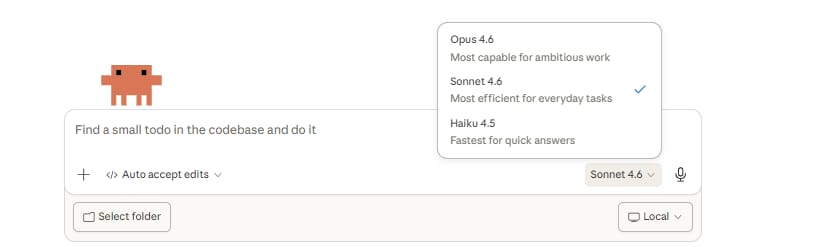
One unique advantage of Claude Code over the other products: you can actually switch models in the middle of a session.
With Chat and CoWork, if you want to change the model, you have to start a completely new session. In Code, you can swap on the fly.
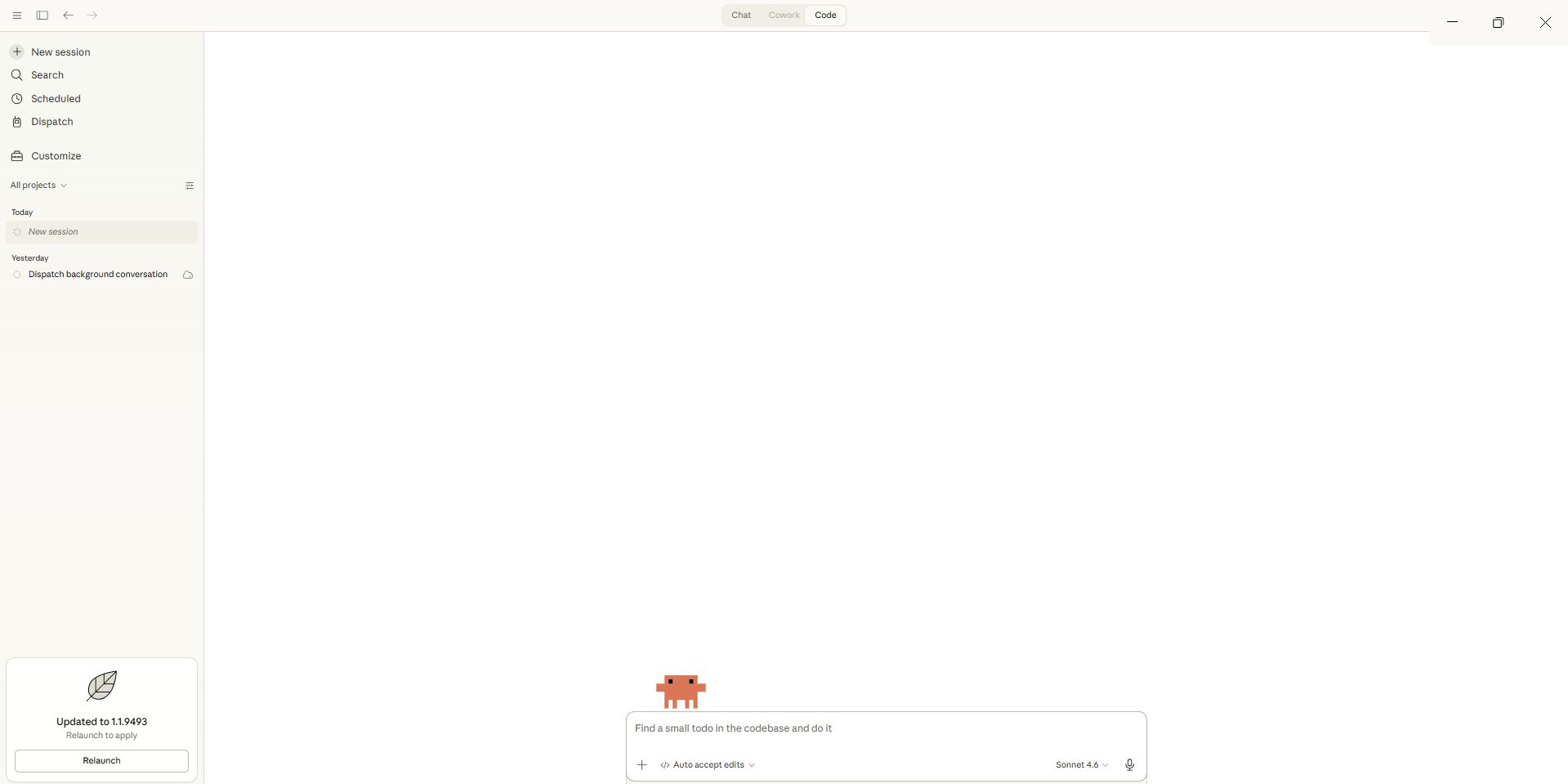
3. Permission Settings
By default, Claude Code will ask your permission before running commands, reading files, or doing anything significant.
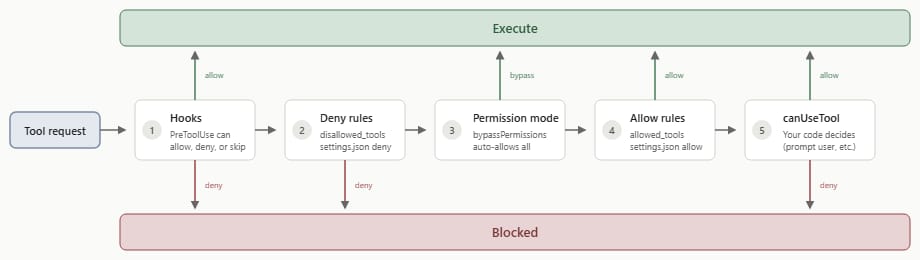
When you’re first getting started, this is a great way to actually understand what Claude is doing under the hood. Stay close to it. Watch what it reads and writes.
Over time, if you’re comfortable, you can switch on the bypass permission setting. With this enabled, Claude runs autonomously. It’s faster and smoother, but it does come with risk.
→ Claude could delete or overwrite files you didn’t intend it to touch. So use this setting when you know what you’re doing and have a folder structure that keeps things organized.
If Claude is building you something with a visual interface, you can click the preview button to open a demo browser right inside Claude Code and see the app as it’s being built.
V. Advanced Features: Skills, Connectors, and Plugins
Now that you know the 3 products, let’s talk about the features that make them genuinely powerful. Think of it like this:
-
Skills = how Claude knows what to do
-
Connectors = what Claude can access
-
Plugins = how Claude executes full workflows across tools
1. Claude Skills
A skill is a reusable way to get a specific result. Instead of writing the same prompt over and over again, you package it once, and Claude can use it anytime.
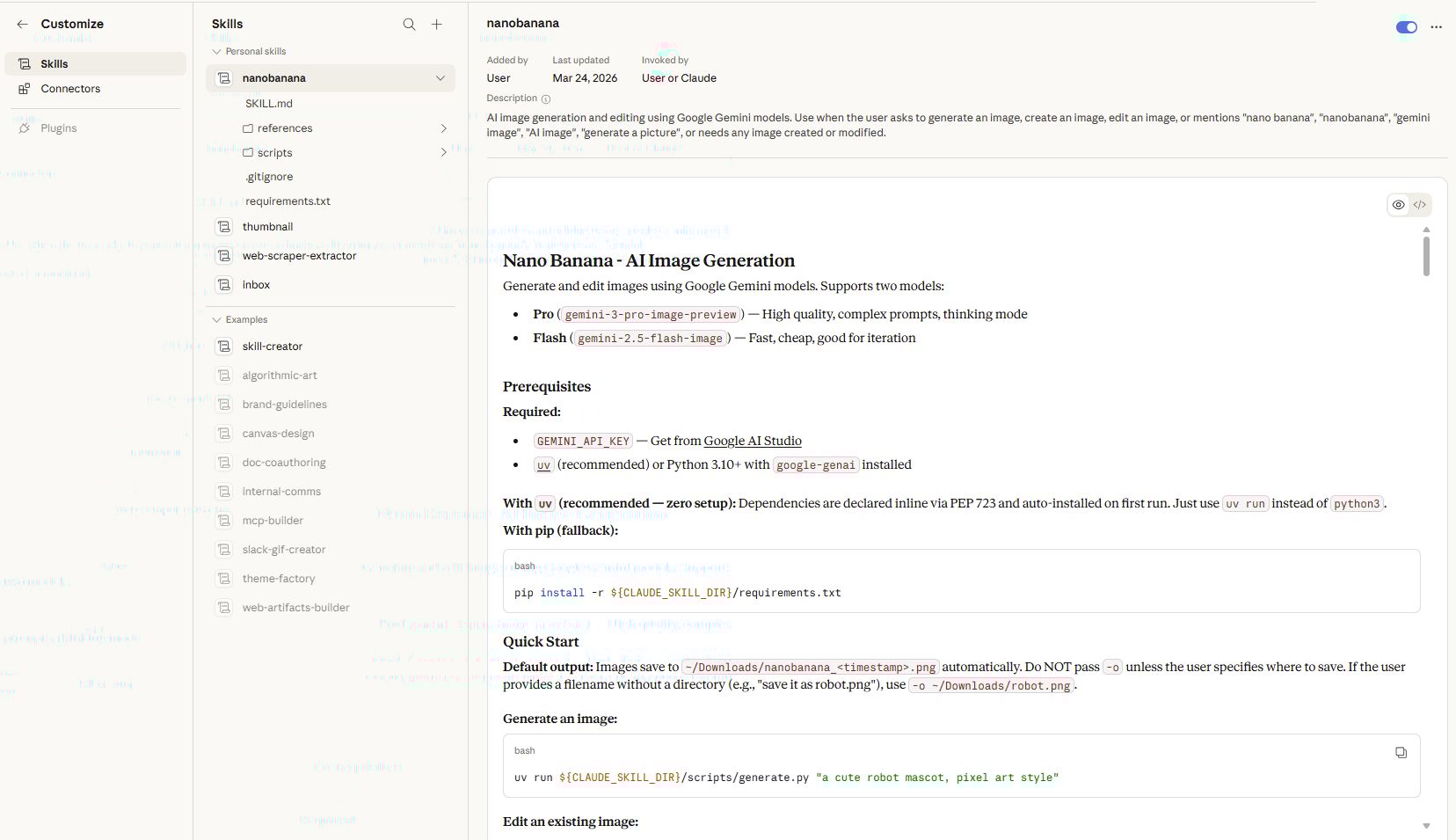
Every skill has two parts. First, it has a short description. This tells the system what the skill does. Second, it has a bundle of resources. These are the detailed, step-by-step instructions. A skill can include:
-
Instructions
-
Templates
-
Code
-
Files or references
-
Even logic for multi-step tasks
👉 Creating your own skill:
Skills are not always active. Claude only pulls a skill into context when it’s relevant. You have 3 ways to get a skill.
-
Find pre-built ones on the internet and download them
-
Use the built-in tool called the Skill Creator.
-
Build one from a normal conversation. This is my favorite way.
You simply have a chat and ask the machine to do a few steps. When the result is perfect, you type, “Please package these exact steps into a reusable skill.”
Every Monday morning, I need to do the same task.

I will give you my weekly meeting notes.

Step one: read the notes and list the main decisions.

Step two: list the action items for each person.

Step three: format this into a clean update that I can paste into Slack.

Please save this process as a skill called 'Weekly Meeting Summary'.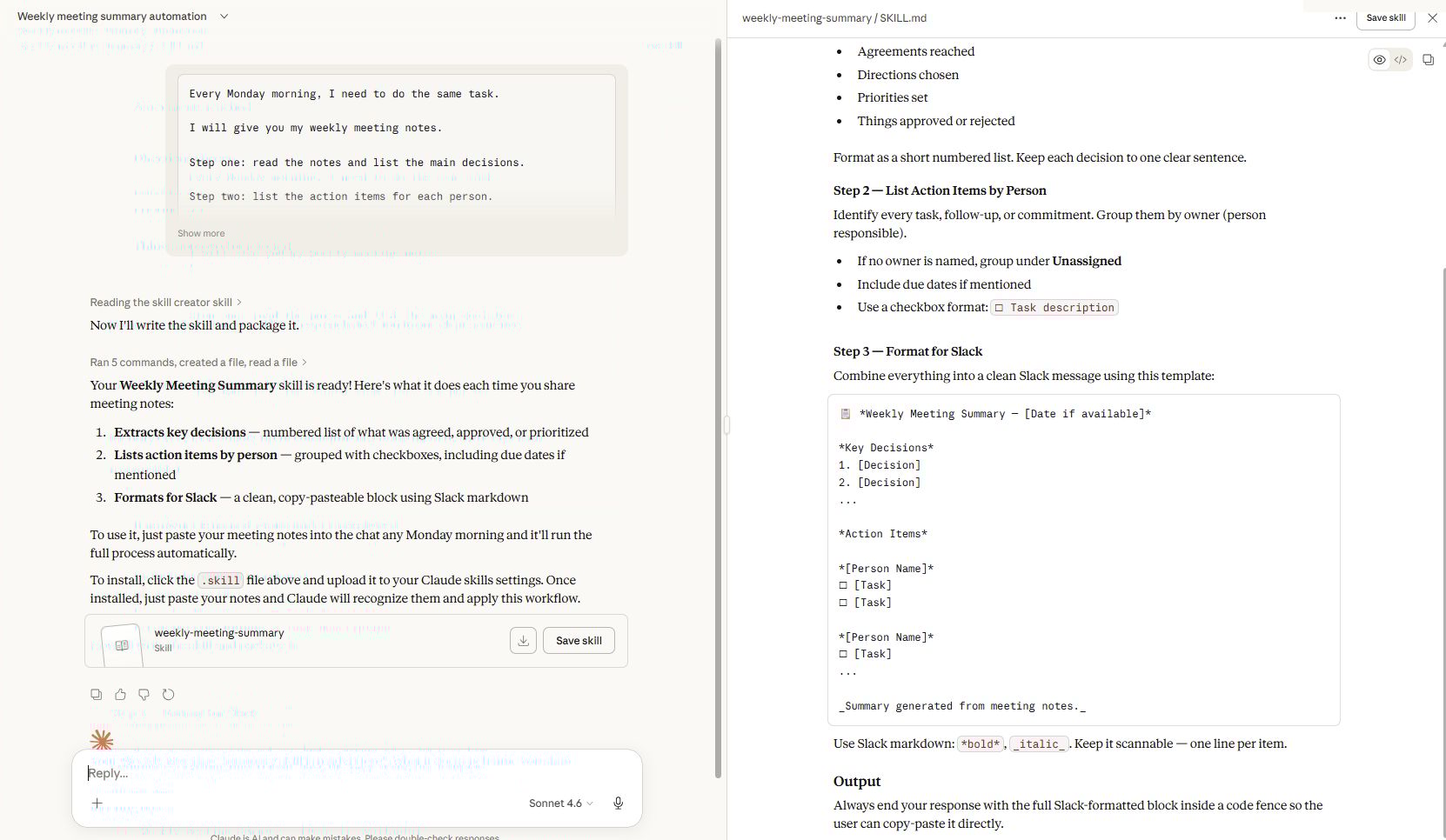
If you make a skill inside a normal chat session, it disappears when you close the window. Skills are much more powerful in:
-
Cowork (for ongoing projects)
-
Code (for structured workflows and automation)
In Chat, they exist, but they’re more limited.
2. Claude Connectors
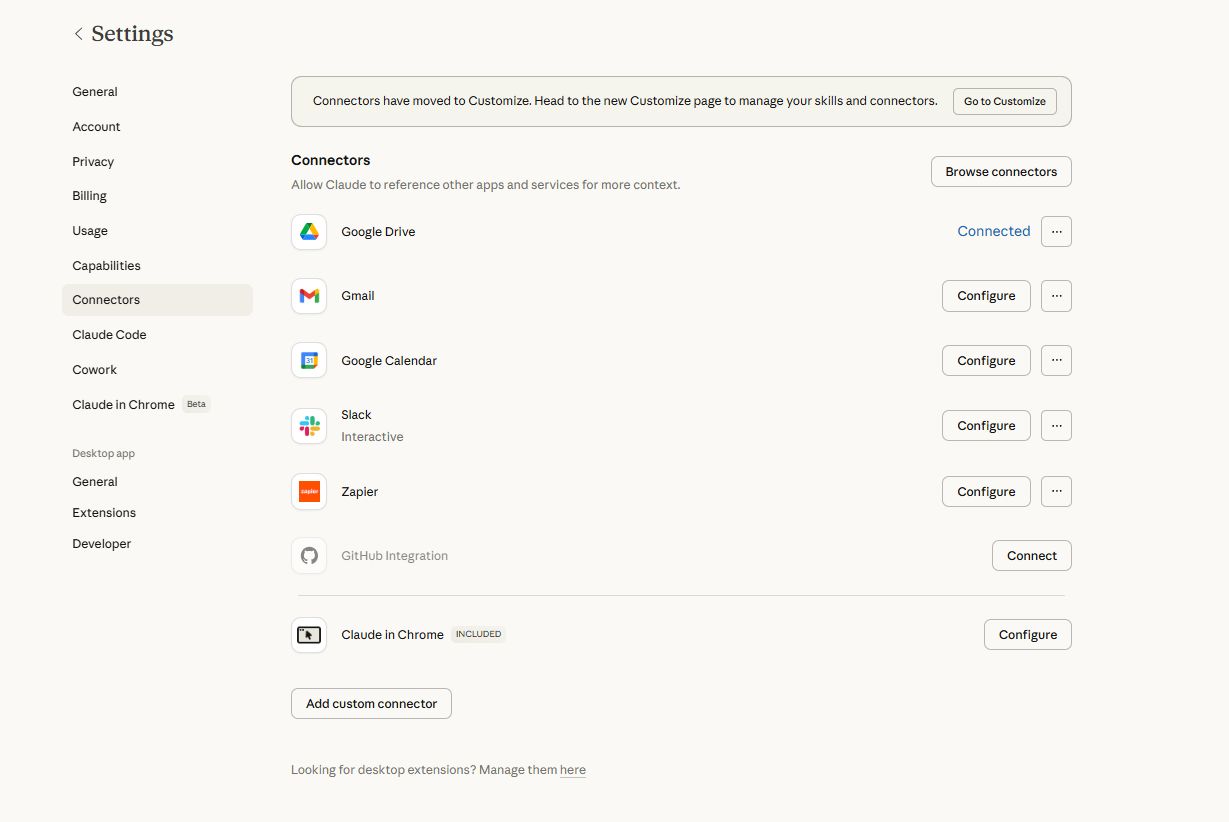
A Connector is how you link the AI to the other tools you use for your job. When you connect a tool, the machine gets the ability to take actions inside that tool.
Under the hood: MCP connections
Behind every connector is something called an MCP connection. You don’t need to know the technical details, but what it means is that when you connect a tool, you typically get a full suite of actions for that tool. These come in 2 flavors:
-
A read action means the machine pulls information out. For example, it can read your unread messages.
-
A write action means the machine puts information in. For example, it can create a new task on your to-do list.
For example, connecting Gmail might give you read actions like “list unread emails” or “search inbox” and write actions like “send email” or “create draft.”
Connectors don’t just run freely. You control what Claude is allowed to do. There are usually 3 levels:
-
Always allow → runs automatically
-
Ask for approval → you confirm each action
-
Blocked → no access
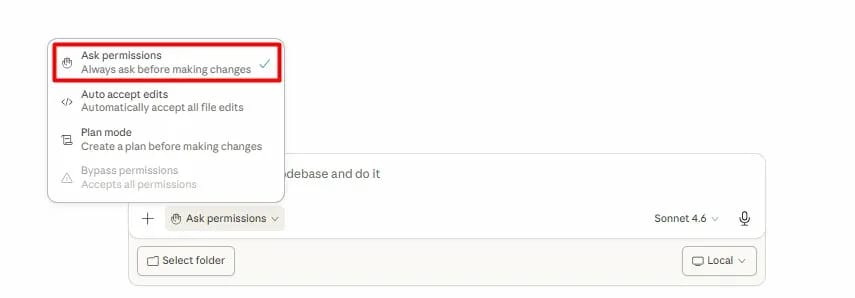
This matters because once you start automating tasks, you want control over what happens behind the scenes.
3. Claude Plugins
A Plugin is a big package. It bundles many skills and many connectors together into one group. A plugin combines:
-
Skills (what to do)
-
Connectors (what it can access)
And turns them into a full workflow. Inside a plugin, you get slash commands. These are very fast shortcuts. You do not have to type a long explanation. You just type a slash symbol / in your Cowork chat, choose the skill you want, and press enter.
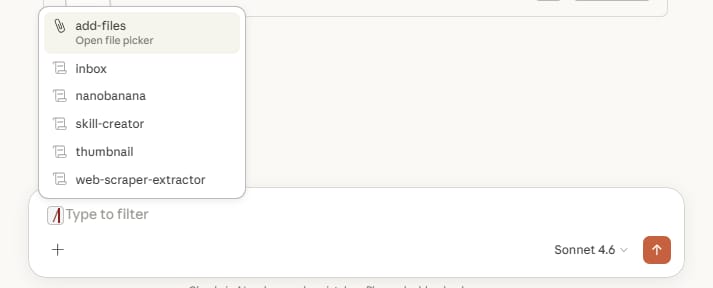
For example, if you have the skill-creator skill installed, you can type /skill-creator. Claude will immediately start asking you questions to build a new skill of your choice.
You answer the questions, and it will automatically generate a complete, ready-to-use skill. Most people never discover this shortcut, but it saves a lot of time.
4. Which Features Are Available in Which Product?
This part is important because not everything works everywhere.
-
Claude Chat
-
Basic connectors
-
Limited skill usage
-
No full workflow automation
-
-
Claude Cowork
-
Full skills
-
Connectors
-
Plugins
-
Scheduled and repeatable tasks
-
-
Claude Code
-
Everything in Cowork
-
Plus deeper control (hooks, scripts, system-level actions)
-
So if you want the full power of plugins and persistent skills, CoWork and Code are the places to be.
VI. 2 Advanced Features Only Available in Claude Code
Claude Code has 2 unique capabilities that don’t exist anywhere else in the Claude ecosystem: hooks and remote control. Both are worth understanding if you plan to use Claude Code for anything serious.
1. Hooks: Deterministic, Hard-Coded Actions
Most of what Claude does is probabilistic, it reads instructions and, like any LLM, interprets them intelligently. 99 times out of 100, it’ll follow a skill exactly as intended.
But what if you need it to follow something 100 out of 100 times, no exceptions?
That’s what hooks are for. A hook is a deterministic, hard-coded script that executes automatically at specific points in the coding lifecycle. You set it once, and it always fires.
The trigger points you can hook into include:
-
when a new session starts
-
before a tool is used
-
after a tool is used
-
when a session ends
So for example, you could set a hook that sends you a notification every time Claude uses a tool during a coding session, so you always have a log of exactly what it touched, without having to watch the whole thing play out.
Hooks are especially useful for safety and oversight. If you’re running Claude Code in bypass permission mode (where it has full autonomy), hooks are a great way to keep a tight record of what’s happening.
2. Remote Control: Manage Claude Code from Your Phone
Remote control is a relatively recent addition, and it’s genuinely cool. It lets you control a Claude Code session on your desktop from your mobile phone using the Claude app.
Here’s the practical scenario: you kick off a complex coding project on your computer, then head out for a walk. While you’re away from your desk, Claude is working through the code, installing dependencies, running tests.
You can check in on the session from your phone, see what it’s doing, and step in to unblock it if it gets stuck on something that needs your input.
A great feature here is that you can change the model right in the middle of a conversation. You do not have to start over.
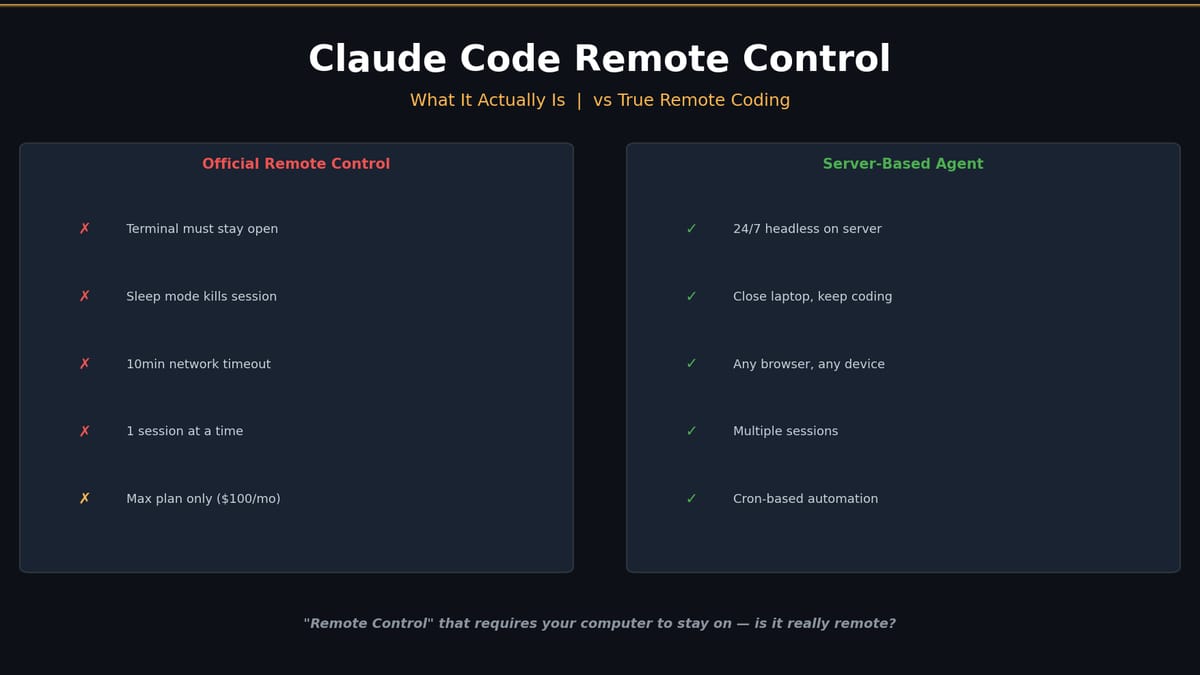
The “Remote Control” in Claude Code isn’t truly remote in the way most people imagine. As you can see in the image, the official version still has some real limitations:
-
Your terminal has to stay open the whole time
-
If your laptop goes to sleep, the session dies
-
There’s a 10-minute network timeout
-
You can only run one session at a time
-
It’s only available on the Max plan ($100/mo)
If you need something more powerful, the better option is a Server-Based Agent, which runs 24/7 on a server, works across any device and browser, supports multiple sessions at once, and doesn’t depend on your computer staying on.
So remote control is still useful for quick check-ins, but it’s good to know exactly what you’re working with before you rely on it.
VII. Other Places to Use Claude Besides The Desktop App
Beyond the desktop app, Claude is showing up in some genuinely useful places. Here are the ones worth knowing about.
1. Claude in Chrome (Browser Extension)
The Chrome extension turns Claude into a browsing agent. Once you’ve installed it, Claude can navigate the web on your behalf directly in the browser.
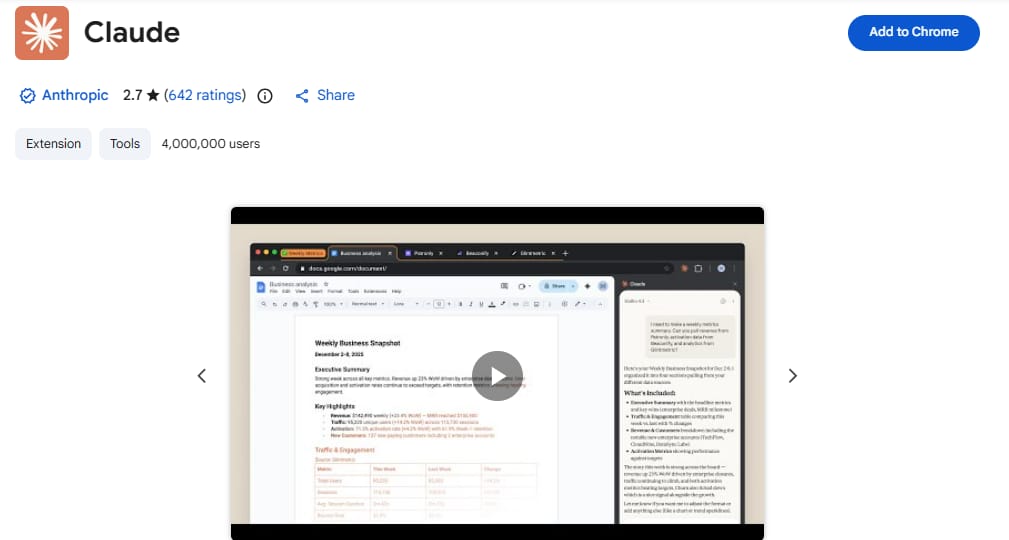
There’s also a particularly interesting feature called “Teach Claude.” If there’s a workflow you do regularly in the browser, you can walk through it while Claude watches and records what you’re doing.
It then commits that workflow to memory as a skill, essentially creating a browser automation from a single live demonstration.
2. Claude in Microsoft Excel
For anyone who works with data, this might be the most immediately useful place to use Claude outside of the desktop app.
Claude inside Excel connects directly to your spreadsheet and works with your data using actual Excel formulas and expressions.
Claude Opus 4.6 and Sonnet 4.6 both support the full range of Excel capabilities, including pivot tables, charts, conditional formatting, and financial forecasting models. If you’re building or analyzing complex datasets, this is a genuinely powerful combination.
Prompt example for Excel:
Please look at this column of my daily expenses for the last month.

Write an Excel formula that adds up all the expenses, but only if the category says 'Marketing'.

Then, create a simple pie chart showing the percentage of spending for all categories.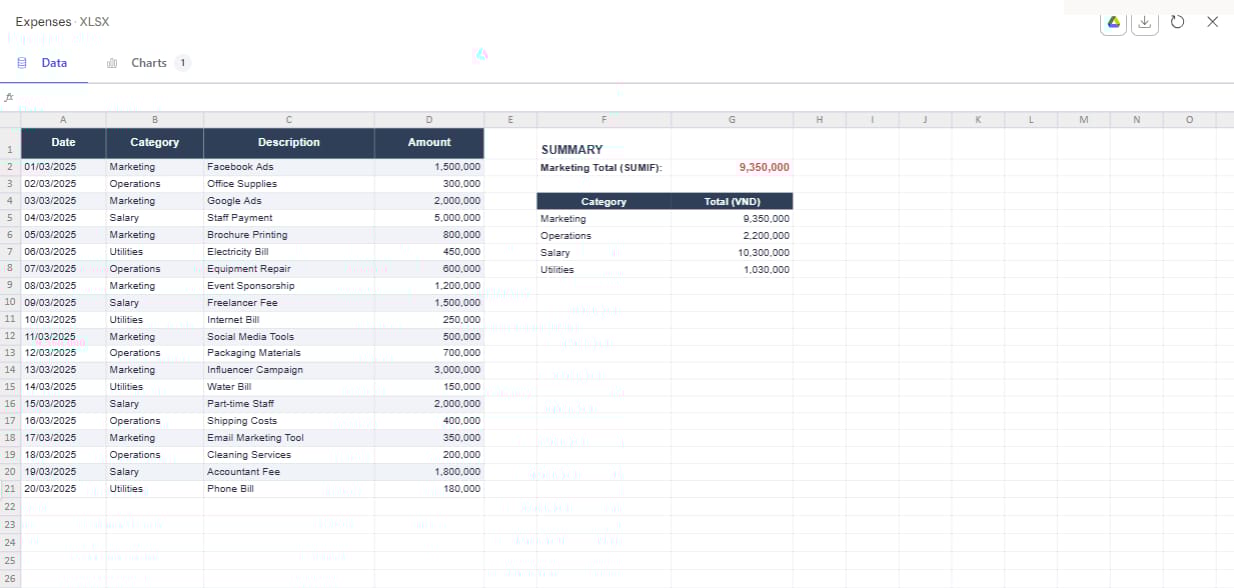
3. Claude on Mobile
The Claude mobile app gives you access to Claude on the go, with one interesting addition: it can access the files and resources on your phone.
That includes things like your health data. You could, for example, pull your health metrics into Claude, analyze trends, and even ask it to build you a simple tool that helps you act on that data.
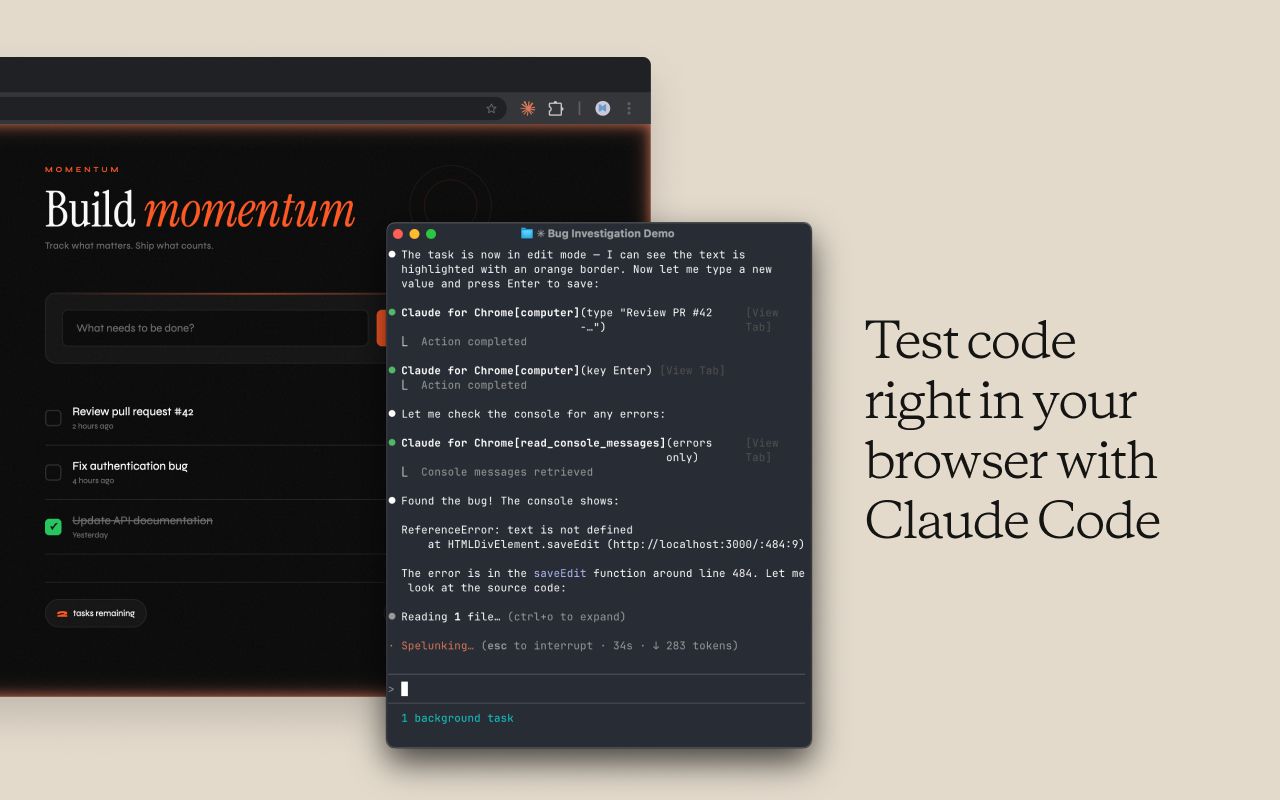
4. Claude Code in Terminal and Third-Party IDEs
If you’re a developer, you’ll likely outgrow the desktop app interface for Claude Code fairly quickly. The 2 main alternatives are using it inside a third-party IDE like Cursor, or running it directly in a terminal.
Cursor is a popular AI-powered coding tool, and using Claude Code inside it gives you better visual control over your files, your project structure, and the app you’re building.
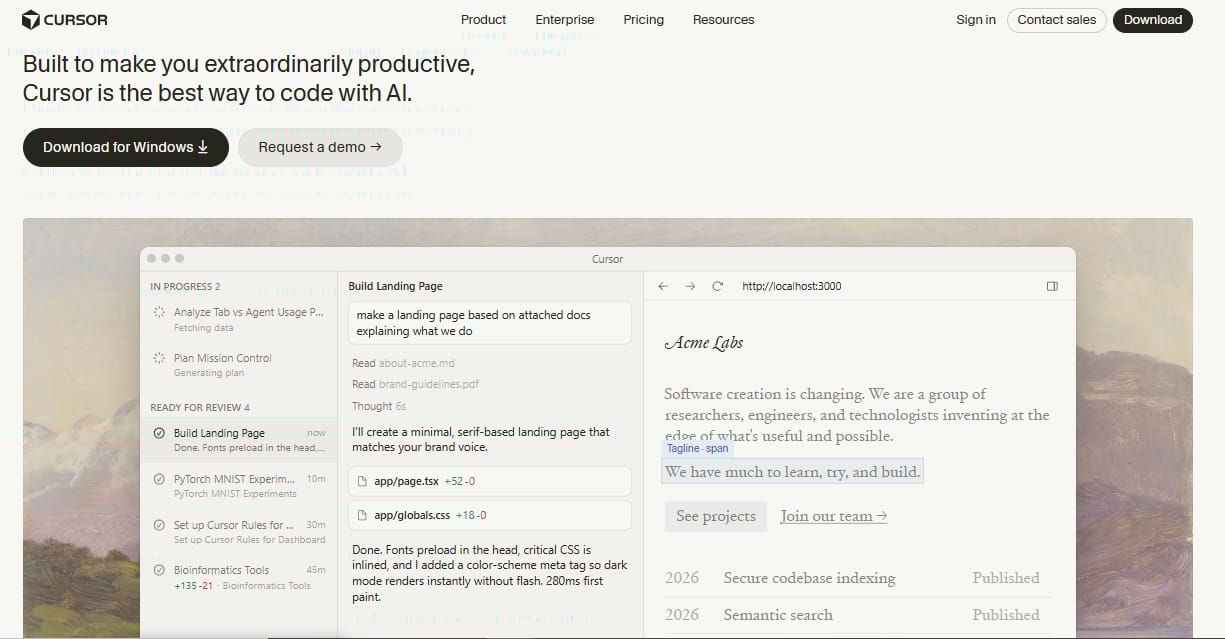
The terminal, on the other hand, strips away all the visuals, it’s just plain text and commands. But the functionality is identical, and most experienced developers end up defaulting to the terminal because of how fast and direct it is.
Conclusion
To be honest with you, in the past, I only used Claude for simple questions. But after months of trying and testing things myself, I realize its real power is creating a system that does your work automatically.
The more detailed instructions you give, the more Claude becomes a smart partner that understands you. It will save you hours every single day so you can focus on more important things.
If you are interested in other topics and how AI is transforming different aspects of our lives or even in making money using AI with more detailed, step-by-step guidance, you can find our other articles here:
-
Forget Film School! THIS Is The Future Of AI Video Creation!*
-
5 AI Habits You Must Build Now to Decide Who Wins & Who Falls Behind in 2026
-
n8n Wizard Secrets Pt 2: 12 Tricks For EPIC Automation Workflow!*
-
8 AI Tools That Will Completely Change How You Work (Not Just Hype)
-
Business Strategy: If We Started A Business in 2026, We’d Ignore all the Noise & Do This Instead
*indicates a premium content, if any
Leave a Reply