
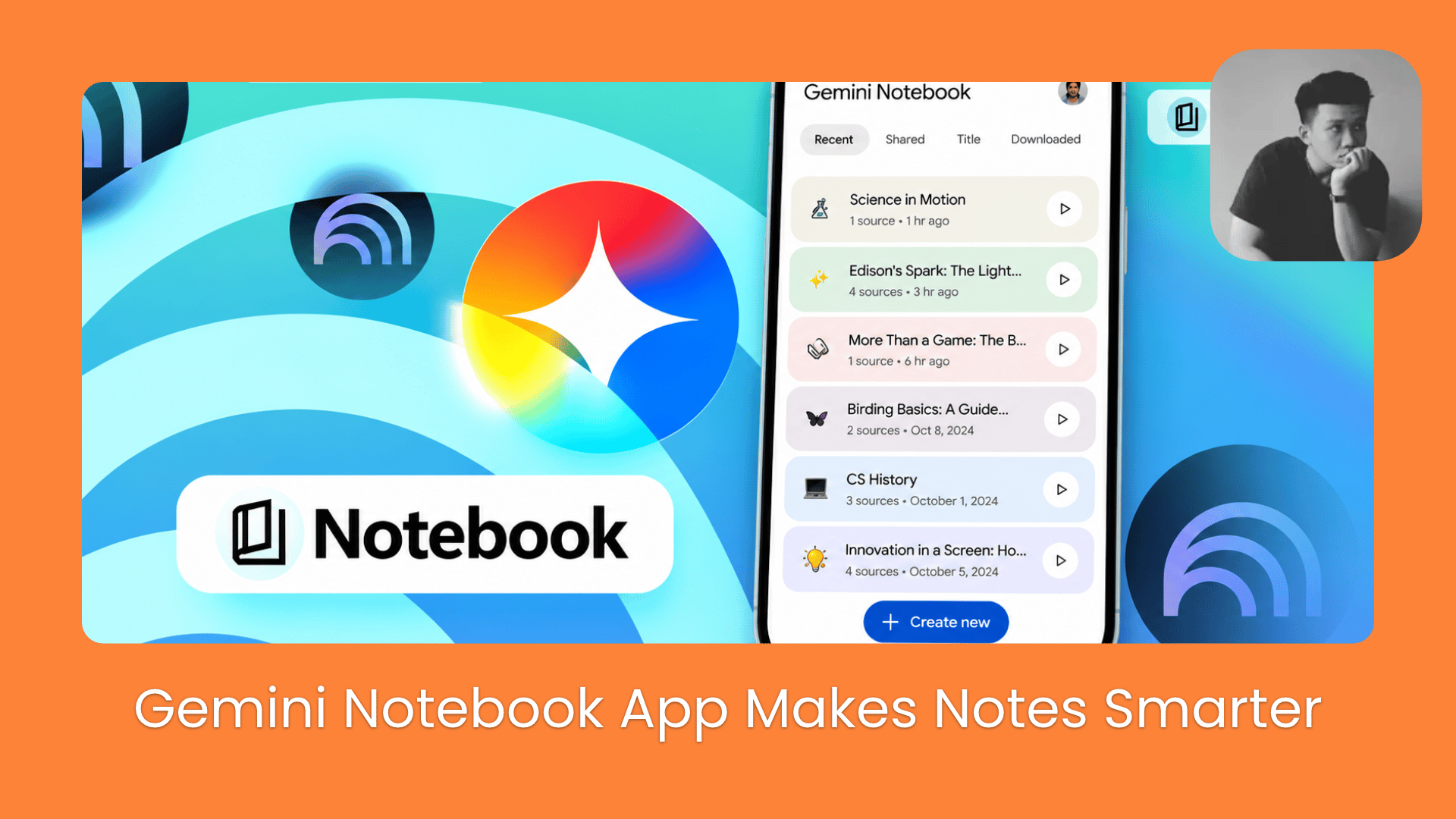
Google’s most underrated AI tools is now WAY more powerful. It lets you talk to your research, and turn complex information into easy-to-follow learning materials, all from your phone.. .
TL;DR: The Gemini Notebook app helps you research, organize, and learn from your own sources. You can ask questions, record audio, create quizzes, and generate short videos from uploaded materials.
Google’s latest update makes it easier to work with documents through voice conversations and built-in recording. You can ask follow-up questions and check answers against source citations.
Fast Research helps you discover relevant information, while flashcards and quizzes let you test your understanding. Interactive Learning Overviews and short videos offer different ways to review complex topics. What’s covered:
How to set it up (free vs. paid, and yes, it matters for some features)
The 5 core features with prompts you can copy
What’s genuinely new in 2026 that other guides often miss
Best use cases for students, office workers, and creators
The honest limitations you should know
Table of Contents
Introduction
With the latest Gemini Notebook app update, you can talk directly to your notes, record lectures, and turn your study materials into quizzes or short videos right from your phone.
I’ll walk you through the new features, how to use them, and a few limitations you should know before getting started.
Google shipped a lot of updates throughout 2026. We cover both the core features and everything added this year, so you’re not missing anything.
Gemini Notebook has 4 tiers, and some of the coolest features are gated:
|
Plan |
Notebooks |
Sources per notebook |
Price (US) |
|---|---|---|---|
|
Free |
100 |
50 |
$0 |
|
Google AI Plus |
200 |
100 |
~$4.99/month |
|
Google AI Pro |
500 |
300 |
$19.99/month |
|
Google AI Ultra |
500 |
500–600 |
$99.99–$199.99/month |
(Prices are US figures and vary by region and promotion, so check current pricing before you subscribe. The Ultra range reflects its 20TB and 30TB storage tiers, which is also why the source cap runs 500 to 600.)
Features locked to paid plans (as of November 2026):
-
Real-time voice conversations: Ultra first, rolling out to Pro
-
Cloud computer / code execution: Ultra and Workspace Business, Pro web users getting it soon
-
Cinematic Video Overviews: Ultra first, then Pro
-
Interactive Learning Overviews: check your account
The free plan is still genuinely useful. You get 50 sources per notebook, standard chat, Audio Overviews, flashcards, quizzes, and Short Video Overviews. But if you try a feature and it’s not showing up, it’s almost certainly a plan or region thing.
Tip: Google rolls features out gradually, so even on the right plan you might wait a few weeks. Keep the app updated.
I. How to Set Up the Gemini Notebook App
You only need a Google account and a few documents to get started with the Gemini Notebook app.
For this guide, I’ll use the desktop version so you can see everything clearly. The mobile screen is small, and I don’t want you squinting at buttons.
The layouts are similar enough that you can follow along on your phone, and I’ll flag anything that’s mobile-only.
Step 1: Download and Set Up Gemini Notebook
On your phone: download from the Google Play Store or the App Store. Search “Gemini Notebook.”
On laptop: go to notebook.google.com and sign in with your Google account.

If you use the Gemini app, your notebooks now sync automatically between the Gemini app and the standalone Gemini Notebook site. You can start a notebook in one and pick it up in the other.
Step 2: Create Your First Notebook
Hit New Notebook, give it a name that matches what you’re researching, and start adding sources. I’d recommend keeping a separate notebook for each project so things don’t get tangled up.

Next, add different types of sources, including:
-
PDFs and Word documents
-
Websites and YouTube videos
-
Audio files and copied text
-
Google Docs, Slides, and Sheets (connected directly from Drive)
-
EPUB ebooks (new in March 2026)
-
Google Play Books ebooks (new in August 2026)
Say you’ve uploaded a 50-page report. You don’t want to read every page just to find a few useful insights. Paste this into the chat box and replace [YOUR TOPIC OR GOAL] with whatever you’re interested in.
Based only on my uploaded document, summarize the 5 most important takeaways related to [YOUR TOPIC OR GOAL].

For each takeaway:
- Explain it in simple language that a beginner can understand.
- Give me a practical example.
- Include the relevant source citation or page number.

If the document doesn't provide enough information, tell me what's missing instead of guessing.
For this example, I’ve created a notebook called “AI 2027: Predictions Versus Reality” with 10 sources.
I asked Gemini Notebook to compare AI predictions with real-world progress. It’ll pull out the key findings, add practical examples, and include numbered citations so you can verify the original sources yourself.

If something catches your attention, you can ask follow-up questions without going through all 10 sources yourself.
Black Friday 2026 is RUNNING with 30% OFF!!!!
Transform your AI skills with the AI Fire Academy Premium Plan – FREE for 14 days! Gain instant access to 700+ AI workflows, advanced tutorials, exclusive case studies and unbeatable discounts. No risks, cancel anytime.
Start Your Free Trial Today >>
II. 5 New Gemini Notebook Features & How to Use Them
Here are the main things you’ll actually use day to day, plus the prompts that make them work better. I’ll keep using our “AI 2027: Predictions Versus Reality” notebook so you can follow along.
-
Voice Chat: Talk to your sources and ask follow-up questions.
-
Audio Recorder: Record lectures or meetings and summarize them.
-
Fast Research: Find and import relevant sources.
-
Flashcards & Quizzes: Test your knowledge using uploaded materials.
-
Learning Overviews: Turn sources into interactive reports and short videos.
1. Real-Time Voice Conversations
Have you ever wanted to interrupt someone because their explanation was getting way too complicated? Well, Gemini Notebook finally lets you do that.
You can talk to your documents, ask follow-up questions, and interrupt the AI mid-sentence when you need a simpler explanation. No more waiting for a three-paragraph answer when you just needed a one-liner.
On desktop: type your question in the chat box. Example:
Based on my uploaded sources, which AI predictions for 2027 are most likely to become reality?

Explain your reasoning in simple language and support your answer with source citations.
On mobile: tap the voice icon to have a real-time spoken conversation. You can jump in and ask things like:
Wait, can you explain that prediction using a real-world example?Gemini Notebook answers from your uploaded sources only, and you can keep going until it actually makes sense.

Voice conversations are rolling out to Ultra subscribers first, then Pro. If you don’t see it yet, the regular chat still works great on desktop.
2. Built-In Audio Recorder
Ever recorded a long meeting, only to realize you have to listen to the whole thing again just to find one important decision? Nobody enjoys that.
On mobile: you can record directly inside the app. The recording becomes a source, and then you can ask questions about what was said.
On desktop: upload an existing audio file as a source and use this prompt:
Analyze the meeting recording about [MEETING TOPIC].

Create a clear meeting summary that includes:
- Key decisions
- Action items and responsible people
- Important deadlines
- Unresolved questions

Only use information from the recording.
If a deadline or responsible person wasn't mentioned, write "Not specified."

Include source citations where available.
And here’s the result! Gemini Notebook turned our meeting recording into a clear summary with key decisions, assigned tasks, and deadlines. It even marked missing information as “Not specified”, just as we requested.

Pretty useful, right? You can quickly see what everyone needs to do without replaying the entire meeting.
3. Fast Research
Ever wanted to research a new topic but had no idea where to start? Fast Research helps you find relevant sources directly inside Gemini Notebook, so you don’t have to open dozens of Google tabs.
How to use it:
-
In the Sources panel on the left, select Web and make sure Fast Research is enabled.

-
Enter your research topic in the search box.
-
Review the suggested sources and add the ones that look useful.
For this example, I’ll search for:
AI predictions for 2027 and recent evidence about autonomous AI agents, AI research automation, and future AI capabilities.Gemini Notebook will suggest relevant sources, along with short descriptions explaining what each one covers.

You don’t have to import every result. Pick a few reliable sources that actually add something new. Quality over quantity.
4. AI Flashcards & Quizzes
With AI flashcards and the AI quiz generator, Gemini Notebook can turn your uploaded sources into practice questions that help you check what you’ve actually learned.
In the Studio panel on the right, you’ll find two options:
-
Flashcards: Create question-and-answer cards to review important concepts.
-
Quiz: Test your understanding with questions generated from your sources.

I’ll select Quiz and use the AI 2027 materials we’ve already uploaded.
You can customize the number of questions, difficulty level, and topics you’d like to focus on. Here’s the prompt I’ll enter in the customization field:
Create a 10-question quiz based on my uploaded sources about [YOUR TOPIC].

Focus on understanding important concepts rather than memorizing facts. Use medium difficulty and include questions that test real-world applications.

After each answer, explain why it's correct and reference the relevant source.
And here’s our Agentic AI Quiz, with 10 questions generated from the uploaded sources. You can choose an answer, use a hint if you’re stuck, and move through the questions at your own pace.

Once you’ve finished, Gemini Notebook lets you review your answers and see which topics need more practice.
If you prefer a different way to study, you can switch to Flashcards and revisit the cards you didn’t understand. It’s a handy way to check how much you’ve actually learned.
5. Interactive Learning & Video Overviews
So far, we’ve used Gemini Notebook to research information and test our understanding. But what if you don’t feel like reading another lengthy explanation?
That’s where Interactive Learning Overviews and Short Video Overviews come in.
Interactive Learning Overviews
In the Studio panel, select Reports and look for Interactive Learning Overview, if it’s available on your account.
Gemini Notebook brings different learning materials, including infographics and quizzes, into one interactive view.

I find this especially useful when exploring a complicated topic because you can see how different concepts connect without jumping between separate materials.

Short Video Overviews
Now, if you’d rather watch something, select Video Overview in the Studio panel.
For our AI 2027 notebook, I’ll focus on one specific prediction instead of trying to squeeze every finding into a single video.
Here’s the prompt I’d use in the video customization settings:
Create a short educational video about [SPECIFIC TOPIC] using only my uploaded sources.

Explain the main idea in beginner-friendly language and use simple visual examples to make the concept easier to understand.

Focus on one important takeaway and avoid unnecessary technical jargon.
And here’s our finished video, “How AI Automates Its Own Evolution.” Gemini Notebook turned our research into a 69-second video with narration and animated visuals explaining the prediction.

The video gives us a quick way to revisit the prediction, and we can download it directly from the player.
III. What’s New in 2026 That You Should Know About
Here’s the honest summary of everything Google added this year. A lot of guides are missing some of these.
Cinematic Video Overviews (March 2026)
An upgrade beyond the standard Video Overview. These are longer, higher-quality videos built with Google’s Veo video model (alongside other models). Currently English-only and for users 18 and up. Available on Ultra first.
Slide Decks with PDF/PowerPoint Export (February 2026)
You can now generate a full slide deck from your notebook and export it as a PDF or .pptx file. One caveat: in the PowerPoint export, each slide is saved as an image, so you can’t edit individual text elements. Google Slides export hadn’t shipped as of the last update.
New in October 2026: before Gemini Notebook finalizes a slide deck or video, it now shows you a review step so you can check and adjust before it generates the full thing. A big time-saver if you’ve ever had it go in a completely wrong direction.
Cloud Computer for Data Analysis (June 2026)
This is a genuinely big one. Each notebook now has a secure cloud computer that can write and run code to analyze your data. Instead of just summarizing, it can produce:
-
Charts and graphs
-
Excel spreadsheets and CSV files
-
PDFs, Word documents, Markdown files
-
PowerPoint presentations
-
JSON data exports

It launched first for Ultra subscribers and Workspace Business customers, and was spotlighted again at the July rename. Pro users on the web are getting it in the coming weeks.
Upgraded to Gemini 3.5 (June 2026)
The underlying model powering Gemini Notebook was upgraded to Gemini 3.5, which means more accurate answers and better reasoning across your sources.
Notebook Copying (August 2026)
You can now duplicate an entire notebook, including all its sources and Studio items, in one click. Useful when you want to reuse a research template or share a setup with a colleague (they need copy permission enabled).
Flexible Usage Limits (September 2026)
Gone are the fixed daily quotas. Usage is now compute-based and refreshes every five hours. If you’re doing something resource-heavy like generating a Video Overview, Gemini Notebook lets you defer it to a less busy time rather than just failing.
@ Reference in Google Docs (September 2026)
On Google AI Pro, Ultra, and some Workspace plans, you can now type @ in a Google Doc and reference a Gemini Notebook directly. Useful if you do most of your writing in Docs but want to pull in research from your notebooks without switching apps.
IV. Best Gemini Notebook Use Cases by Type of User
Here’s a quick breakdown:
|
Who it’s for |
How to use it |
Why it helps |
|---|---|---|
|
Students |
Record lectures, build flashcards and quizzes from study materials |
Review lessons more effectively and find exactly what you don’t understand yet |
|
Office workers |
Upload reports or meeting recordings, summarize key decisions |
Find what you need without rereading entire documents or replaying full meetings |
|
Content creators |
Use Fast Research to find sources, analyze YouTube videos, organize ideas |
Research faster and verify information against original sources |
|
Analysts |
Upload data files, use the cloud computer to run analysis and generate charts |
Go beyond summaries to actual computed insights from your data |
Where to start: pick one task you already do regularly.
Once you’re comfortable, combine features in the same notebook, like using Fast Research to gather sources, then generating a quiz to test what you learned, then exporting a slide deck for a presentation.
V. What Gemini Notebook Can’t Do
It’s not a web browser. It searches the web through Fast Research, but its answers are grounded in your uploaded sources, not live internet results. If you want real-time information, it won’t get it from your uploads.
Transcripts make mistakes. The audio recorder and uploaded audio work well, but important names, numbers, and dates can be wrong. Always verify before acting on summaries.
Some features are paid. Real-time voice, Cinematic Video, the cloud computer, and Interactive Learning Overviews all have plan requirements. The free tier is solid, but it has real limits.
Video and slide generation take time. These outputs can take several minutes. The new review step (October 2026) helps, but budget time if you’re on a deadline.
No whole-notebook export. You can’t download everything in one file. You can copy the notebook or export individual outputs (audio, video, slides, flashcards as CSV, notes to Google Docs).
Cinematic Videos are English-only (for now). Short Video Overviews support 80-plus languages, but the full cinematic format hasn’t expanded yet.
Conclusion
The Gemini Notebook app has become much more useful for everyday learning and research. I especially like how you can turn the same sources into conversations, quizzes, or even short videos without starting everything from scratch.
If you’re new to Gemini Notebook, I’d recommend starting with one project and trying the features that actually fit your needs. Just remember to double-check important information, since AI-generated answers can still contain mistakes.
So, which new feature are you most excited to try?
If you are interested in other topics and how AI is transforming different aspects of our lives or even in making money using AI with more detailed, step-by-step guidance, you can find our other articles here:
-
Kimi K3.1 Pro Review: Benchmarks, Real-World Tests, and Whether It’s Worth the Switch
-
Gemini Has a New AI Super App to Crush Claude Cowork with These Powerful Features
-
Secure Your AI-Built Apps Before It’s Too Late! 4 Security Tools Put to the My Ultimate Test*
-
This Opus 5.5 Skill Creates Viral Stickman Videos (FREE Skill, Unlimited Forever)*
-
This Claude Skill Went VIRAL: Turn Raw Clips into Finished Videos with ONE Prompt (Free Skill)*
*indicates a premium content, if any
Leave a Reply