
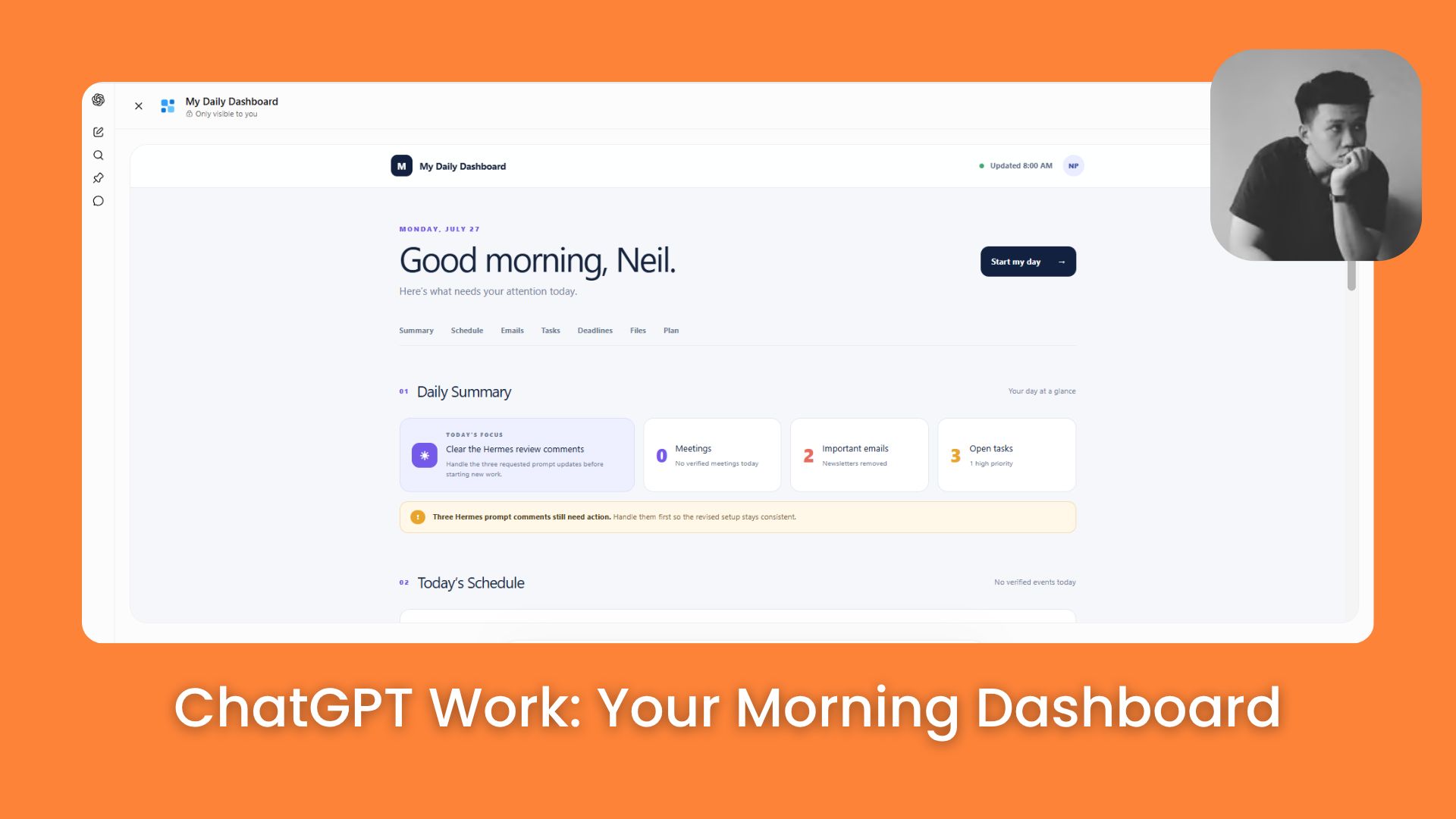
Use my ChatGPT Work prompt to build a personal dashboard that checks your emails, calendar, tasks, and files automatically. Download it and start managing your workflow.. Ai Tools, 🔥 Ai Fire Academy, Ai Automations.
TL;DR
ChatGPT Work can turn your Gmail, Google Calendar, and Google Drive data into one daily dashboard and refresh it automatically each morning. The setup uses ChatGPT Sites for publishing and Scheduled Tasks for recurring updates.
You first connect the three apps, then add a clear dashboard prompt. Next, you review and publish the page with ChatGPT Sites. Finally, you schedule ChatGPT Work to update the same site at 8:00 a.m. each day.
The result is one page for meetings, important emails, tasks, deadlines, useful files, and a suggested plan. This helps you start the day without checking several apps.
Key points
Fact: The workflow uses seven dashboard sections.
Mistake: Don’t let ChatGPT Work create a new site each day.
Takeaway: Keep the same URL and test the first scheduled update.
Table of Contents
Introduction
Claude Cowork set a new standard for AI workspaces by letting users hand over complex, multi-step tasks.
ChatGPT Work now takes that idea further with ChatGPT Sites, which can turn the final result into a real website you can publish and open again anytime.
Twitter tweet
This is much more useful than a simple website feature. Your work can become a live page with one fixed URL instead of ending as a document, spreadsheet, or presentation that you need to find again after every run.
And I think a personal daily dashboard is a practical way to test this advantage.
→ So today, I’ll show you how to build the full system and see whether ChatGPT Work is more useful than Claude Cowork for everyday work.
What You Need Before You Start
Before you begin, check that your ChatGPT plan supports the features used in this setup. You’ll also need access to the Google apps that store your daily work information.
-
Scheduled Tasks
-
Gmail
-
Google Calendar
-
Google Drive
|
Plan |
Work on Web and Mobile |
ChatGPT Sites |
Scheduled Tasks |
Full Setup |
|---|---|---|---|---|
|
Free |
No |
No |
No |
No |
|
Go |
No |
No |
Limited access may vary |
No |
|
Plus |
Yes |
Yes, depending on rollout and region |
Yes |
Yes |
|
Pro |
Yes |
Yes |
Yes |
Yes |
|
Business |
Yes |
Yes, with workspace controls |
Yes |
Yes |
|
Enterprise |
Yes |
Yes, with admin controls |
Yes |
Yes |
How to read the table:
-
Plus is the best starting point for most individual users. It covers ChatGPT Work on web and mobile, Scheduled Tasks, and ChatGPT Sites once Sites reaches your account and region.
-
Pro makes sense when you’re hitting higher usage limits.
-
Business and Enterprise suit teams, though workspace admins may control access to ChatGPT Sites and public publishing.

ChatGPT Sites
Before you connect anything: Only link the accounts you actually need for the dashboard, and read the permissions on each screen. ChatGPT Work will ask to read your emails, calendar events, and files so it can build the page, so make sure you’re comfortable with that scope.
Step 1: Connect Your Apps to ChatGPT Work
You need to open ChatGPT Work and go to the apps or plugins section to connect the accounts used for your dashboard.
Connect these apps:
-
Gmail so ChatGPT Work can find new emails that may need a reply
-
Google Calendar so ChatGPT Work can check today’s schedule and the next seven days
-
Google Drive so ChatGPT Work can find files linked to meetings, projects, and deadlines

When you sign in to each account, check the permissions before you continue. ChatGPT Work only needs access to the data used for your dashboard, so you shouldn’t allow any extra permissions.
Once all 3 apps are connected, ChatGPT Work can use their data in the next step.
III. Step 2: Add the Daily Dashboard Prompt
With your Google apps connected, paste the prompt below into ChatGPT Work. It tells ChatGPT Work what to check, what to ignore, and how to lay out the page.
What this prompt does:
-
Uses one clear instruction set to control what ChatGPT Work reads and skips
-
Organizes everything into seven sections built for a quick daily scan
-
Locks the site URL and sets the automatic refresh for 8:00 a.m.
Create a mobile-friendly website called “My Daily Dashboard.”

Use my connected Gmail, Google Calendar, and Google Drive accounts to collect the information I need for today.

For Google Calendar:
- Review today and the next 7 days
- Highlight important meetings, events, and deadlines
- Include anything I need to prepare today

For Gmail:
- Find new and unread emails that need a reply or action
- Ignore newsletters and promotions unless they are urgent
- Summarize the main request and the next action for each important email

For Google Drive:
- Find files related to today’s meetings
- Include files connected to current projects and upcoming deadlines
- Add files linked to emails that need action

Organize the dashboard into these sections:

1. Daily Summary
2. Today’s Schedule
3. Important Emails
4. Tasks
5. Upcoming Deadlines
6. Files You May Need
7. Suggested Plan for the Day

Keep the dashboard clear and easy to read on a phone.

If “My Daily Dashboard” doesn’t exist, create and publish it with ChatGPT Sites.

If the site already exists, update the same site and keep the current URL. Don’t create a new site.

Run this full process every day at 8:00 a.m. in my local time. Refresh the dashboard and notify me when the update is complete.
Once ChatGPT Work finishes, you’ll get a published dashboard. Open the site and confirm the sections match what you asked for in the prompt.

The layout should put your top priorities near the top, then flow down into the details you’ll reach for later in the day. You can scroll through tasks and deadlines without reopening any of the connected apps.

You can change the dashboard name, the review window, or the update time before you send the prompt. Keep the filtering rules tight so ChatGPT Work doesn’t crowd the page with emails or files that don’t need your attention.
Tip: If your mornings are packed, set the refresh for 6:30 a.m. instead of 8:00 so the page is ready before your first meeting. Just change the time in the last line of the prompt.
IV. Step 3: Build the Dashboard With ChatGPT Sites
After ChatGPT Work creates the dashboard, open the preview and check the content before publishing it. Review:
-
All seven dashboard sections
-
The layout on a phone
-
Missing or unrelated information
-
Links to files and connected content
Use this follow-up prompt to make final changes:
Review “My Daily Dashboard” before publishing it.

Make sure all seven sections are included and easy to read on a phone.

Remove any information that isn’t useful for today.

Check that the meetings, emails, tasks, deadlines, and file links are correct.

Keep the current site name and URL.

Publish the updated website and give me the link when it’s ready.
After ChatGPT Sites finishes, open the My Daily Dashboard link and review it one more time. If the site already exists, ChatGPT Work should update the same site and keep its current URL.

Use the Edit website box to request more changes if the content or layout still doesn’t look right.

Step 4: Schedule ChatGPT Work to Run Every Morning
Lastly, set the dashboard to refresh automatically at 8:00 a.m. in your local time. If the schedule was already created in Step 2, use this step to confirm that it was saved correctly.
Use this prompt if you still need to create the recurring task:
Schedule the full “My Daily Dashboard” workflow to run every day at 8:00 a.m. in my local time.

Each morning, check my connected Gmail, Google Calendar, and Google Drive accounts.

Update the schedule, important emails, tasks, upcoming deadlines, and related files.

Refresh the existing “My Daily Dashboard” site and keep the same URL.

Notify me when the update is complete.

Confirm that the recurring task has been created and tell me where I can manage it.
After ChatGPT Work finishes the prompt, it should return the official link to your published dashboard. In this example, the final website is here.
You can also open the Scheduled page and check that the task is set to run every day at 8:00 a.m. The next morning, open the same dashboard link and confirm that the content has been updated without creating a new site.
Troubleshooting: a new site appeared instead of an update. This is the most common failure. If ChatGPT Work publishes a fresh URL each morning, reopen the schedule and make sure the instruction still says to update the existing “My Daily Dashboard” and keep the current URL. Re-run the cleanup prompt from Step 3 to point it back at the original site.
Conclusion
You’ve now built the full personal dashboard in four steps. You connected Gmail, Google Calendar, and Google Drive, added a clear prompt, published the result with ChatGPT Sites, and scheduled ChatGPT Work to refresh the same website every morning.
The biggest benefit is that your daily information no longer sits across several apps. Your schedule, important emails, tasks, deadlines, and useful files are brought into one page, so you can quickly see what matters before the day gets busy.
Because ChatGPT Work updates the dashboard on a schedule, you shouldn’t need to rebuild it or search through old chats each morning. You can open the same link, review the latest information, and decide what to handle first.
This workflow also shows why ChatGPT Work stands out as an AI workspace. The result stays useful after the original task is finished, giving you a live page that can keep supporting your daily routine.
If you are interested in other topics and how AI is transforming different aspects of our lives or even in making money using AI with more detailed, step-by-step guidance, you can find our other articles here:
-
5 Best AI Productivity Apps Worth Keeping on Your Phone in 2026
-
How to Use Gemini + NotebookLM to Keep Your AI Accurate Every Time (For Free)
-
Give Me 5 Minutes, I’ll Make You DEEPLY Understand & Master Kimi K3*
-
5 INSANE & Genuinely Useful GPT-5.6 Sol Use Cases You Can Apply Right Away*
-
Best AI Agent Tools in 2026: n8n vs. Claude Code vs. Base44 (Tested & Ranked for Real Work)*
*indicates a premium content, if any
Leave a Reply