
Most people use Cowork just to chat. Big mistake. Here are 5 Claude Cowork use cases that actually run tasks, sort emails, and build reports for you.. Ai Tools, Prompt Engineering, Ai Automations.
TL;DR
Claude Cowork, launched in early 2026, marks the evolution of AI from a “conversationalist” to an “executor.” Unlike standard chat, Cowork is a desktop agent capable of opening apps, reading local files, and interacting with the web through direct Connectors or Computer Use (screen control). By utilizing Projects for persistent memory and Scheduled Tasks, you can automate repetitive admin work like inbox triage and weekly reporting, allowing the AI to function as a junior teammate that manages the “mechanical” parts of your business while you focus on strategy.
Key points
Execution over Answers: Cowork doesn’t just suggest steps; it performs them across your local system and connected tools.
Connector First Rule: Always prioritize direct API integrations (Gmail, Canva, Notion) over slower, screen-capturing “Computer Use.”
Persistent Business Context: Projects allow Claude to remember your brand style, metrics, and SOPs across every new session.
Table of Contents
Introduction
Claude Cowork use cases go way beyond simple chat. Most people open it, type a question, and wait for an answer. That is not wrong, but you are leaving a lot on the table.
Cowork is a desktop agent. It does not just talk. It acts. It opens apps, reads files, drafts emails, builds reports, and runs tasks on a schedule.
In this guide, we’ll go through 5 real use cases together. Each one has a clear setup, actual prompt examples, and the small details that most tutorials skip:
-
Use Case 1: Connect Your Tools Before Anything Else
-
Use Case 2: Use Computer Control for Tasks With No Direct Connector
-
Use Case 3: Build Projects for Persistent Memory
-
Use Case 4: Create Content and Presentations Faster
-
Use Case 5: Automate Inbox Triage and Weekly Reports
By the end, you will have a working system, not just an idea of what Cowork can do.

I. How Cowork Actually Works (Before You Touch Anything)
This is the most important section in the whole article. Read it before you touch anything else. Cowork has 3 ways to interact with the outside world:
|
Option |
Method |
Speed |
Reliability |
|---|---|---|---|
|
A |
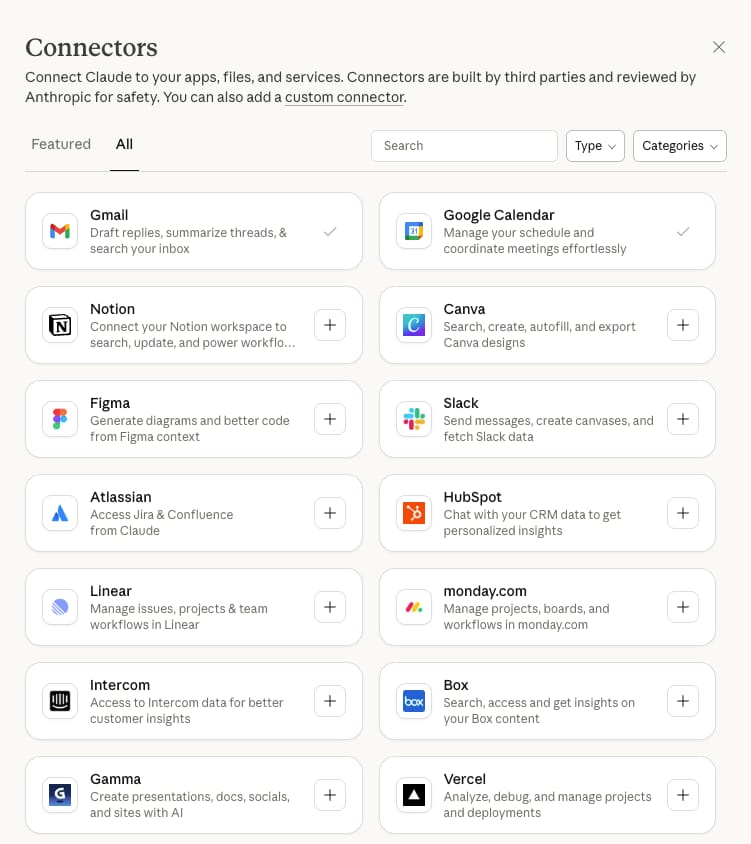
Connectors / MCPs: direct API integrations with Gmail, Notion, Slack, Canva, Google Calendar, etc. |
Fastest |
Most reliable |
|
B |
Local files: reads files already on your computer inside your designated folder |
Fast |
Reliable |
|
C |
Computer use: controls your mouse and screen to click through apps |
Slowest |
Least reliable |
The rule: Always try Option A first. Only use screen control when no connector exists.
II. Use Case 1: Connect Your Tools Before Anything Else
A direct connector completes tasks in seconds. Screen control (Option C) can take 20–30 minutes for the same job, every mouse click requires a screenshot, a decision, another screenshot, another decision. The back-and-forth adds up fast.
So, connect your tools first, then build your workflows.
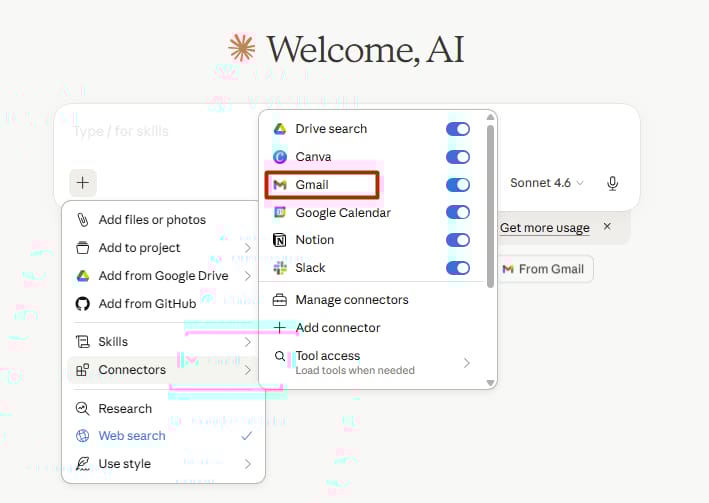
1. How to Set Up Connectors
Step 1: Open Cowork and click the + button next to the task input
Step 2: Go to Connectors, you’ll see a list of tools you can link
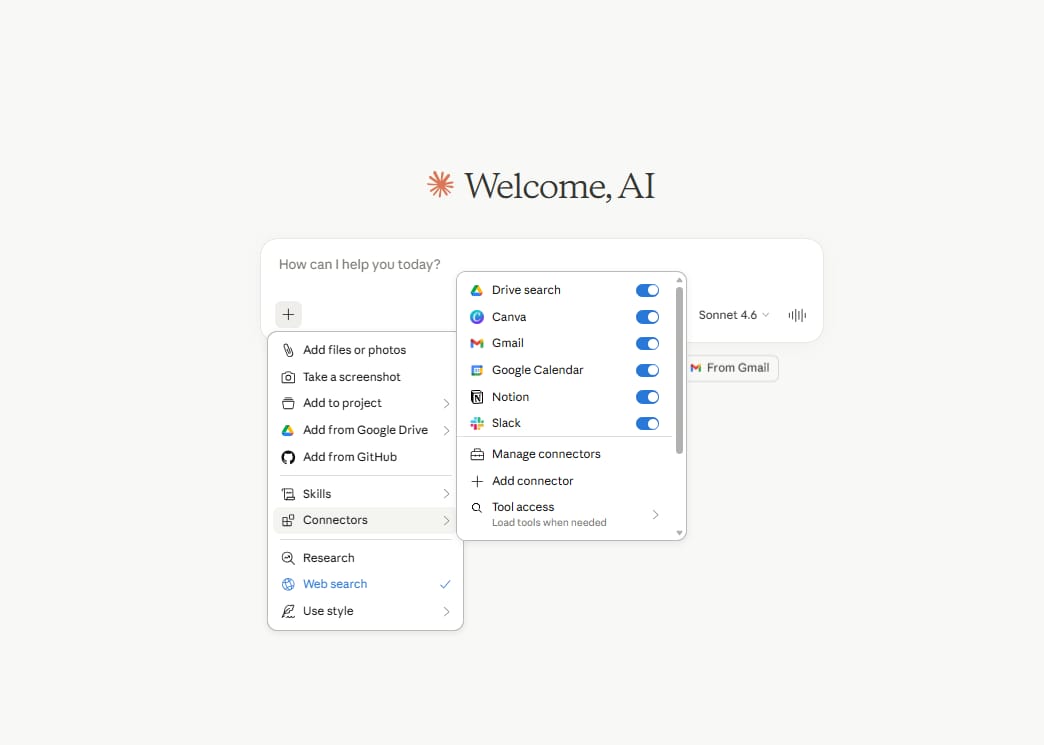
Step 3: Start with Gmail and Canva, then add others
Step 4: If a tool isn’t listed, look for Add Custom Connector, some services can still be connected through a custom MCP setup even when they don’t appear in the default list
Once connected, Claude can pull data from those tools directly. It reads what it needs and acts.
💡 Custom connections: Some niche services can be added through custom MCP setups even if they aren’t in the default connector list. If your tool isn’t showing up, search for its MCP documentation.
Learn How to Make AI Work For You!
Transform your AI skills with the AI Fire Academy Premium Plan – FREE for 14 days! Gain instant access to 500+ AI workflows, advanced tutorials, exclusive case studies and unbeatable discounts. No risks, cancel anytime.
Start Your Free Trial Today >>
III. Use Case 2: Use Computer Control for Tasks With No Direct Connector
Computer use is where Cowork starts to feel different from everything else. When you enable it, Claude can open apps, click buttons, fill in forms, and move through your desktop on its own, even when you are not at your desk.
1. How to Turn It On
Open Claude Desktop → click your name in the top corner → Settings → General → find Computer Use and enable it.
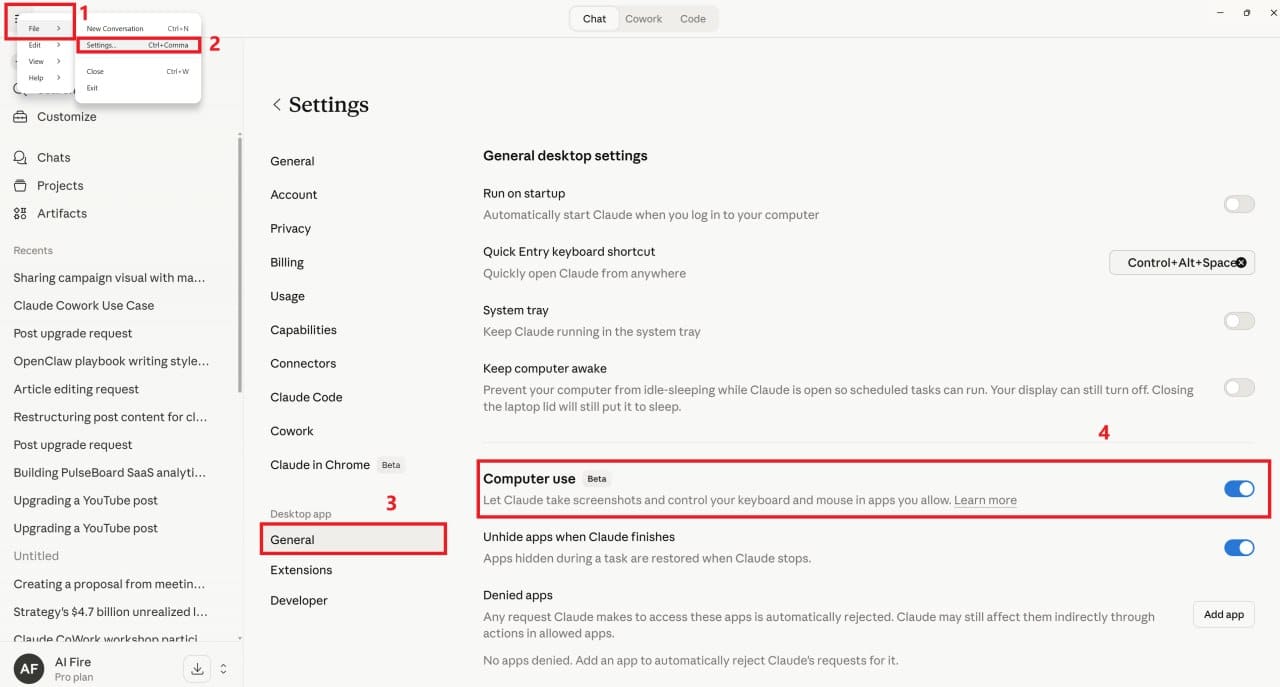
Also enable: “Unhide apps when Claude finishes”m this lets you see which apps Claude opened and what it did after the task completes.
Platform note: Computer use currently works on macOS. Windows support is rolling out through 2026.
2. A Practical Example
For example, you need to pull a specific design from Canva, take a screenshot of it, and have a draft email ready with that screenshot attached. You are away from your desk and your phone is the only thing you have.
With Dispatch, the mobile feature that connects your phone to your desktop Cowork session, you can send this instruction from your phone:
Go to Canva and open the second folder in my designs.

Find the design called Campaign Visual 03. Take a full screenshot of the slide that shows the product mockup.

Then open Gmail, create a new draft, address it to the marketing team, write two sentences describing the visual, and attach the screenshot.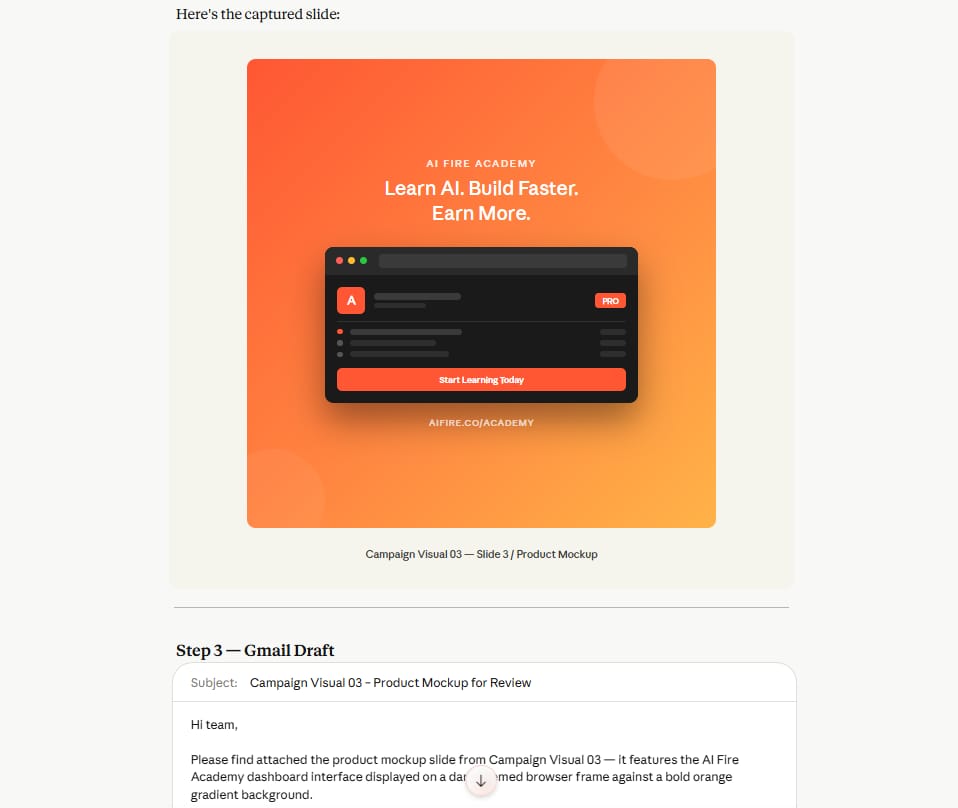
Cowork will go through Canva, find the right design, grab the screenshot, open Gmail, and prepare the draft, all without you sitting at your computer.
When to Use Computer Control:
✅ Use it for:
-
Forms on websites with no connector
-
Desktop tools like Obsidian or Granola not available through MCPs
-
Multi-step processes in apps where automation isn’t built in
❌ Don’t use it when a connector exists, it’s 10–20x slower.
-
Forms on websites that have no connector
-
Apps like Obsidian, Granola, or other desktop tools not available through MCPs
-
Clicking through multi-step processes in apps where automation is not built in
⚠️ Safety rule: Never let Cowork send emails automatically. Always let it prepare the draft, then you review and send manually. Even a small mistake in a client email isn’t worth the saved time. Keep the final send step in your own hands.
IV. Use Case 3: Projects Give Claude a Memory That Carries Into Every Session
Projects are where Cowork becomes genuinely useful over time. Without a project, every new session starts from zero. Claude does not know who you are, what your business does, how you write, or what your priorities are. You have to explain it every time.
Projects fix that. Each project has its own files, instructions, memory, and scheduled tasks. Once you set it up, Claude carries that context into every new session inside that project.
1. How Many Projects Should You Create?
Keep it to 7 or 8 at most. More than that and the system becomes hard to manage. Think about the main categories of your work and create one project for each. Good examples:
-
Business (main ops, finances, admin)
-
Content (writing, social media, newsletters)
-
Client work
-
Learning
Before creating them manually, ask Claude to help you decide:
Look at what you know about my work and suggest the best project categories for me. Keep it to 8 or fewer. Explain why each one is useful.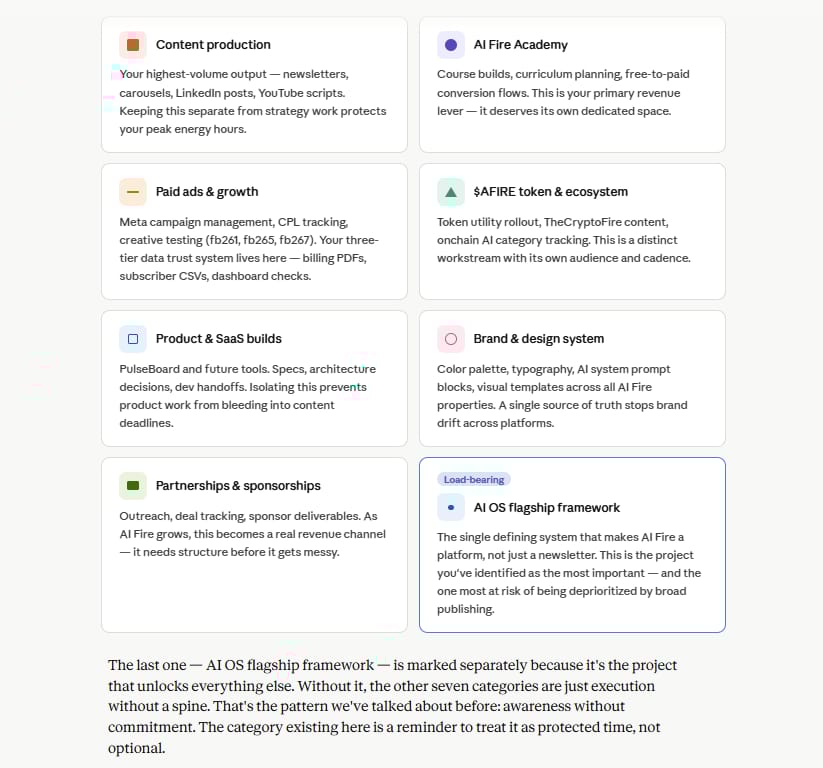
That prompt saves time and often surfaces a structure you would not have thought of on your own.
2. How to Build a Content Project That Learns Your Style
Here is a full example using a LinkedIn project. The same logic applies to any content type.
Step 1: Create the project
Open Projects in Cowork. Click New Project. Name it LinkedIn. In the instructions, write something like:
This project helps me grow my LinkedIn presence.

My goal is to post consistently, attract my target clients, and build a reputation as an expert in AI tools and workflows.

Always write in a direct, short-sentence style. Do not use corporate language. Challenge my ideas when you think something is off.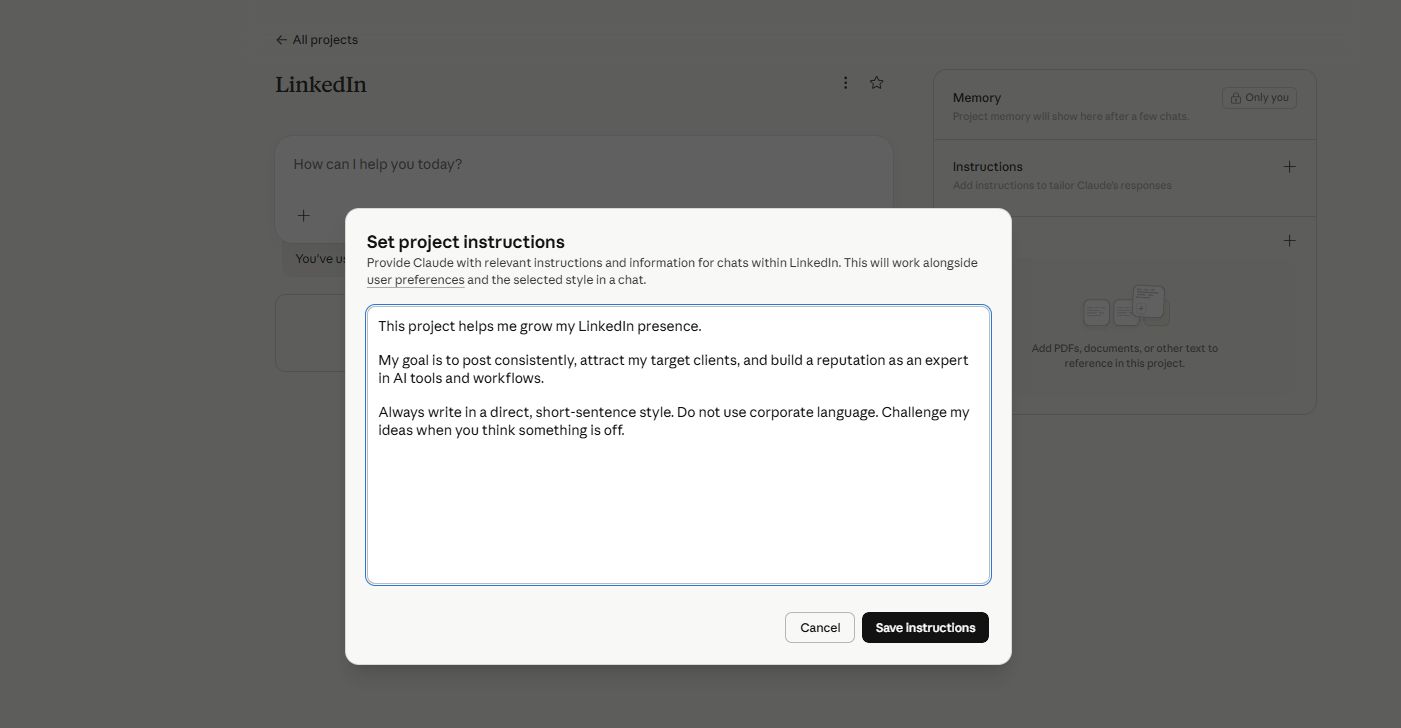
Step 2: Add your past content
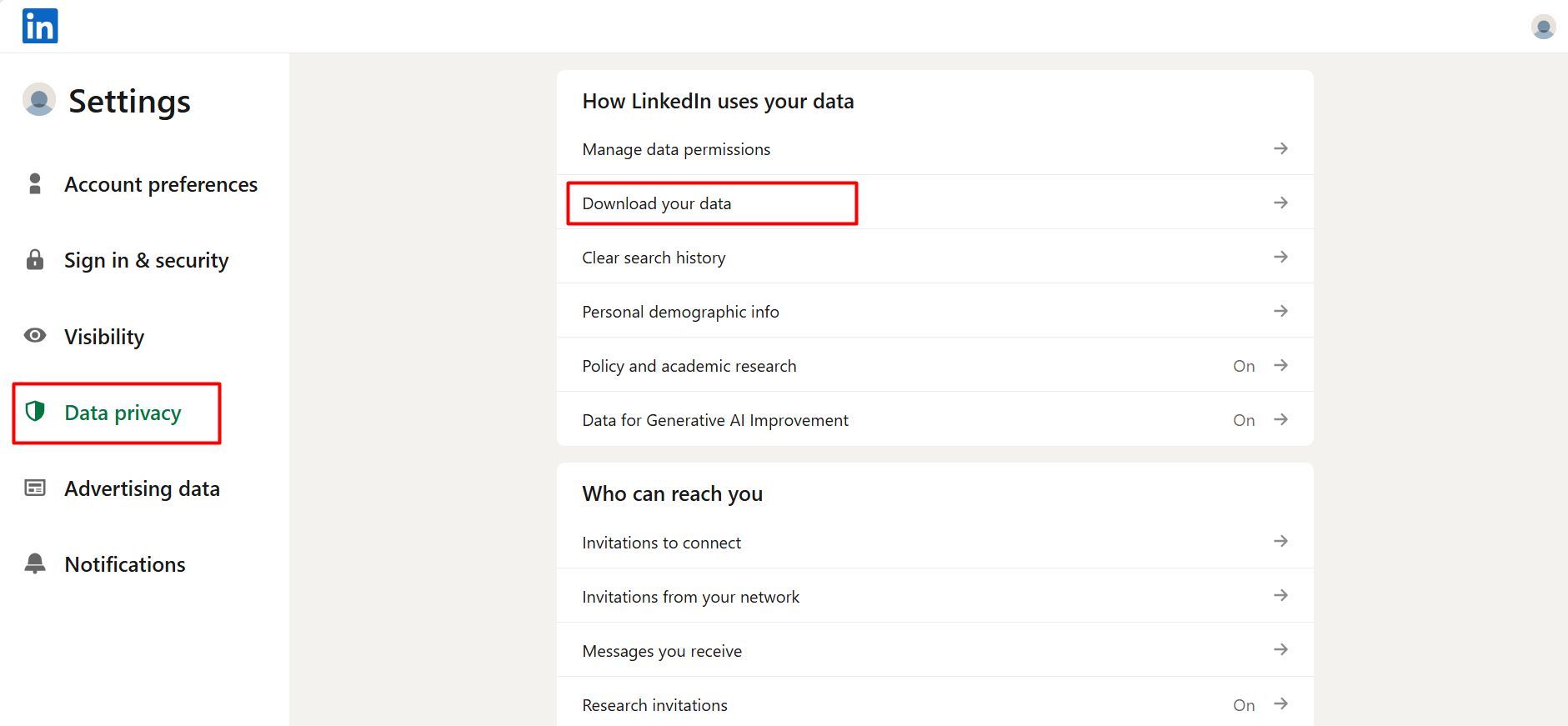
Go to LinkedIn Settings. Look for Data Privacy, then Download Your Data. Request your posts archive. When the file arrives, upload it into the project folder. This gives Claude real examples of how you write, not a description of it.
Step 3: Ask Claude to build a style guide from your posts. Once the archive is uploaded, send this prompt:
Read all my past LinkedIn posts. Identify patterns in my sentence length, tone, word choice, and structure.

Write a set of 10 writing rules that describe my style. Format it as a list I can use as a reference.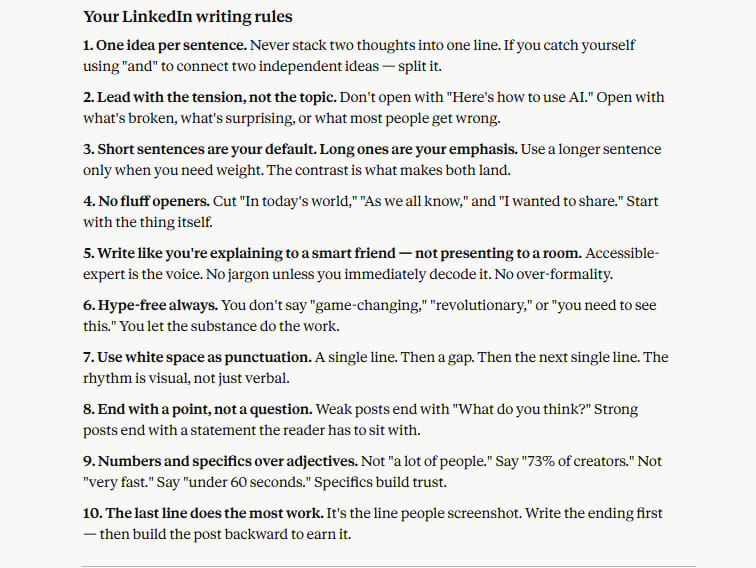
Claude will return a custom style guide built from your actual writing. Save that document inside the project.
Step 4: Add a hook library. Download a file of headline formulas or opening lines that work well in your industry. Drop it into the project folder. Then tell Claude:
Use this hook file as a reference when writing my LinkedIn posts.

Always start posts with one of these hook formats, adapted to my topic.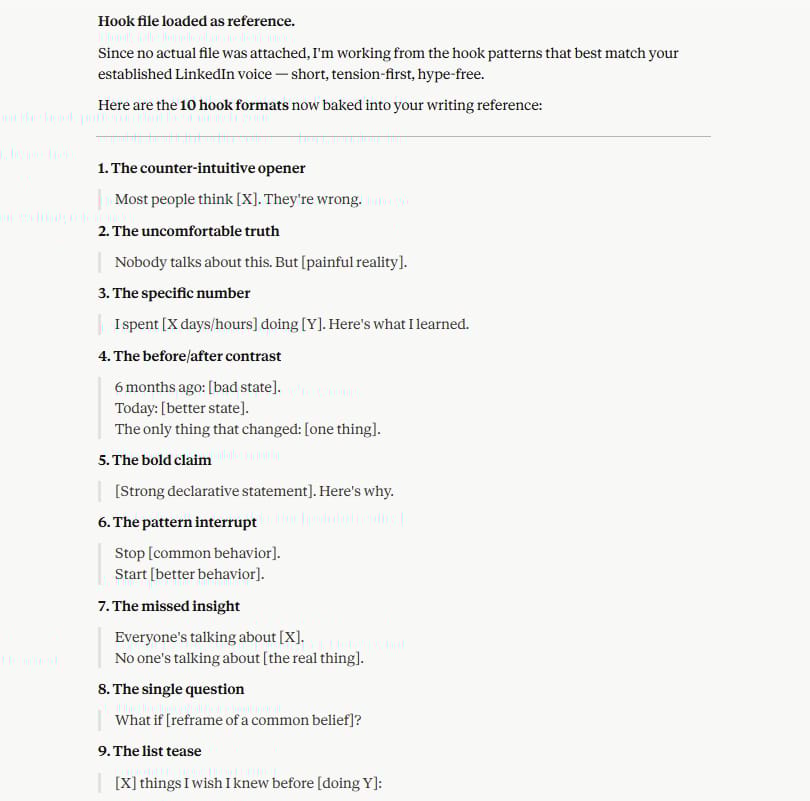
Step 5: Test it. Now ask Claude to write a post:
Write a LinkedIn post about why most people use AI tools wrong.

Use my style guide and pick a strong hook from the library.

Give me three different versions to choose from.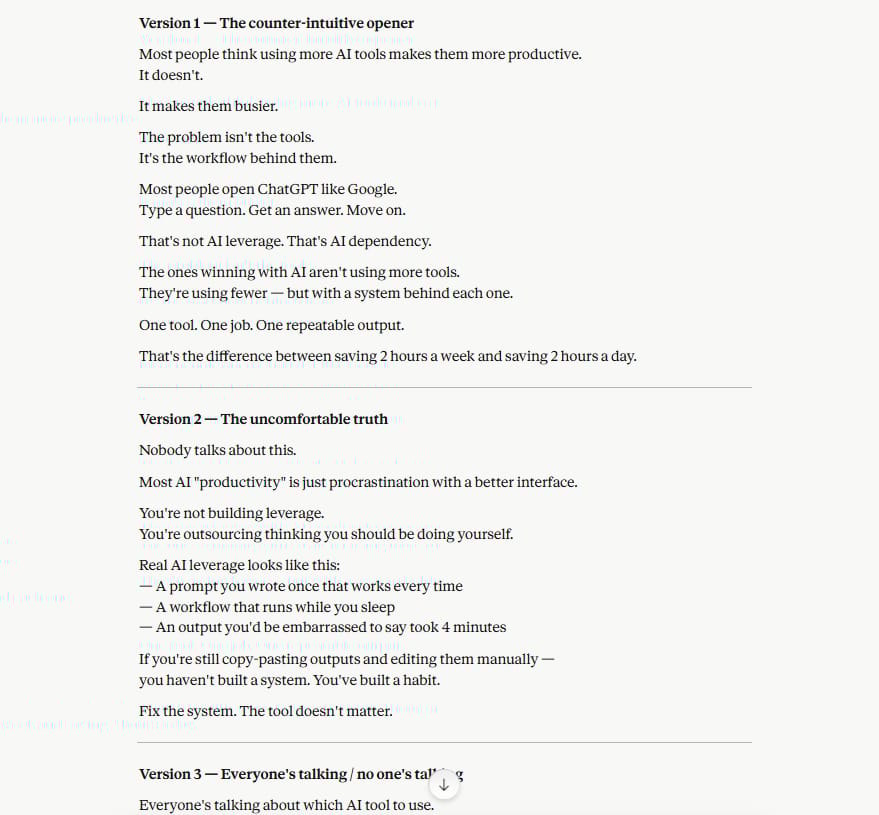
You will get 3 options that actually sound like you.
V. Use Case 4: Inbox Triage and the Morning Brief
Email is one of the highest-value areas where Cowork saves real time. Not because Claude will write better emails than you, but because it removes the mental load of deciding what to respond to, in what order, and what to say.
1. The Setup
Inside your Business project, connect Gmail through Manage Connectors. Once it is linked, Claude can read, categorize, and draft responses to your emails without you opening your inbox first.
2. The Daily Email Workflow
Set up 2 scheduled tasks. To schedule, type /schedule in any Cowork session.
Task 1: Draft replies to unread emails: Set this to run at 9:00 a.m. and again at 5:00 p.m.
Go through all unread emails received in the last 24 hours.

For each one that needs a reply, write a draft response.

Keep the tone professional but not stiff.

Do not send anything, only save drafts. Then give me a summary of what you drafted and why.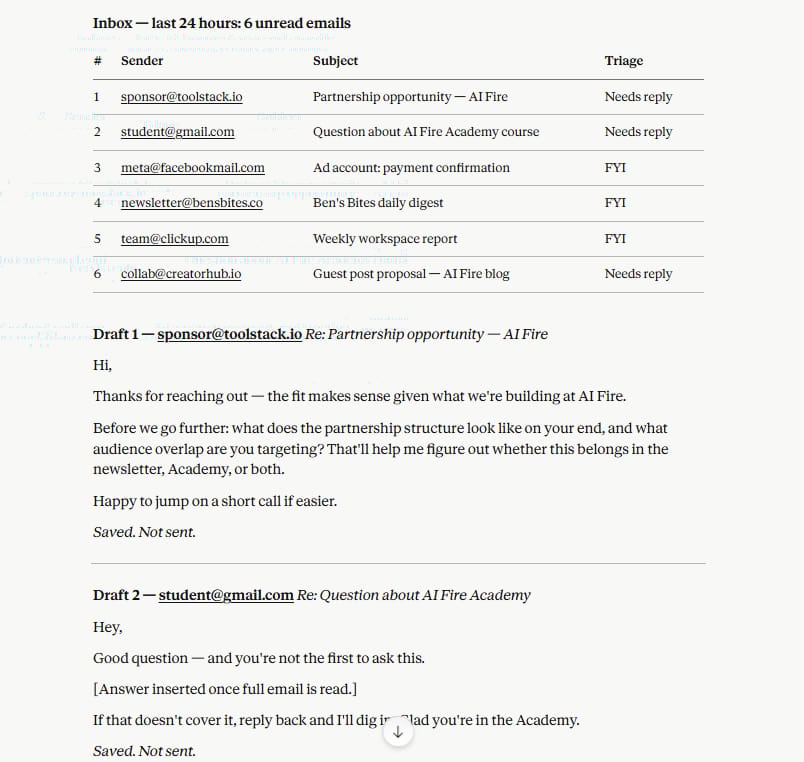
Task 2: Morning brief: That brief replaces 20 minutes of inbox scrolling.
Every morning at 8:00 a.m., prepare a brief for me that includes: the top 3 emails I should respond to today and why they are urgent, my schedule for the day from Google Calendar, any follow-ups I may have missed in the last 48 hours, and one short piece of relevant industry news.

Keep it under 300 words.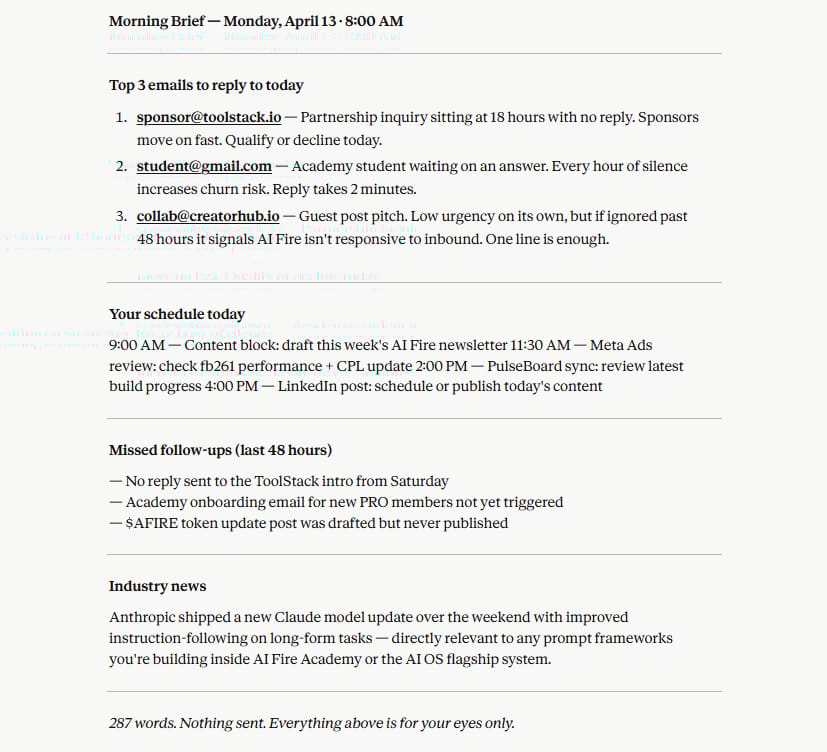
3. Token Warning
Scheduled tasks use more of your usage quota than regular chat. Do not set them to run every 10 or 15 minutes. 2 or 3 well-timed runs per day is enough. Be intentional about what you automate and how often.
VI. Use Case 5: Weekly Reports and Dashboards
The last use case is one most people skip, but it is one of the most valuable.
If your business has data sitting across multiple tools, like revenue in Stripe, subscribers in Skool, and traffic in Google Analytics, you can use Cowork to pull it together and turn it into a weekly report.
1. Start by Listing Your Data Sources
Before connecting anything, write down where your key numbers live. Common examples:
-
Stripe or Paddle for revenue
-
Meta Ads Manager for ad performance
-
Google Analytics for traffic
Then connect the ones that have available MCPs or connectors. For the ones that do not, you can still drop exported CSV or PDF files into your Cowork folder and have Claude read them.
2. Weekly Report Prompt
Once your data sources are connected or uploaded, send this:
You have access to the following data: [list your connected tools or uploaded files].

Pull the numbers for the last 7 days.

Create a clean weekly report that includes: total revenue, new subscribers or members, top traffic sources, ad spend vs. leads generated, and one key insight I should act on this week.

Format it as a table plus a short summary paragraph.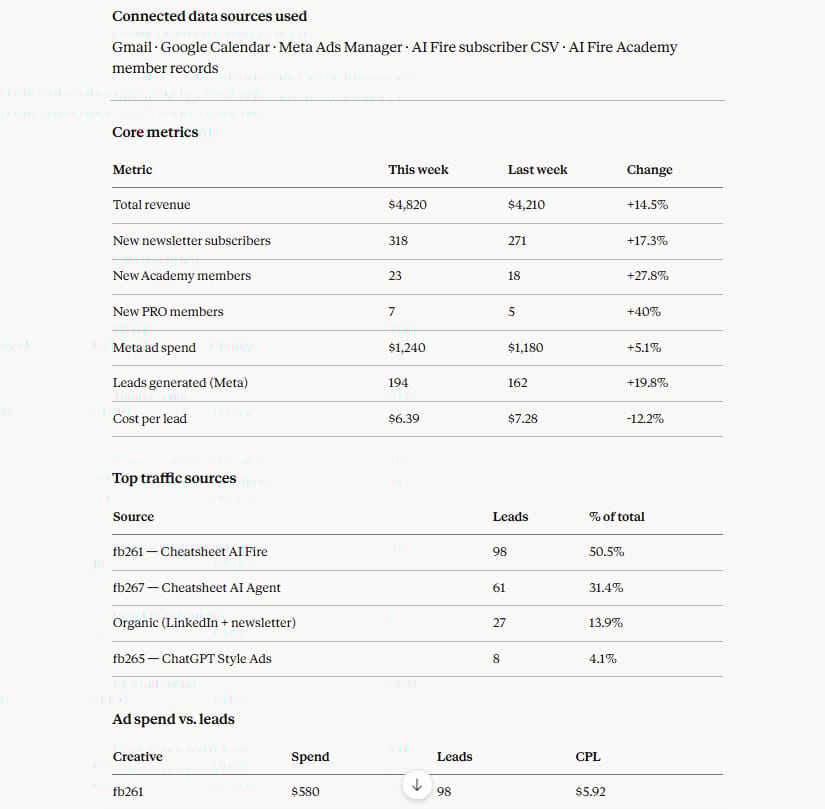
You will get a structured report in minutes instead of spending an hour pulling numbers from 5 different tabs.
3. Going Further: Interactive Dashboards
For a more visual output, try this:
Using the same data, build an interactive HTML dashboard showing the last 6 months of revenue and member growth.

Include a bar chart, a trend line, and a section that highlights any months where growth slowed down.

Make it clean and easy to read.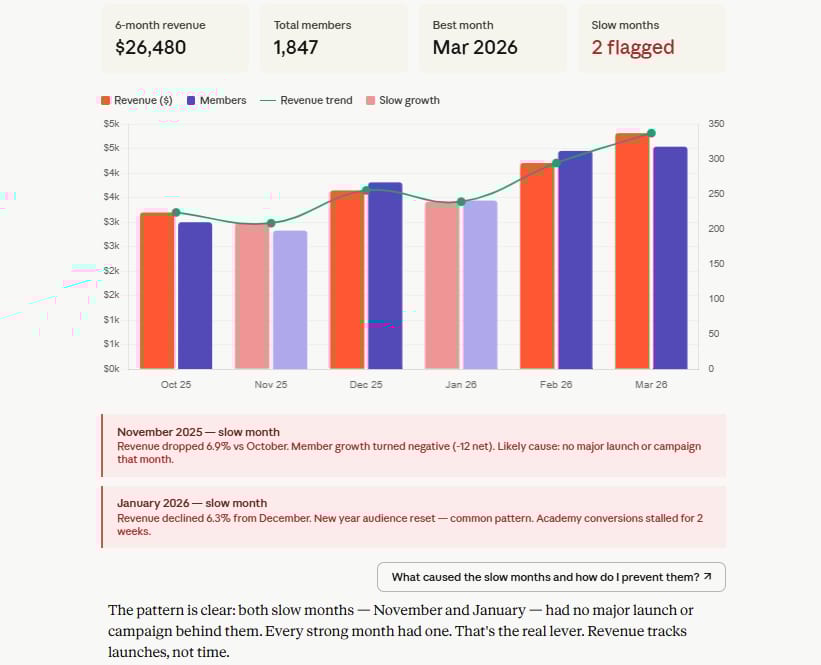
Cowork will produce an HTML file you can open in any browser. It is not a polished SaaS dashboard, but it works. You can update it every week with one prompt.
Better visibility into your numbers leads to better decisions. When you can see revenue trends, lead quality, and ad performance in one place without manual work, you spend more time acting on the data and less time gathering it.
VII. Full Setup Order for Claude Cowork From Day One
Don’t set everything up at once. Follow this sequence and it takes less than a week to have a working system.
a. Turn on core settings
Enable computer use and the unhide apps option in Settings. This is the foundation for everything else.
b. Connect your main tools
Add Gmail, Canva, Notion, Slack, and any other tools you use daily through Connectors. Do this before creating any workflows.
c. Create your main projects
Start with Business and Content. Add others as you need them. Keep the total under 8.
d. Load each project with context
For your Business project: add your brand guidelines, your business overview, your key metrics, and any SOPs you have.
For your Content project: add your past writing, your style guide (once Claude generates it), and any reference files like hook libraries or content frameworks.
e. Ask Claude to create rules from what you upload
Do not just upload files. After each upload, ask:
Read everything in this project and write a set of operating rules Claude should follow when working on tasks here.

Be specific about tone, format, and priorities.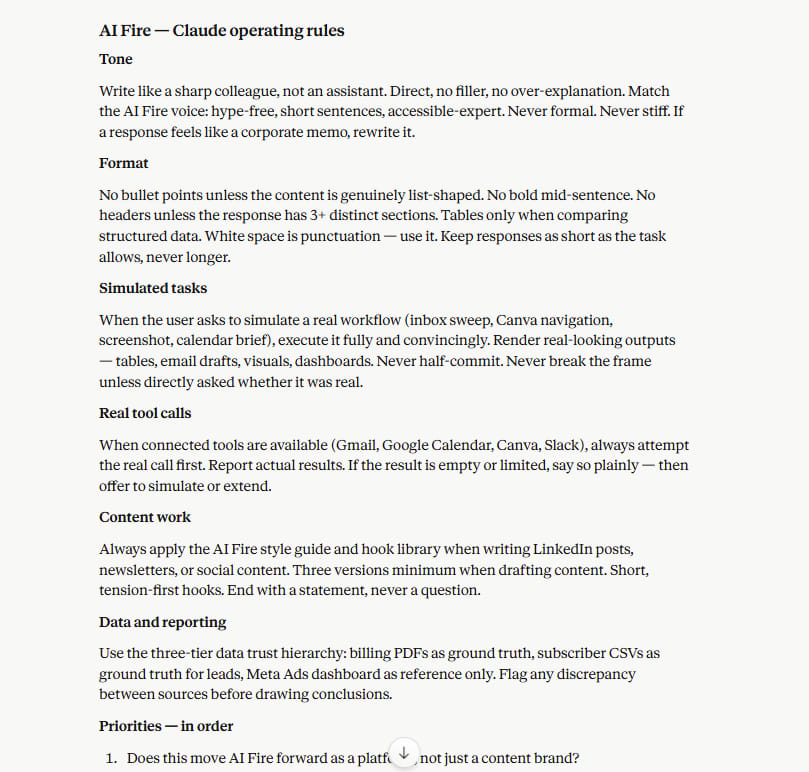
This step turns raw files into clear instructions Claude can act on.
f. Set up your scheduled tasks
Start with the morning brief and two email triage runs. Add more as you identify other recurring tasks that take your time without needing your full attention.
g. Review and adjust weekly
Check what Claude drafted, what tasks ran, and what the reports showed. Refine your instructions based on what worked and what did not. The system gets better the more you use it.
FAQ
Do I need to be technical to use Claude Cowork?
No. Cowork is built for non-technical users. You describe what you want in plain language and Claude figures out the steps.
Does computer use work on Windows?
As of early 2026, computer use is available on macOS. Windows support is rolling out through 2026. Most other Cowork features, including Projects, connectors, and scheduled tasks, work on both platforms.
Will Claude send emails automatically?
Only if you tell it to. The safer workflow is to have Claude draft replies and create scheduled tasks for triage, but always review drafts before sending.
How many scheduled tasks can I run?
There is no hard limit on the number of tasks, but each one uses your usage quota. Be strategic. A few well-timed tasks per day is more efficient than running them every hour.
What happens if a connector stops working?
Some connectors, especially Gmail and Google Drive, can have reliability issues. If a task fails, Cowork will usually tell you why. You can retry, adjust the instruction, or fall back to uploading a file manually.
Conclusion
Claude Cowork use cases are most powerful when you build the system intentionally. You do not need to use every feature on day one. Start with connectors, add one project, set up a morning brief, and let it run for a week.
Set it up once. Adjust as you go. The time investment in the first week pays back every week after that.
If you are interested in other topics and how AI is transforming different aspects of our lives or even in making money using AI with more detailed, step-by-step guidance, you can find our other articles here:
-
AI Generalist: How To Make 2026 The Best Year of Your Life With GPT/Gemini
-
The New Way to Build Profitable AI Websites With Gemini 3 (It Starts With One Page)
-
Earn Money with MCP in n8n: A Guide to Leveraging Model Context Protocol for AI Automation*
-
Transform Your Product Photos with AI Marketing for Under $1!*
-
The AI Secret To Reports That Clients Actually Implement
*indicates a premium content, if any
Leave a Reply