
Google Gemini 3.1 Flash is very fast. I used it to talk and share my screen without waiting. This page shows you how to use it for free today now.. Ai Tools, Prompt Engineering, Ai Automations.
TL;DR
Google Gemini 3.1 Flash is a high-speed, multimodal AI model designed to eliminate the “thinking pause” in human-AI interaction. In 2026, it stands out for its sub-second latency and the ability to process text, audio, images, and live video simultaneously. Whether used via Google AI Studio or Gemini Live, the model excels at real-time problem solving through screen sharing and webcam vision, boasting a 90.8% accuracy in function calling and a 95.9% score in speech reasoning.
Key points
Multimodal Fluidity: It hears your tone, watches your screen, and observes the physical world through your webcam in a single, continuous flow.
Low Latency: Optimized for real-time dialogue, making it ideal for language coaching, hands-free cooking help, or rapid brainstorming.
No-Code Bot Building: The “Build” section in AI Studio allows anyone to create custom voice assistants by simply describing their personality and rules.
Critical insight
In 2026, speed is a functional requirement, not a luxury; Gemini 3.1 Flash transforms AI from a slow “query-response” bot into a proactive, real-time collaborator.
Table of Contents
Introduction
If you’ve ever felt frustrated waiting for an AI to “think” before replying, Google Gemini 3.1 Flash is the answer to that exact pain point. That awkward pause, the one that breaks your focus and kills the momentum of a conversation is mostly gone with this model.
What makes Google Gemini 3.1 Flash different isn’t just speed. It’s the way the whole experience feels. You can talk to it like a real person, share your screen while asking questions, or point your webcam at something and get an instant answer.
It understands text, voice, images, and video all at once and it actually remembers what you said ten minutes ago.
This guide walks you through everything:
-
The basic Talk mode for quick, natural conversations
-
Screen sharing and webcam vision for real-world problem solving
-
How to build your own voice assistant without writing a single line of code
-
The Live API explained in plain language for non-developers
-
Expert settings that let you fine-tune how the model thinks and responds
By the end, you’ll know exactly how to plug Google Gemini 3.1 Flash into your daily work and why it’s a genuine step up from every version that came before it.
I. What Is Google Gemini 3.1 Flash?
Google Gemini 3.1 Flash is a lightweight, high-speed multimodal model engineered specifically for low-latency, real-time interactions. It bridges the gap between digital and physical worlds by processing text, audio, images, and live video feeds simultaneously to act as a virtual collaborator.
Key takeaways
-
Multimodal Input: The model processes typed documents, screenshots, voice tones, and live webcam feeds in one go.
-
Native Audio: It is Google’s highest-quality audio model, scoring 95.9% on Speech Reasoning in high-thinking modes.
-
Contextual Memory: It maintains a strong grip on long discussions, ensuring it doesn’t lose the “thread” of your project.
-
Functional Integration: It can proactively search the internet or update your Google Calendar mid-conversation.
Google Gemini 3.1 Flash is a model built specifically for real-time dialogue, meaning it’s designed for situations where waiting even a few seconds for a response feels like too long.
Unlike the larger, heavier models that prioritize raw capability over speed, this one strikes a balance: it’s light, quick, and still remarkably capable.
What sets it apart is its multimodal nature. At any given moment, it can process:
-
Text: typed messages, documents, prompts
-
Audio: your voice, tone, even background context
-
Images: screenshots, photos, anything visual
-
Video: live webcam feeds or recorded clips
Google has also described it as their highest-quality audio model to date, with a noticeably stronger ability to pick up on the feeling behind your words.
1. A Model Built Around Real-Time Speed
The core design goal of Google Gemini 3.1 Flash is reducing latency. This is the gap between the moment you finish speaking and the moment the AI responds.
In older models, that gap could stretch to several seconds. With this model, the back-and-forth flows much more smoothly, closer to how a real conversation actually works.
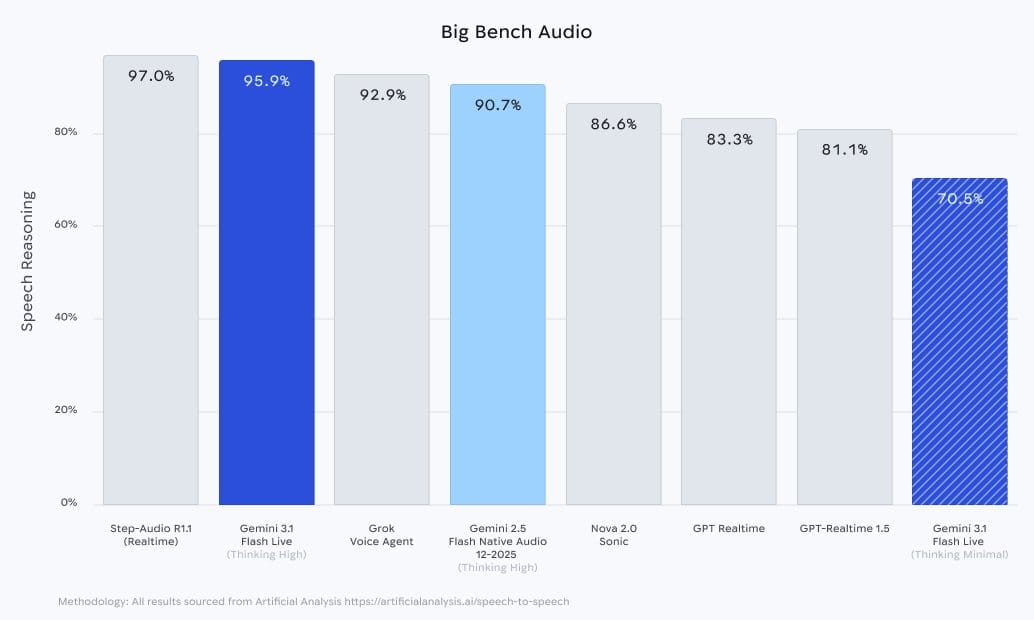
According to the Big Bench Audio benchmark from Artificial Analysis, Gemini 3.1 Flash Live scored 95.9% on Speech Reasoning in Thinking High mode.
That places it just behind Step-Audio R1.1, while leaving GPT Realtime (83.3%) and Gemini 2.5 Flash Native Audio (90.7%) well behind.
2. Understanding More Than Just the Words You Say
Speed alone wouldn’t mean much if the model kept losing track of the conversation. Google addressed this by significantly improving its memory, so it doesn’t drop context halfway through a long discussion.
On top of that, it supports function calling, meaning mid-conversation it can reach out to external tools on your behalf:
-
Search the internet for up-to-date information
-
Check or update your calendar
-
Pull data from other apps or services
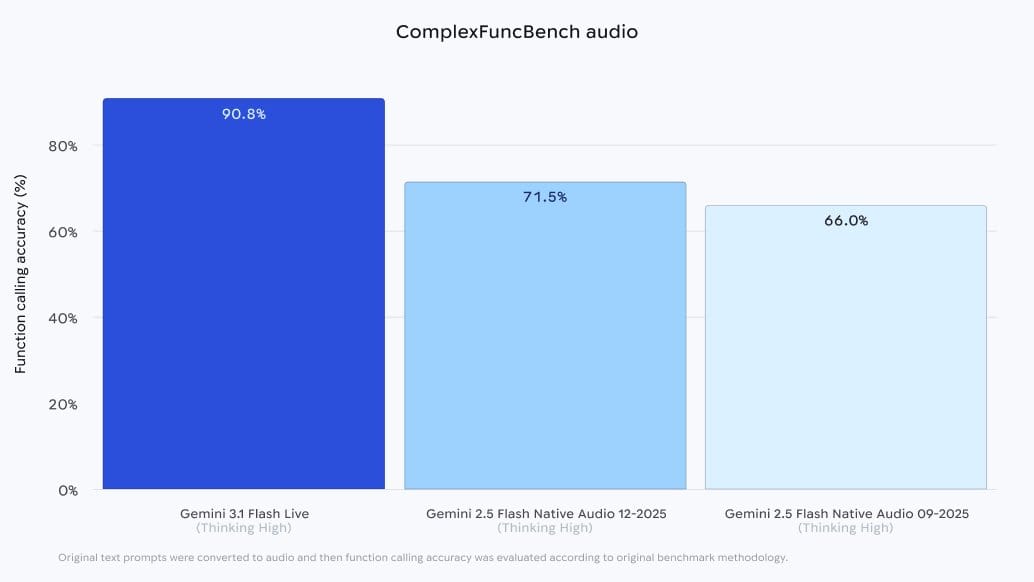
On the ComplexFuncBench Audio benchmark, Gemini 3.1 Flash Live scored 90.8% function calling accuracy, significantly higher than Gemini 2.5 Flash Native Audio 12-2025 (71.5%) and the 09-2025 version (66.0%).
II. Why Is Speed So Important in Google Gemini 3.1 Flash?
Sub-second response times transform AI from a transactional tool into a natural extension of human thought, enabling use cases like real-time language practice or hands-free technical troubleshooting.
Key takeaways
-
Fluidity: Responses under one second make the interaction feel like a teammate rather than a database query.
-
Real-time Utility: Enables immediate feedback during high-focus tasks like driving, cooking, or live coding.
-
Tonal Awareness: Because it processes audio natively, it senses your mood and adjusts its patience or energy level accordingly.
-
Timing Cues: The model reads small sounds and brief pauses, making the back-and-forth flow significantly more natural.
By reducing the gap between speaking and responding to under a second, the model removes the cognitive friction that makes older AI feel robotic. This speed allows for a “human rhythm” where the AI can distinguish between a thoughtful pause and the end of a sentence.
The speed unlocks use cases that simply weren’t practical before:
-
Practicing a new language in real-time without awkward pauses breaking your flow
-
Getting step-by-step cooking guidance while your hands are busy
-
Asking quick questions while driving without losing focus on the road
-
Brainstorming ideas out loud without waiting for the AI to catch up
An AI That Picks Up on How You’re Feeling
Because Google Gemini 3.1 Flash processes audio natively rather than just reading a text transcript, it can actually hear the tone behind your words.
→ If you sound frustrated trying to work through something difficult, it picks up on that and adjusts.
The response becomes more patient, more encouraging, more grounded. If you sound confident and want to move fast, it keeps up with that energy too.
III. How & Where to Use Google Gemini 3.1 Flash
Google has already rolled out Gemini 3.1 Flash across several platforms, each suited for a slightly different use case. Here’s where you can find it right now.
1. Google AI Studio
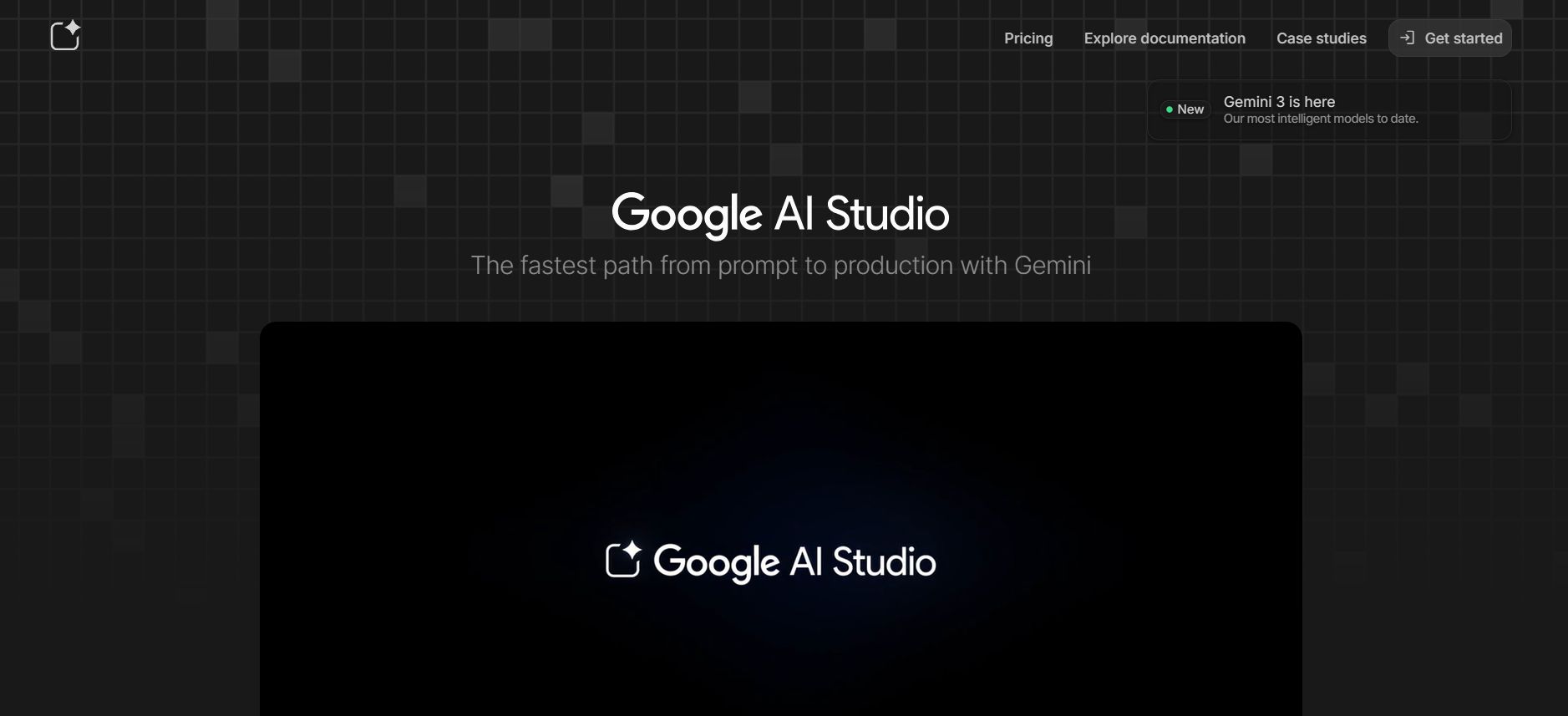
Google AI Studio is the best place to test all the features. This is a free tool for developers and fans to play with AI.
It has a special “Real-time” area where you can turn on your mic and camera to see how the model reacts. Most of the examples I will show you today come from this tool.
2. Gemini Live
If you use the Gemini app on your phone, you might already be using this model. Gemini Live is the mobile version that lets you have hands-free conversations. It is great for when you are on the go.
3. Search Live
Google is also putting this model into its search engine. This is called Search Live. It helps you get answers to complex questions through a voice conversation. It is now available in over 200 countries.
4. Stitch
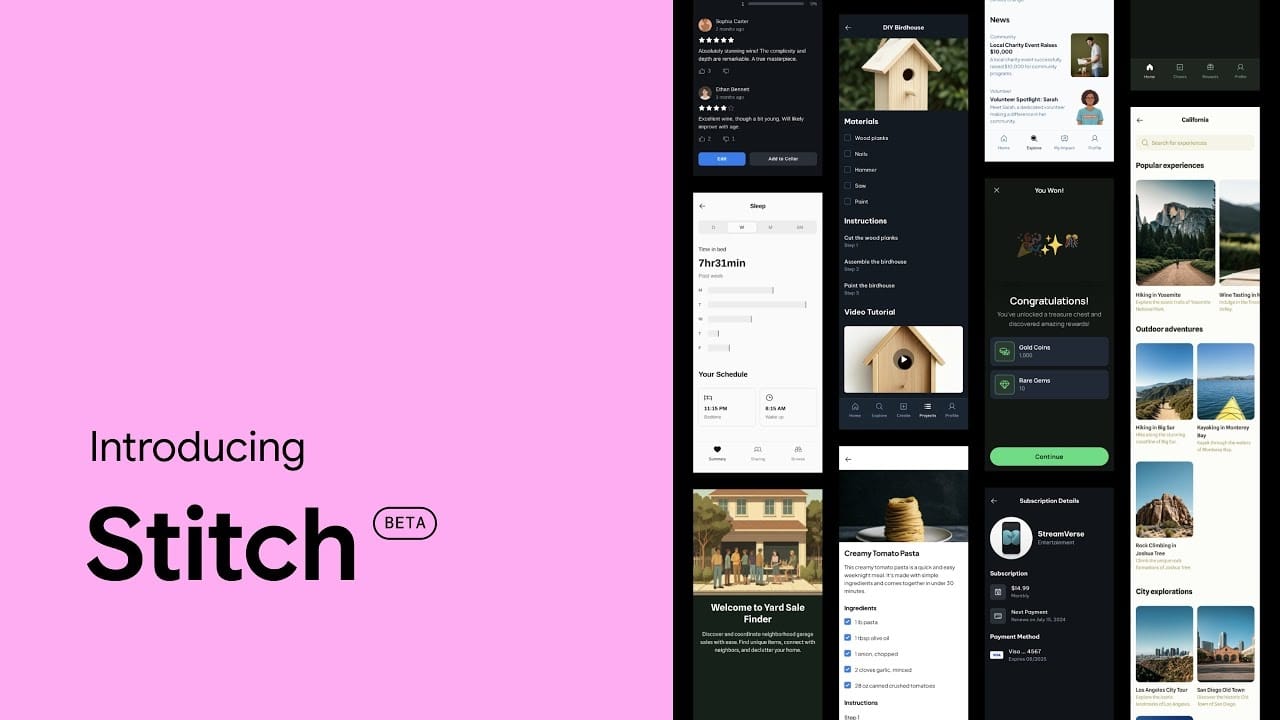
Some people use a design tool called Stitch to work with AI. It uses Google Gemini 3.1 Flash to help people design websites or apps by just talking and showing their ideas.
IV. Understanding Google Gemini 3.1 Flash Talk Mode
Talk mode is the simplest way to use this model. You just click a button, start speaking, and the AI speaks back.
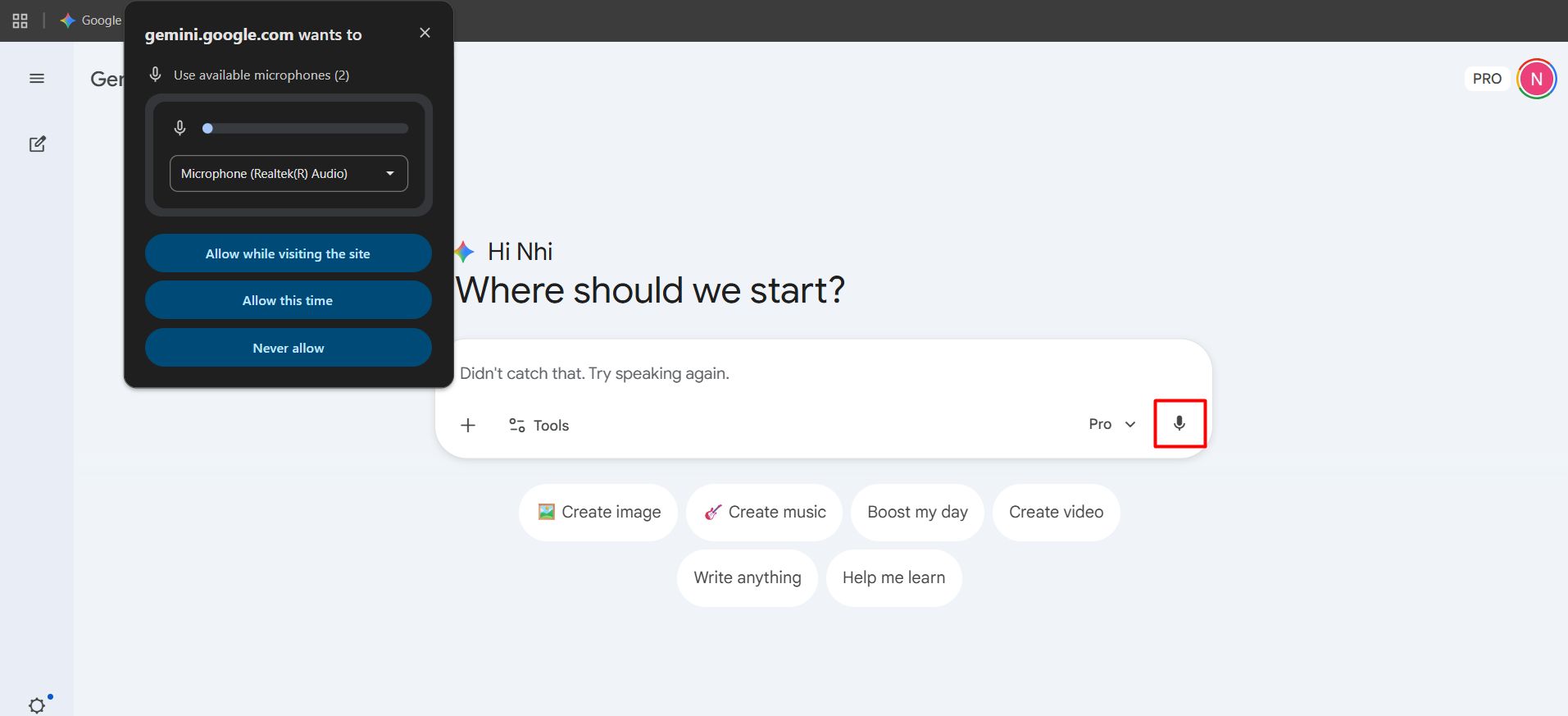
Try this speech:
Hey, are you working right now? Tell me a very short joke to prove you are awake.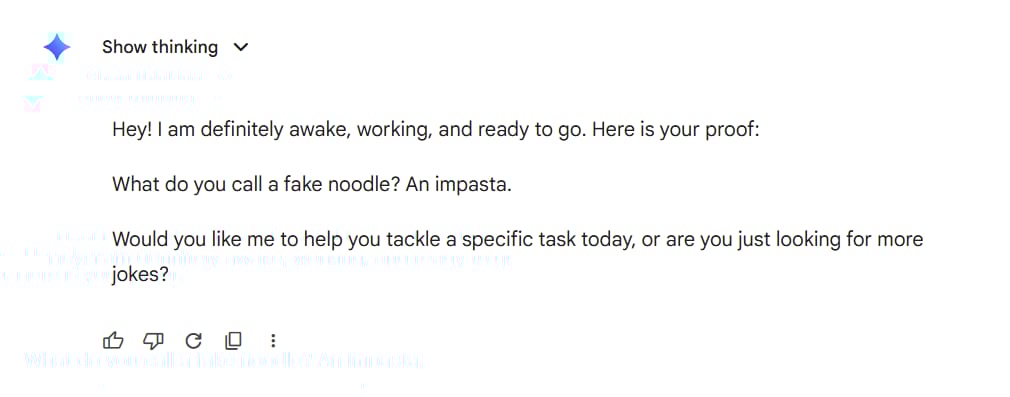
The model replied almost instantly. The voice was clear and sounded friendly. This is the mode you should use if you just want to brainstorm ideas or get a quick answer without typing.
Why Talk mode is the best place to start?
Talk mode works especially well for open-ended thinking, working through a problem, planning something out, or just processing ideas out loud without any rigid structure.
It’s particularly useful for “vibe coding” or “vibe design” workflows, where you talk through what you want to build until the shape of it becomes clear.
No awkward lag, no misheard words derailing the conversation, and no sense that you’re fighting the interface just to get something useful out of it.
V. Google Gemini 3.1 Flash’s Screen Sharing Feature
One of the coolest things about Google Gemini 3.1 Flash is that it can “see” your computer screen. Inside AI Studio, there is a button to share your screen.
1. Analyzing Data in Real Time
I shared a page from Google Search Console. I asked the model to look at the keywords and tell me what was missing.
It looked at the list and said I had many “branded” keywords but not enough “how-to” keywords. This was a very smart observation that saved me a lot of time.
Try this prompt while sharing a document:
Look at this report and tell me the three most important things I should change to make this better.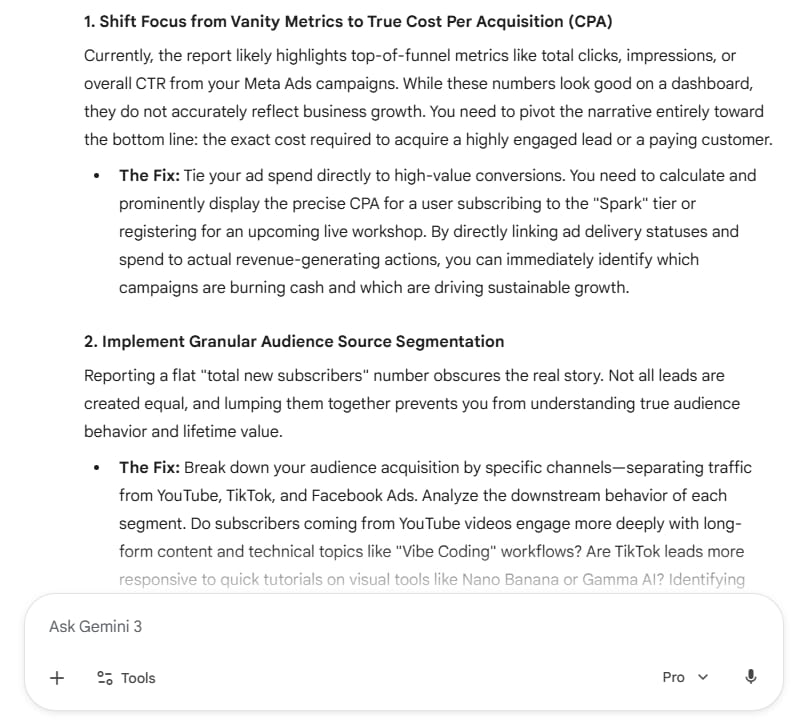
2. A Small Limit to Keep in Mind
In my experience, screen sharing can sometimes make the voice reply feel a bit slower. If you use the screen share and the chat at the same time, it works great.
But if you want the model to keep talking smoothly while you move things around on your screen, it might feel a little less “live” than the simple Talk mode.
VI. Google Gemini 3.1 Flash Vision Mode to See Your World
Screen sharing lets the model see your digital workspace. Vision mode takes that a step further by letting it see the physical world around you through your webcam.
Point your camera at anything, ask a question, and the model responds based on what it actually sees in the live feed.
1. Testing the Vision
You can turn on that camera and waved your hand, then ask the model:
It’ll reply: “You are waving your hand at me.” This shows that the model is actually “watching” the video feed.
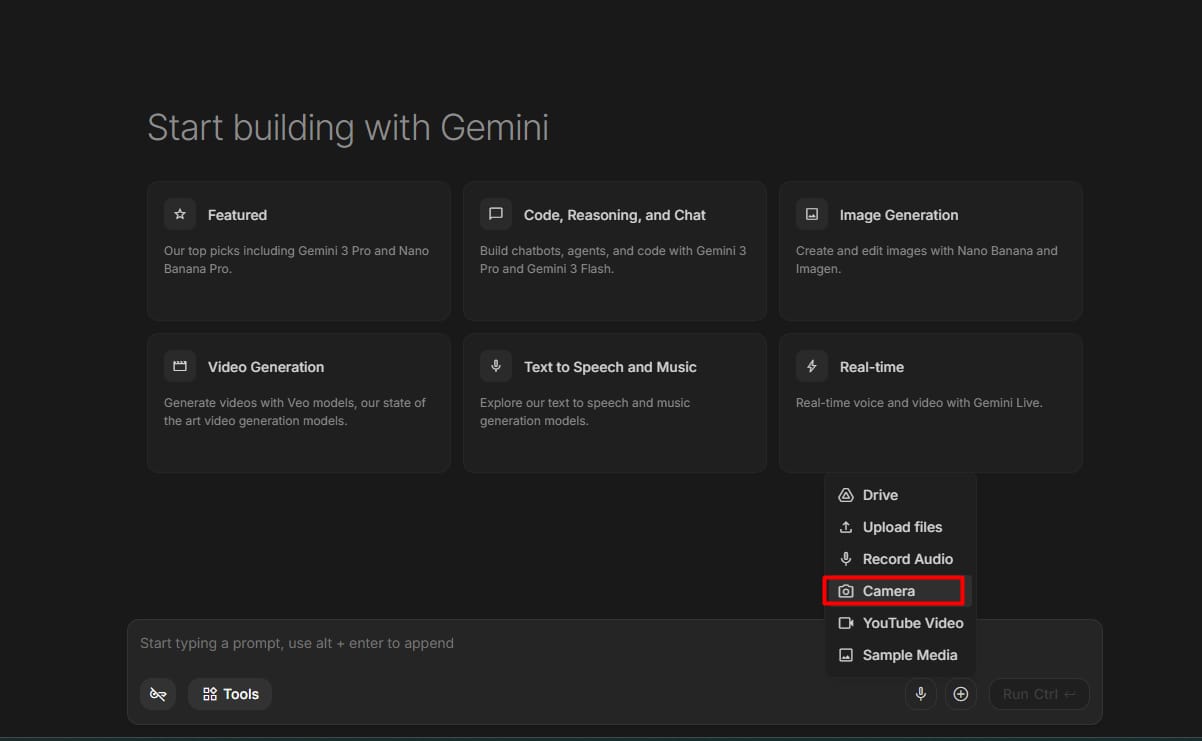
The most compelling use cases are the hands-on, real-world situations where typing out a description simply wouldn’t work. Some examples where this mode shines:
-
Troubleshooting a hardware issue by showing the actual component
-
Getting assembly instructions by pointing at a product you’re trying to put together
-
Identifying a plant, ingredient, or object you don’t recognize
-
Walking through a physical space and asking for layout or design feedback
Try this prompt while pointing your camera at something to test more:
Look at what I'm showing you right now. Walk me through exactly what you see, then tell me step by step what I should do next.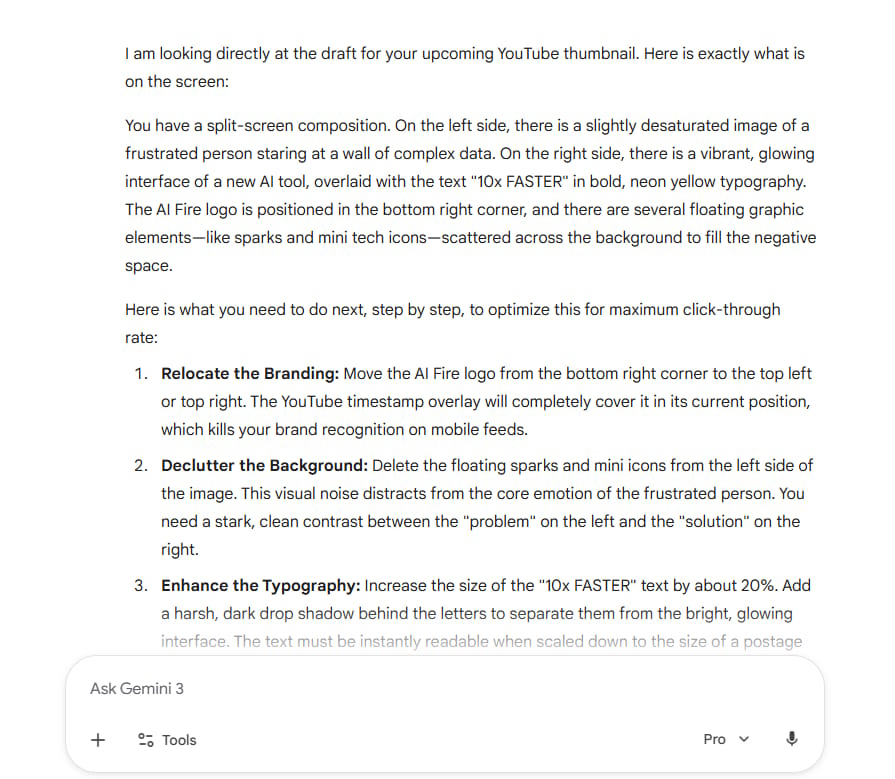
2. One Thing to Keep in Mind
Vision mode is slightly slower than audio-only mode, which is expected given how much more data the model is processing at once.
The key to a smooth experience is moving slowly and deliberately when showing something to the camera, rather than shifting things around quickly.
Give the model a moment to process what it’s seeing before asking your next question, and the responses stay accurate and on point.
VII. Building Your First Voice App With Google Gemini 3.1 Flash
One of the more surprising things about Google AI Studio is that building a custom voice app doesn’t require writing a single line of code. Inside the “Build” section, you describe what you want in plain language and the model puts it together for you.
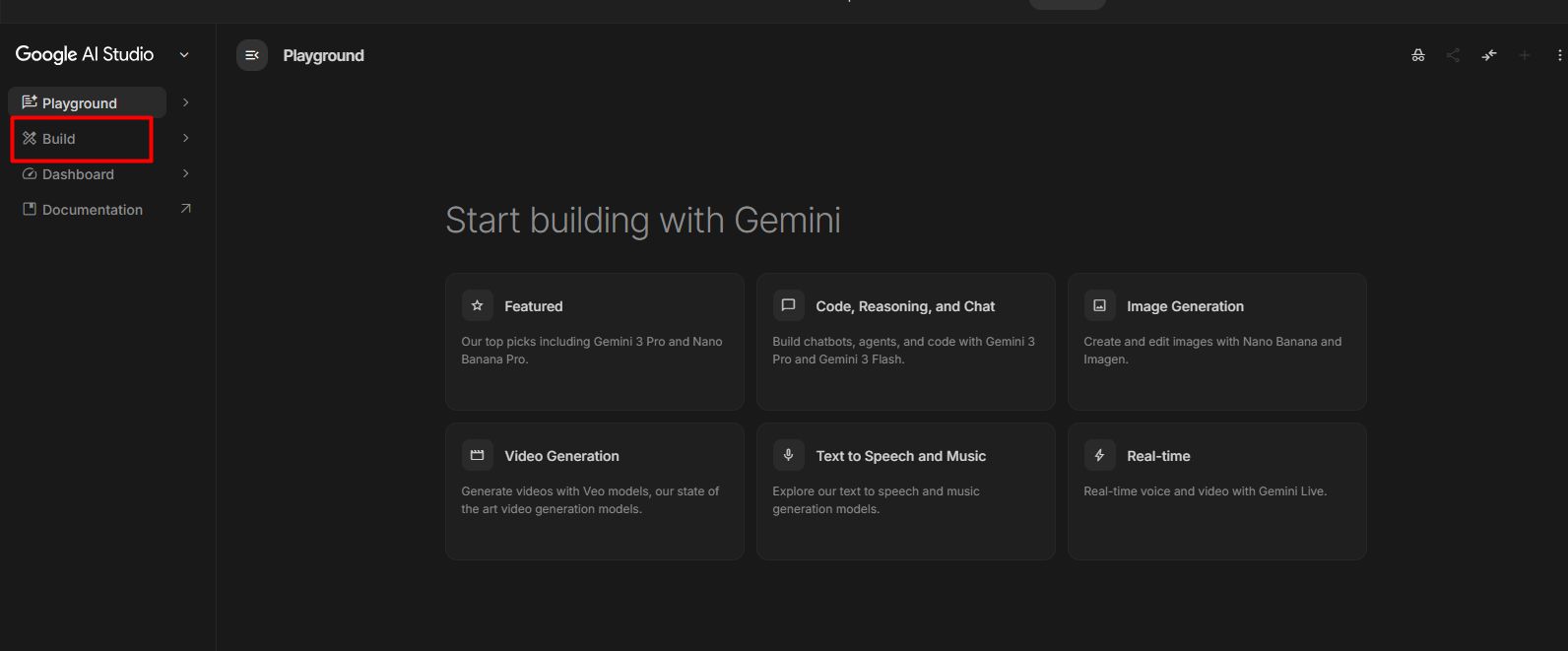
You can define its personality, the language it uses, how it handles situations where the user gets stuck, and what topics it should stay focused on. The more specific your instructions, the more focused and useful the experience becomes.
Try this prompt in the Build section:
Create a voice-first AI agent that acts as a strict but encouraging language coach.

The agent should only respond in the language I'm trying to learn, correct my grammar out loud when I make a mistake, and ask me follow-up questions to keep the conversation going.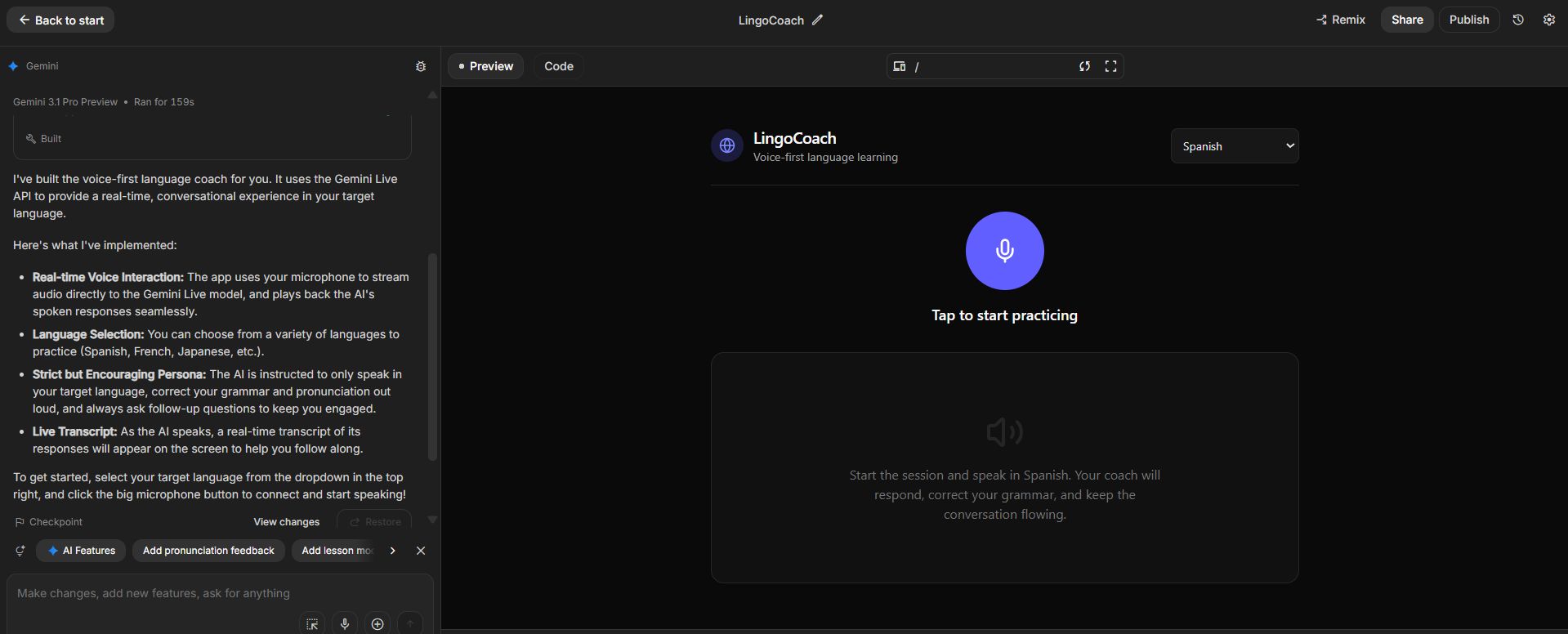
Once the agent is live, it stays in character, sticks to its defined role, and responds in a way that feels consistent throughout the conversation.
If it drifts off topic or doesn’t behave as intended, go back into the Build section, adjust the instructions, and test again. Getting it right usually takes 2 or 3 iterations at most.
VIII. How to Change Advanced Settings in Google Gemini 3.1 Flash
If you want to get more control, there are some hidden settings in the real-time area of AI Studio. These help you make the AI act exactly how you want.
1. Thinking Level
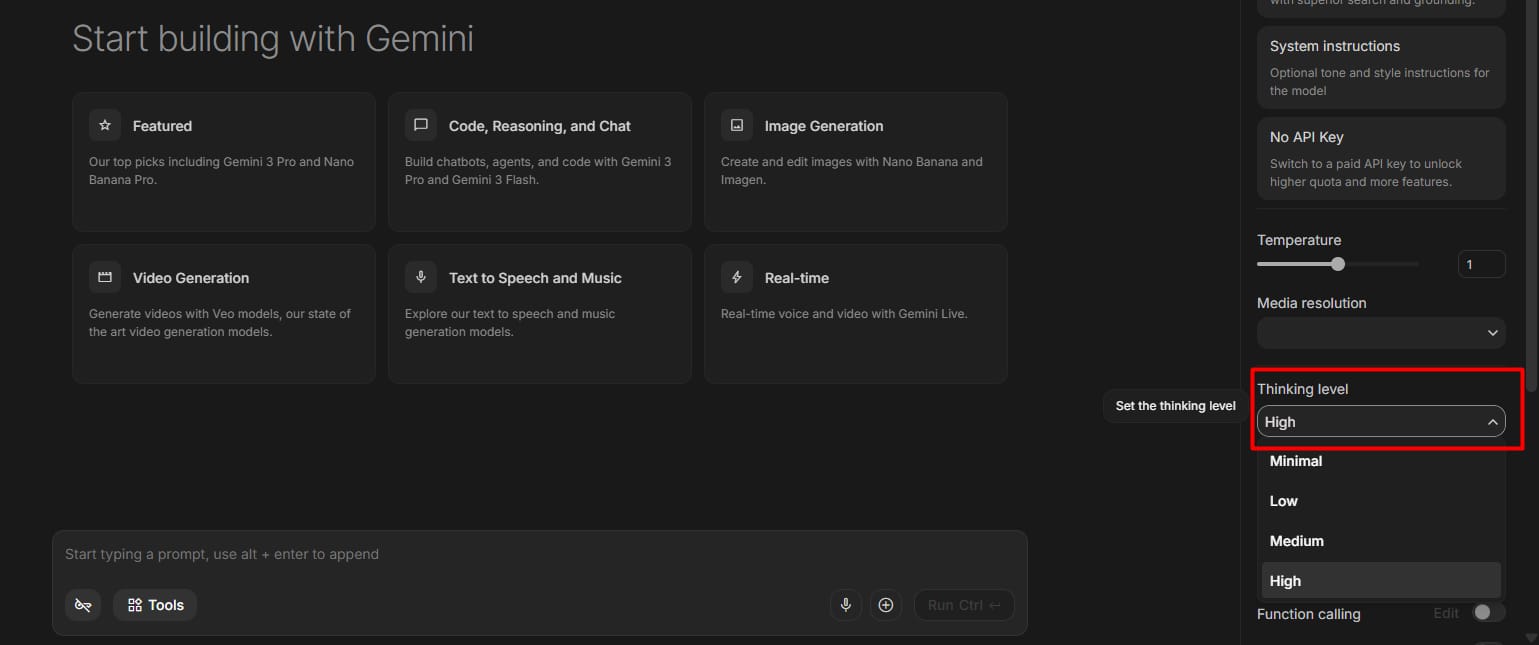
This is a very cool feature. You can set the “thinking level” to low, medium, or high.
-
Low Thinking: Fast replies, good for simple chats.
-
High Thinking: The model takes a bit more time to be very accurate. Use this for complex math or coding help.
2. Function Calling and Search
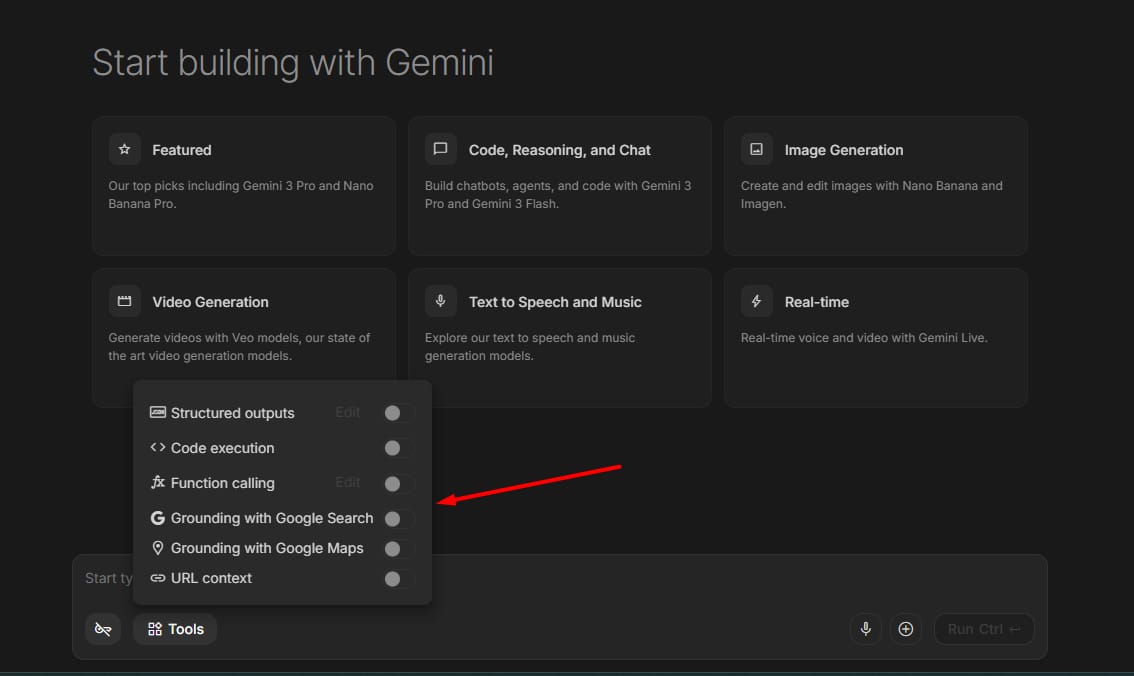
You can turn on “Google Search” as a tool. This means if you ask about the news, the AI can look it up on the fly and tell you the answer. This makes Google Gemini 3.1 Flash much smarter than an AI that only knows things from the past.
IX. Google Gemini 3.1 Flash Pricing Explained
The first question most people ask is simple: is it free? Testing inside Google AI Studio is free within certain limits.
Once you’re ready to publish, things change. The app needs to be connected to Google Cloud, and from that point API costs kick in based on token usage per conversation.
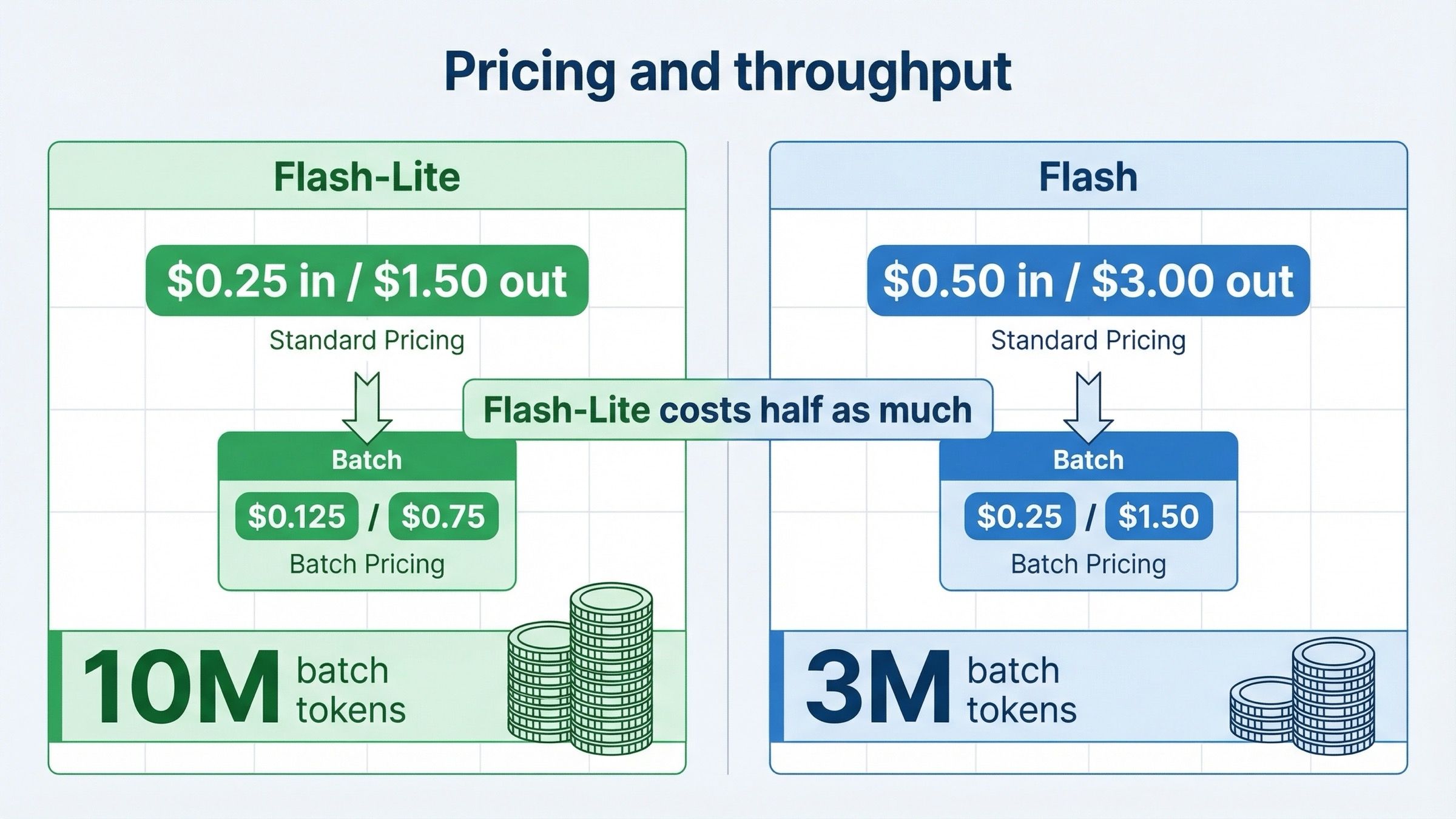
Flash-Lite
-
$0.25 input / 1M tokens
-
$1.50 output / 1M tokens
-
Batch pricing: 50% cheaper if real-time response is not required
Flash (standard)
-
$0.50 input / 1M tokens
-
$3.00 output / 1M tokens
-
Batch pricing: 50% cheaper if real-time response is not required
Before going live, the most important step is setting a spending cap inside Google Cloud. It takes a few minutes to set up but completely protects you from unexpected bills no matter how popular your app becomes.
X. Does Google Gemini 3.1 Flash Have Any Weak Points?
No tool is perfect, and Google Gemini 3.1 Flash has some things that could be better. I want to be honest so you know what to expect.
1. Multi-tasking lag
As I mentioned before, when you try to share your screen and use voice at the same time, it doesn’t always feel 100% smooth. Sometimes the voice might cut out or take longer to respond. It works best when you do one thing at a time.
2. Video speed
The video mode is amazing, but it is definitely slower than the audio mode. If you move things very fast in front of the camera, the AI might get confused. It is better to move slowly and clearly.
3. Documentation
Because this is so new, there are not many “how-to” guides from Google yet. You have to experiment a lot. That is why I wrote this guide to save you the trouble of guessing.
XI. Comparison Table: Google Gemini 3.1 Flash vs. Older Models
|
Feature |
Older Models |
Google Gemini 3.1 Flash |
|
Response Speed |
Slow (3-5 seconds) |
Very Fast (under 1 second) |
|
Voice Tone |
Robot-like |
Natural and Emotional |
|
Screen Sharing |
Hard to set up |
One-click in AI Studio |
|
Memory |
Forgets quickly |
Remembers long threads |
|
Availability |
Limited |
200+ countries |
XII. Frequently Asked Questions (FAQ)
1. Can I use Google Gemini 3.1 Flash on my iPhone?
Yes, you can use it through the Gemini app or by opening AI Studio in your web browser.
2. Do I need to know how to code to build a voice app?
No. You can use the “Build” section in AI Studio to describe what you want in plain English, and the AI will help create the app for you.
3. Is my data safe when I share my screen?
Google has privacy rules, but you should always be careful. Don’t share screens that show your passwords or bank details while testing AI tools.
4. What is the “ComplexFuncBench” score?
This is a test that shows how well the AI follows hard instructions. Google Gemini 3.1 Flash scored over 90%, which is much higher than most other models.
Conclusion
Google Gemini 3.1 Flash is a big step for AI. I spent months testing many tools, and this one feels very good. It’s fast and easy to talk to. You can use it to talk, see things through your camera, or share your screen. I find it very helpful for my daily work.
You don’t need to be an expert to start. Just go to Google AI Studio and try the Talk mode first. It’ll help you learn and work faster. I hope this post helps you understand Google Gemini 3.1 Flash better.
If you are interested in other topics and how AI is transforming different aspects of our lives or even in making money using AI with more detailed, step-by-step guidance, you can find our other articles here:
-
AI Generalist: How To Make 2026 The Best Year of Your Life With GPT/Gemini
-
The New Way to Build Profitable AI Websites With Gemini 3 (It Starts With One Page)
-
Earn Money with MCP in n8n: A Guide to Leveraging Model Context Protocol for AI Automation*
-
Transform Your Product Photos with AI Marketing for Under $1!*
-
The AI Secret To Reports That Clients Actually Implement
*indicates a premium content, if any
Leave a Reply