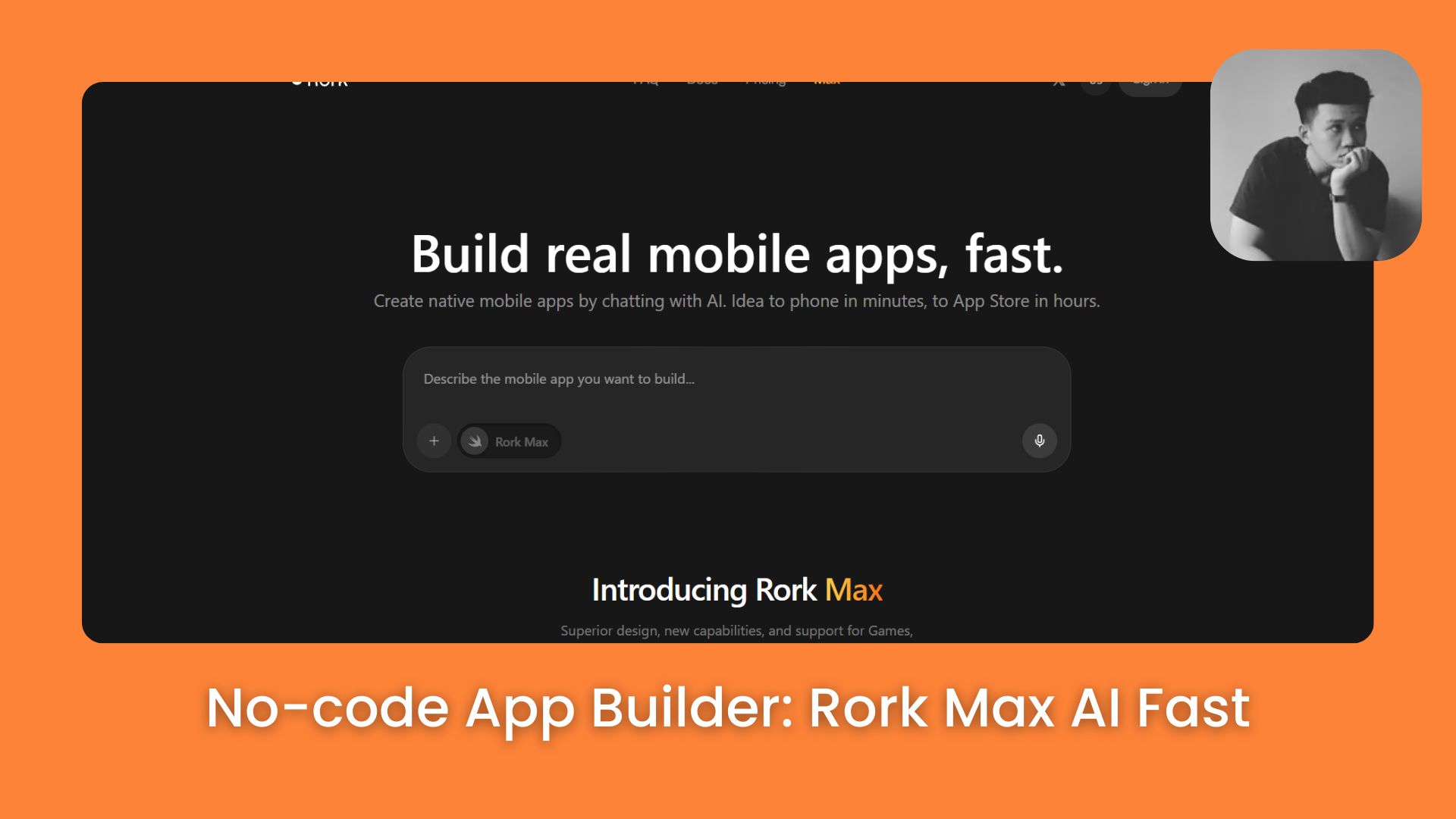
Use Rork Max AI to build native Swift apps for iPhone. No coding or Xcode required. Make your business idea real and test on your device in minutes.. Ai Tools, Ai Startups.
TL;DR
Building a native iOS app in 2026 no longer requires years of coding study or expensive hardware. By using Rork Max AI, a next-generation no-code builder, anyone can create high-performance Swift apps directly in a web browser using natural language. Unlike “web-shell” tools, this platform generates native code that supports advanced features like HealthKit, AR, and AI-powered health tracking. This allows founders to move from an idea to a functional, “native” iPhone app in just a few hours without hiring a developer.
Key points
-
Native Performance: Rork Max AI builds real Swift apps, ensuring smooth animations and full access to iPhone hardware.
-
No Mac Required: You can design, code, and test iOS apps entirely within a web browser like Chrome or Safari.
-
AI-Driven Logic: Use conversational prompts to build complex features like pregnancy trackers, ovulation predictors, and health chatbots.
Critical insight
In 2026, the primary barrier to launching an app is no longer technical skill, but the ability to clearly describe a solution to a specific human problem.
Table of Contents
Introduction
Have you ever had a great idea for an app but then you gave up because you don’t know how to write code?
Maybe you thought that you have to learn the Swift language, buy an expensive Mac, or pay thousands of dollars to a developer just to make a test version. After that, you felt it was too hard and you quit.
In this post, I’ll show you how a normal person can make a full period and pregnancy tracker app. This is just an example, you can actually create any other kinds of apps you like.
By the end of this post, you’ll understand every step to make something like it using the no-code app builder. It’s one of the best tools today.
I. What Is the No-Code App Builder Rork Max AI?
Rork Max AI is a revolutionary platform that allows users to build “native” iOS applications using the Swift language without writing code. Unlike many competitors that merely wrap websites in a mobile shell, Rork generates the same high-quality code used by top apps like Instagram and TikTok.

Key takeaways
-
Fact: Native apps run much faster and feel smoother than web-based mobile apps.
-
Contrast: Traditional iOS development requires a Mac and 30GB of software; Rork works entirely in a web browser.
-
Update: In 2026, you can test your creations on a real iPhone via the Rork Companion app without a paid Apple Developer account.
-
Action: Choose native builders over web-wrappers to ensure your product feels like a high-quality, professional tool.
This ensures your app is fast, smooth, and capable of using advanced iPhone features like HealthKit and Siri from day one.
1. Big Problem With Many App Making Tools Today
You might see many ads for tools that say they help you make a mobile app with just one command. But most of them don’t make real apps. They just make a website and then put it inside a mobile “shell.”
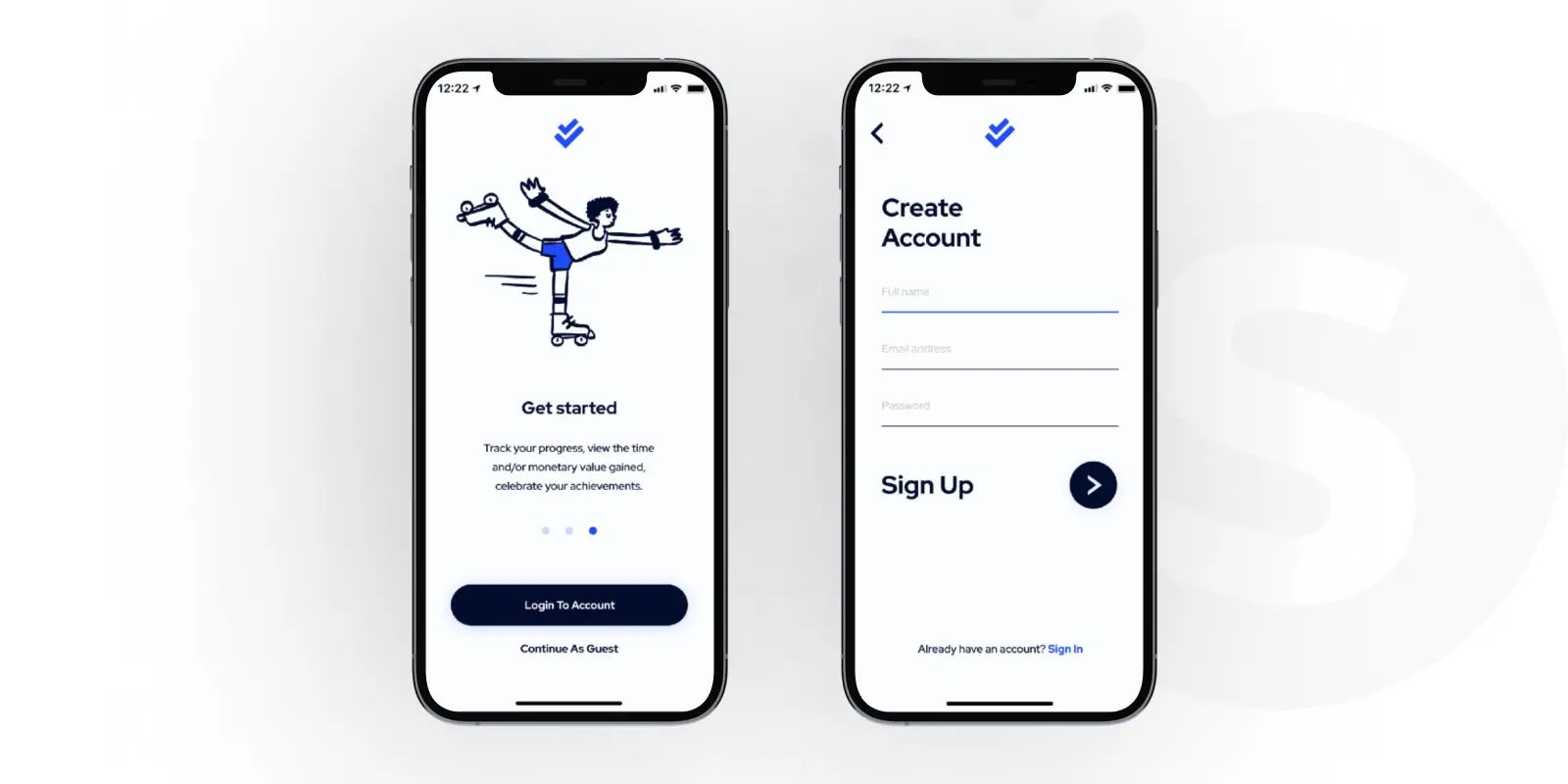
This means the app looks like a phone app, but it’s actually a website pretending to be one.
The movement will be a bit slow, it’s not as fast as a real app, and it can’t use all the features of an iPhone. You’ll see the difference immediately, even if you can’t say why.
2. Why Rork Max AI Is Different?
It builds native Swift apps. This is the exact language that Instagram, TikTok, and Apple use to make their apps. Because a real Swift app will:
-
Run much faster and feel very smooth.
-
Use all iPhone features like the camera or sensors.
-
Support high-end features like HealthKit (health data), widgets on the screen, and Siri.
-
Feel like a real, high-quality product when you touch it.
3. You Don’t Need a Mac Computer
This is the part I like most. Usually, to make an app for iPhone, you must have a Mac and install the Xcode software which is 30GB.
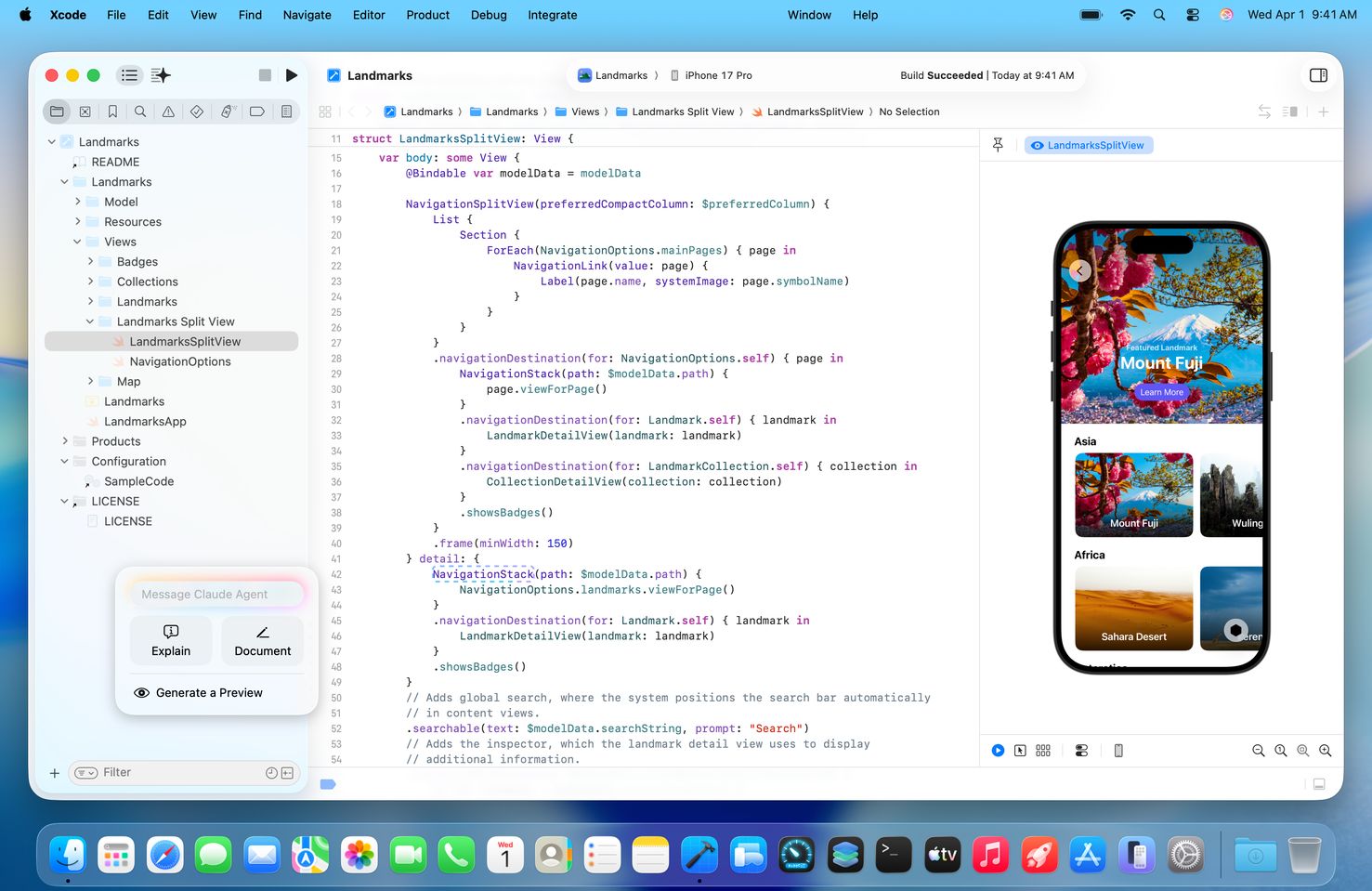
With this no-code app builder, everything happens on your web browser (Chrome, Safari, or Edge are all fine). You don’t need to download anything to your computer and you don’t need hard settings.
When you want to check the app on a real phone, you just download the Rork Companion app, plug in your USB cable, and your app will show up on your iPhone right away.
Learn How to Make AI Work For You!
Transform your AI skills with the AI Fire Academy Premium Plan – FREE for 14 days! Gain instant access to 500+ AI workflows, advanced tutorials, exclusive case studies and unbeatable discounts. No risks, cancel anytime.
Start Your Free Trial Today >>
II. What to Prepare Before Using This No-Code App Builder
Success with a no-code builder starts with a clear structure rather than trying to build complex features immediately. You should plan your app in specialized sections, such as a Dashboard, Tracker, and Settings, to keep the development organized. By breaking the project into “bricks,” you prevent the AI from getting confused as the application grows in complexity.
Key takeaways
-
Fact: A clear roadmap prevents “logic tangles” where the AI mixes up different app features.
-
Structure: For a health app, plan for five core areas: Dashboard, Tracker, Predictions, Symptom Checker, and Settings.
-
Benefit: Having a plan allows you to build the “frame” first before adding the “brain” to each section.
-
Action: Write down your five main sections on paper before you type your first prompt into the AI.
In this lesson, we’ll build a health app with 5 main parts:
-
Dashboard: The main screen showing summary info.
-
Tracker: Where users put in their period dates and symptoms.
-
Predictions: AI will guess the next period and ovulation days.
-
Symptom Checker: A virtual helper to answer health questions.
-
Settings: Where you change personal info.
We’ll build it like stacking bricks: make the frame first, then add features to each part. This is a smart way to work so you don’t get confused when the app gets bigger.
III. Step 1: Creating Your App Frame
The biggest mistake for beginners is trying to make hard features immediately. I want you to make the frame first. This helps you see how the app looks and where users will click to change pages.
Just type this command into Rork Max AI:
Hey Rork, create a simple period and pregnancy tracker application with five main sections: Dashboard, Tracker, Predictions, Symptom Checker, and Settings.

Create widgets in the dashboard that link to the three main sections and then generate placeholder data for each section.

Do not build actual functionality yet. Only build the front end as we'll add the features gradually moving forward.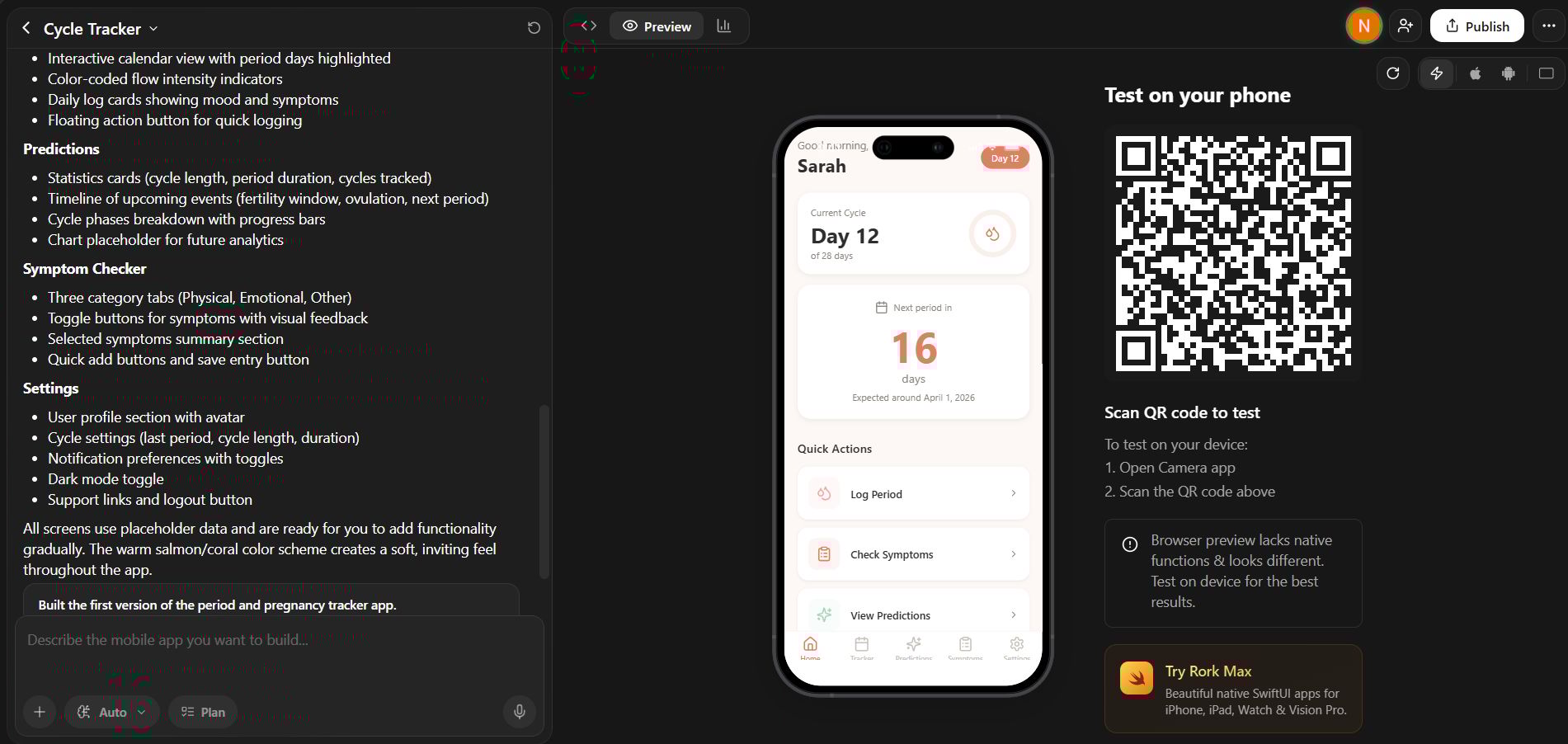
You don’t need to care about hard Swift code files. It’ll make the look of the app automatically. When it’s done, you’ll see a small iPhone (simulator) show up on your screen.
Even though there’s no real data yet, the app already looks very professional. It uses the newest design style of iOS 26.
You can click between the 5 parts to see if you like the layout. Having a strong frame will save you a lot of time later.
IV. Step 2: Building Core Features
Now we have the frame, let’s put life into the most important part: the period tracker. This is where users come every day, so it needs to be smooth and smart.
Instead of writing code to save data, you just ask the AI to upgrade that part. Use this prompt:
Now, please create the actual period tracker functionality. Allow users to log their menstrual cycles and receive AI-powered insights and predictions.

Make the experience smooth and dynamic and build this in the tracker section. Remove the placeholder data and make sure the corresponding widget in the dashboard links to this section.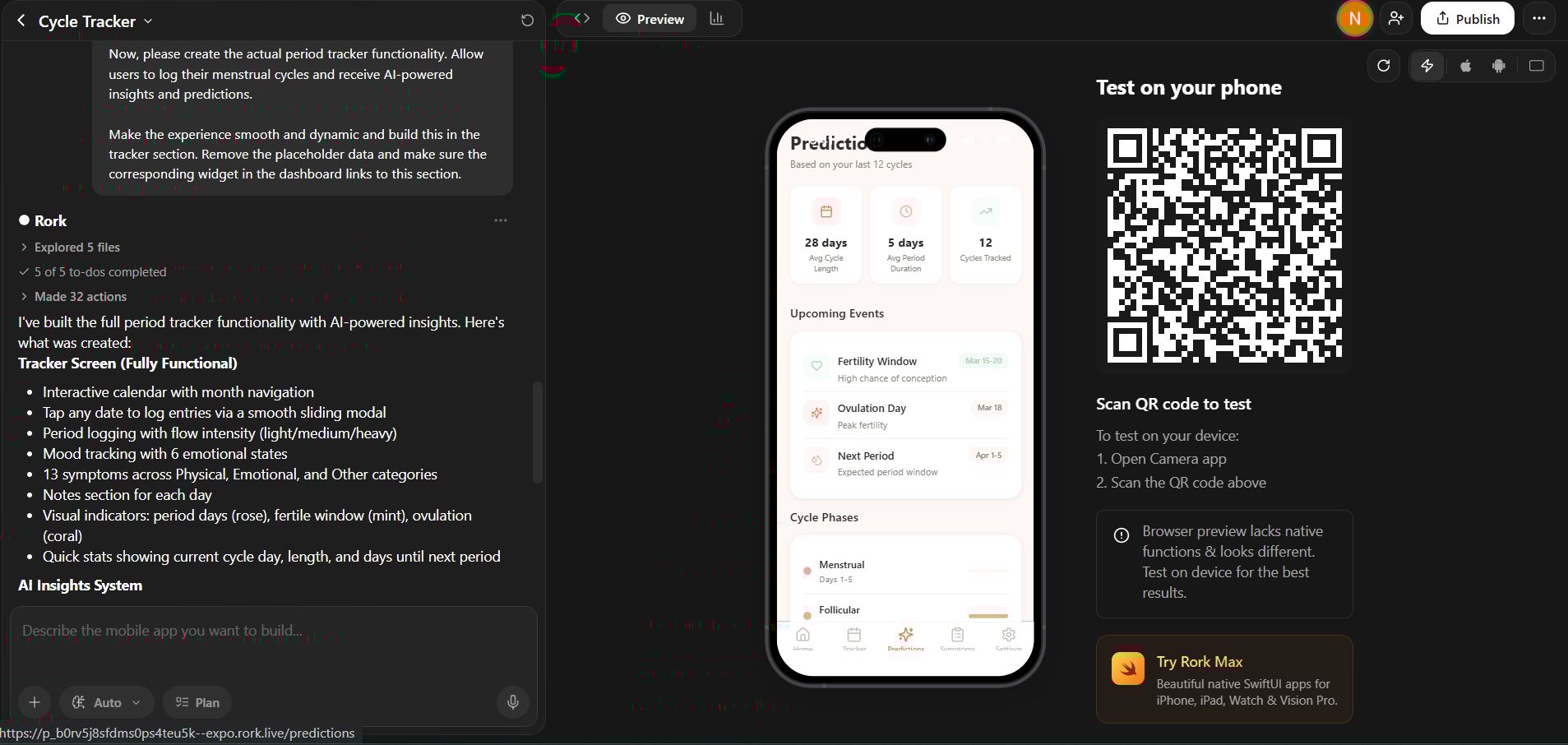
Rork Max AI is very smart. It doesn’t build everything again. It knows the Tracker part already has a frame, so it just replaces the fake data with real features. After it’s done, you’ll have:
-
A real screen to pick dates.
-
When you put in data, the app says it saved successfully.
-
The button on the home screen will go straight to this page.
Now, your app is not just a drawing anymore. It has started working like a real app. Remember this is just my example, in this step, just add all features you want.
V. Step 3: Adding Ovulation Tracking
Calculating ovulation days by hand is very confusing and easy to get wrong. A smart app should do that automatically using the data you already have.
1. Connect the Data Together
The coolest part about using an AI builder is that it remembers what you’ve already built. Since we’ve already set up the period tracker, the AI knows exactly when your cycles start and end.
We just want to add a new “brain” to our current project that can look at the old data and make smart guesses. Here’s the exact prompt I’d use to make this happen:
Great job. Now create the ovulation tracker.

Make this tracker based on the logged periods by the user and include a dynamic widget showing the next estimated ovulation period.
2. The Result You Get
After you send that prompt, you’ll notice something amazing happen in the simulator. Rork creates a “smart extension” of your existing app.
Everything will feel like it belongs together, not like a bunch of random pieces glued together. This is the power of a native no-code app builder, it keeps everything connected and smooth.
You don’t have to worry about the math or the logic behind the scenes. Just focus on how you want the app to look and feel, and let the AI handle the hard stuff.
Moving forward, your app’ll start to feel like a real health assistant. It’s now ready to help users plan their lives with much more accuracy.
VI. Step 4: Handling Health Symptoms
Instead of spending time making every single button for “Headache” or “Cramps,” you just let the AI handle it. I often tell it to make this recording part very easy to use, like you just need one tap and it’s done.
You can try copying this prompt into Rork Max AI to see what happens:
Now please build the symptom logger. Build this in the tracker section.

Allow the user to log symptoms they may have during the day. Make sure to align related data from the log periods and estimated ovulation to optimize this feature.
When you use this no-code app builder, your app starts to learn the “patterns” of each person. This is where the magic happens.
For example, if you often get a headache exactly 2 days before your period, the app will slowly realize that. After a few months, it can tell you: “Hey, that day is coming. Remember to rest because you usually have a headache at this time.”
I think connecting symptoms with the cycle is a very smart move. It helps users stop guessing about their health. Everything shows up clearly on the screen.
VII. Step 5: Adding Pregnancy Tracking
I often tell people never to let users leave when their lives change. This is how we keep the most loyal users and create a product with a “heart.”
You can try copying this prompt:
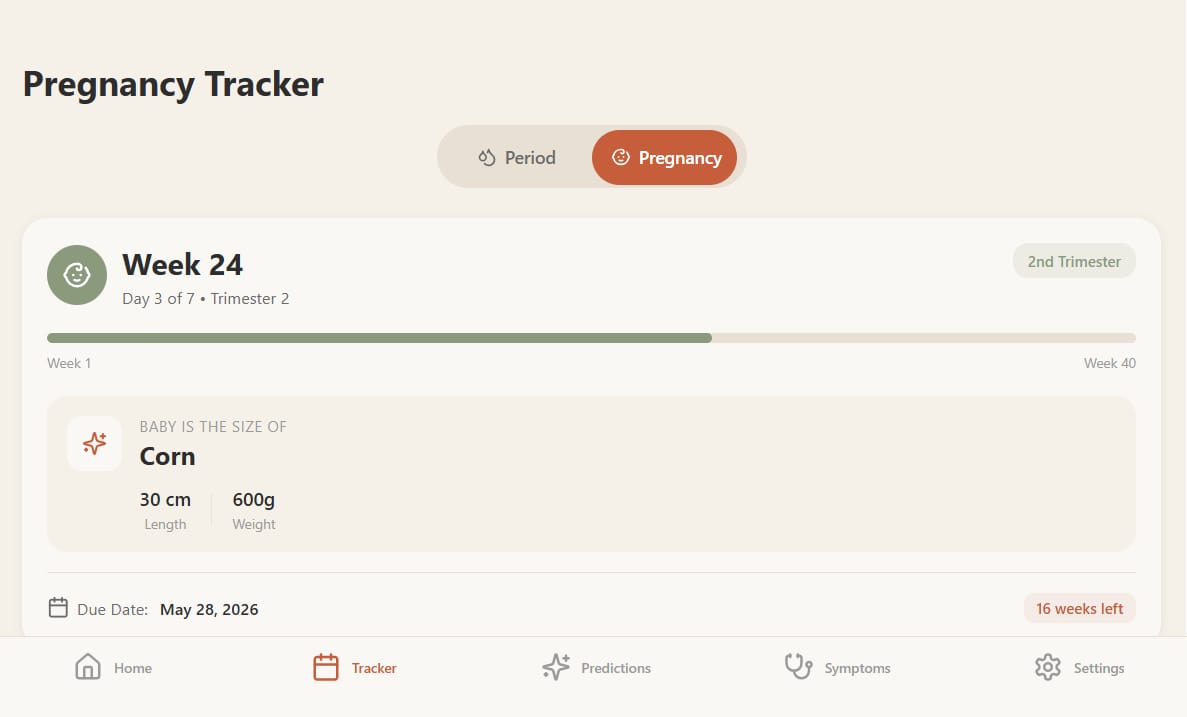
Now, please create the pregnancy tracker.

Build this functionality alongside the tracker section and allow the user to track how far they currently are in their pregnancy if they are pregnant.
When you use this command, the no-code app builder will understand that it needs to make a new branch inside the Tracker section. It’ll automatically organize everything so it doesn’t break the old features we built.
For User Experience
When a user picks the “I am pregnant” mode, you’ll see something magic happen on the iPhone screen. Instead of showing period info, the app’ll immediately change to pregnancy care mode.
It’ll show exactly which week and which day the user is at. It can even give helpful advice for each stage of the baby’s growth.
Everything’ll still stay neat in the Tracker part, so the app doesn’t become a mess.
VIII. Step 6: Optional: Putting an AI Chatbot Into a No-code app builder?
1. Create a Virtual Assistant
In this step, we want the AI to know how to predict the future and give advice based on the user’s past data. This sounds hard, but with a no-code app builder, you just need to give the right command.
Now please build the prediction section.

Create an AI-powered prediction system and insights to predict next period and fertile days.

Create a native chatbot as well that can allow users to ask for assistance with more information about the topic.
When you run this, the AI will not only create a new page. It’ll start connecting to all the period, symptom, and pregnancy data we built before to help it answer questions better.
2. Two Features in One
The great thing about this no-code app builder is that it’ll give you two high-quality things at the same time.
→ The first part is Deep Analysis. The app’ll automatically draw health charts and give very personal comments for the user.
→ The second part is the Native Chatbot. I use the word “native” because it’s very important. It’ll be a smooth chat box that looks exactly like iMessage on your iPhone.
IX. Step 7: Testing Your App on a Real iPhone
You don’t want your users to find an error the first time they open your app right? Now, I’ll show you how to run your app on your own iPhone.
When you look at your app on a computer screen, it might look fine. But the feeling of touching it on a real phone screen will be very different. You should try these steps to make sure everything is ready:
-
First, open the app and click through all the menus. See if the pages change smoothly or if there’s any lag.
-
Next, try putting in a new period in the Tracker section.
-
Then, go back to the home screen (Dashboard) to see if the widgets update the dates automatically. If they change, it means your data is connected correctly.
→ Don’t forget to check the AI “brain” we built in the last section. Try asking the chatbot a random health question. It’s very cool to see it answer right there on your own phone.
Finally, try entering a pregnancy start date. See if the app changes to pregnancy mode and shows the correct number of weeks.
Conclusion
I hope this guide shows you that making an iPhone app isn’t impossible anymore. With just a few chats with AI, your idea on paper’ll become a real product in your hands.
Coding skills aren’t a big problem now. You’ll feel much more confident because you can change every button or color exactly the way you want.
If you have an app idea, don’t just keep it in your head. Start with the small steps, like the app frame we built together at the beginning of this post.
Every big app starts with a very small step. I did it, and I’m sure you’ll do it too, maybe even better than me. Feel free to message me if you need any help with your journey!
If you are interested in other topics and how AI is transforming different aspects of our lives or even in making money using AI with more detailed, step-by-step guidance, you can find our other articles here:
-
Building Apps with Bolt: A No-Code Guide to Turning Ideas into Reality
-
Detailed Guide: How To Automatically Get Unlimited High-Quality LinkedIn Jobs*
-
Prompt Engineering Automation: Build a Mini AI Assistant with n8n
-
Discover My Ultimate AI Tools Productivity Kit for 2024*
*indicates a premium content, if any
Leave a Reply