
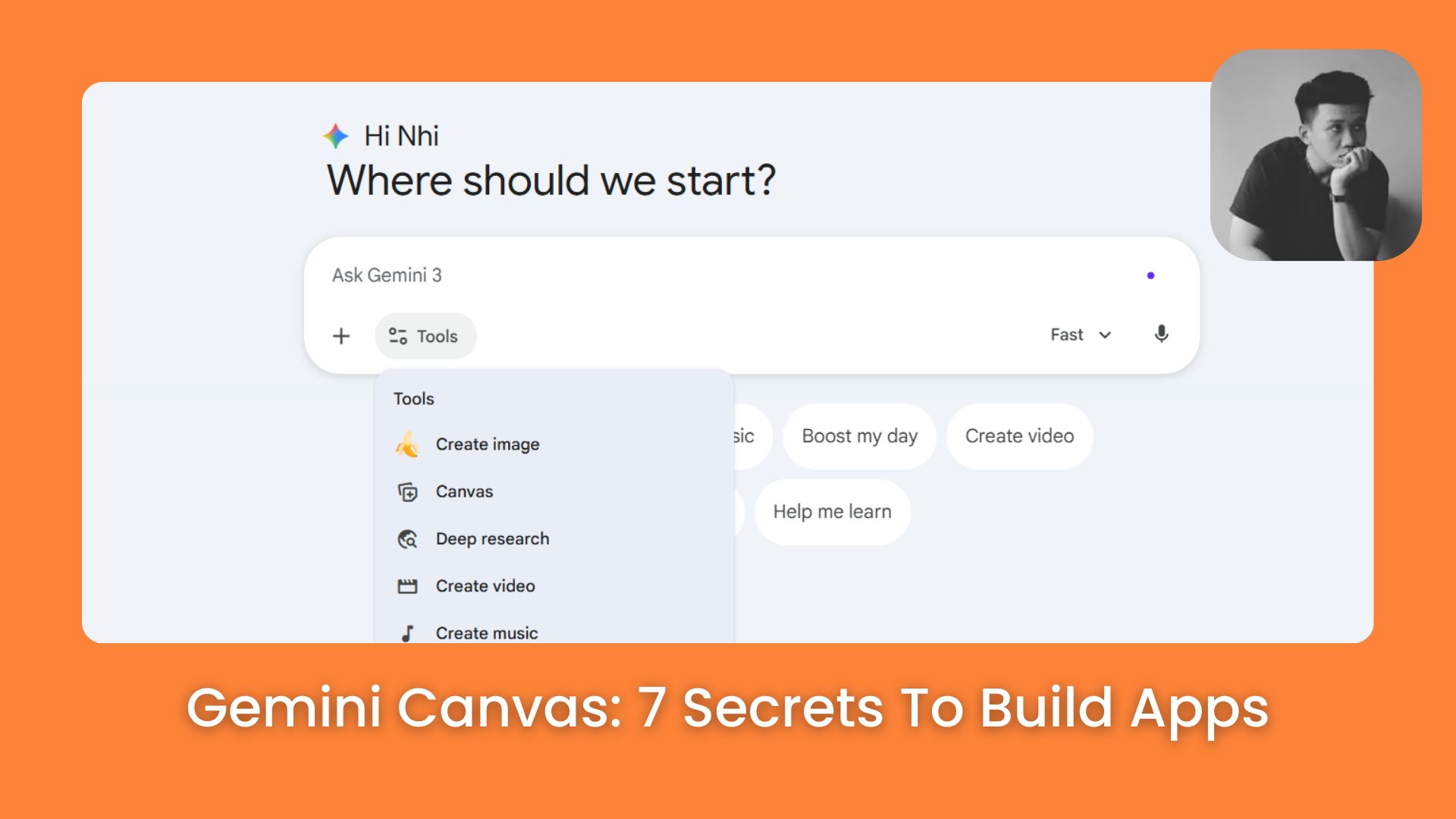
Gemini Canvas turns basic chats into a powerful workspace. Learn how to easily build real applications, custom games, and stunning websites today!. Llms (Large Language Models), Ai Tools, Prompt Engineering.
TL;DR
Gemini Canvas is a high-performance workspace that transforms the standard AI chat experience into a dynamic, side-by-side creation engine. In 2026, this tool allows users to move beyond simple text replies and directly build functional web apps, interactive study materials, and professional data dashboards without writing a single line of code. By combining real-time editing with specialized “Thinking” models, Canvas serves as an integrated studio for developers, designers, and students to prototype ideas and automate daily workflows instantly.
Key points
-
Interactive Editing: You can click and type directly within the generated content, eliminating the need to copy-paste into external programs like Word.
-
Rapid Prototyping: Build functional tools like habit trackers or Pomodoro timers by describing your vision in plain English.
-
Format Transformation: A single research source can be instantly converted into digital flashcards, interactive quizzes, or even a podcast-style audio summary.
Critical insight
In 2026, the competitive advantage isn’t just knowing how to “chat” with AI, but mastering the “Canvas” to act as a project director who shapes raw code and content in real-time.
Table of Contents
Introduction
Gemini Canvas is an amazing tool that changes how we use AI everyday. If you only use AI to ask simple questions and read text answers, you are missing a huge opportunity.
This feature turns a normal chat box into a big workspace where we can actually make real things together. You can build mini apps, visual data boards, and fun games.
Most people hear about this tool but they don’t really know what it does. So we’ll go through 7 practical ways to use this workspace. You don’t need any coding skills or design experience.
I. What Exactly Is Gemini Canvas?
Gemini Canvas is an advanced workspace that opens a large editing panel on the right side of your screen to solve the “messy chat” problem. Unlike traditional AI that requires a full rewrite for every change, Canvas allows you to click, delete, and type directly into the AI’s output as if you were using a word processor.
Key takeaways
-
Fact: Regular chat windows force you to scroll through long histories to find previous versions of your work.
-
Difference: Normal AI chat is for talking; Gemini Canvas is for creating, editing, and refining products together.
-
Detail: You can fill in placeholders like name and phone number directly in a drafted letter without asking the AI to rewrite it.
-
Action: Use the large right-hand panel to manually tweak specific sentences while the AI maintains the overall structure.
This side-by-side layout ensures your creative work stays organized while keeping your conversation history easily accessible on the left.
1. The Big Problem with Regular Chat Windows

When you use normal AI, everything happens in a long, narrow chat window. You type a question, and the AI gives you an answer. If you want to change one small sentence in that answer, you have to type a new message.
You say something like, please change the second paragraph to make it shorter. Then, the AI writes the whole page again.
This gets very messy very quickly. If you ask for 5 or 6 changes, you have a very long page. You have to scroll up and down, again and again, to find your old versions.
2. The New and Better Way to Work Together
This new tool fixes that messy problem completely. When you turn it on, Gemini opens a large panel on the right side of your screen. Your text appears in this new, big window.

Here is the best part. You can actually click and type directly on that text. It works just like a normal writing program. You can click on the empty spaces, type the company name, delete a sentence you don’t like, and add your own words.
You don’t have to ask the AI to rewrite the whole letter. You just fix what you want with your own keyboard. When you finish, you can copy exactly what you need.
The messy chat history stays out of your way on the left side. Normal chat is just for talking. This new workspace is for creating and editing things together.
Learn How to Make AI Work For You!
Transform your AI skills with the AI Fire Academy Premium Plan – FREE for 14 days! Gain instant access to 500+ AI workflows, advanced tutorials, exclusive case studies and unbeatable discounts. No risks, cancel anytime.
Start Your Free Trial Today >>
II. How to Activate Gemini Canvas on Your Account
To turn on Gemini Canvas, log into your Google account and look for the “Tools” or “Extra Features” button near the bottom of a fresh chat window. From there, simply toggle the workspace option to “On” to enable the side-by-side editing interface. For paid subscribers, enabling the “Thinking” button is highly recommended, as it allows the AI to plan and reason through complex tasks before it begins writing code or content.
Key takeaways
-
Step: Look for a small icon representing extra features at the bottom of the Gemini interface to find the toggle.
-
Comparison: Paid users get the “Thinking” mode, which acts like a worker drawing a blueprint before building a house.
-
Timeframe: The activation process takes less than 30 seconds and readies the system for app and game building.
-
Detail: The “Thinking” feature results in significantly smarter logic for coding and technical planning.
You can follow these simple steps on your computer right now to get ready.
1. Simple Steps to Turn On the Tool
First, you need to open your web browser and go to Gemini. Log into your Google account.
Start a fresh, empty chat. Look at the top of your screen or near the bottom chat box. You will see a button that says Tools or has a small icon for extra features. Click on that button.
You will see an option for the workspace. Turn it on. It is very simple.

2. A Special Tip for Paid Users
If you pay for the premium version of this AI, you have another button called Thinking. I highly suggest you turn this on too.

When you turn on the Thinking feature, it takes a little more time to plan its answer. It thinks carefully before it starts writing or writing code.
This gives you much better and smarter results, especially when we build apps and games later in this lesson.
III. Gemini Canvas Use Case #1: Build Personal Tracking Apps
Imagine you want to drink more water, read 10 pages a day, and exercise for 20 minutes. You want a simple app on your phone to track this every day.
You go to your chat box and type this detailed prompt:
Create a simple web app for me where I can track my daily habits. I want to track drinking water, reading, and walking.
I want a big button to click when I finish a habit. Please make the background color light green.
You press enter and wait for a minute. Gemini is now writing the code for you.

The side panel will open. You will see a lot of computer code with funny colors. You don’t need to read or understand this code.
Look for a button at the top that says Preview or Run. Click it. Suddenly, the code changes into a real, beautiful app on your screen.
You will see your habit tracker. It has buttons for drinking water, reading, and walking. You can click them, and the app will count your progress. It works perfectly, just like an app you download from a store.
→ Adding New Features to Your App Easily
Maybe you look at your new app and think, I want to see my progress for the whole week, not just today. You just go back to the chat box on the left and tell Gemini what you want. Type this new prompt:
This looks great. Now, please add a simple visual chart to this app. The chart should show how many habits I completed each day this week.
It’ll update the code for you. When you preview it again, your app now has a beautiful chart at the bottom.
IV. Gemini Canvas Use Case #2: Create Interactive Learning Materials
Gemini Canvas is also a wonderful teacher. We can use it to study new things in a fun way.
1. Starting with a Topic You Want to Learn
Let’s say you bought a new camera and you want to learn basic photography. There are many confusing words like aperture, shutter speed, and ISO. You don’t want to read a boring textbook.
Then type this prompt:
I want to learn basic photography terms for beginners. Create a simple report explaining aperture, shutter speed, and ISO. Give me easy examples for each word.Gemini will write a nice, clear report in the side panel like this:

2. Changing Text into Fun Study Tools
Reading the report is good, but we can do much better. Look at the top of the side panel. You will find a Create button or an Export menu. When you click it, you’ll see many amazing options to help you learn.

a. Making Digital Flashcards to Remember Words
You can choose the Flashcards option. The tool will read your photography report and make a deck of digital cards. You’ll see the word Aperture on the screen. You guess the meaning in your head.
Then you click the card with your mouse. It flips over and shows you the answer. This helps you remember things much faster.
b. Taking a Quick Test to Check Your Knowledge
You can choose the Quiz option. It’ll create multiple-choice questions about photography. You read the question, pick an answer A, B, C, or D, and it tells you if you are right or wrong immediately.
If you pick the wrong answer, it will explain why you are wrong so you learn from your mistake.
c. Listening to a Podcast While You Walk
This is my favorite feature of all. You can choose the Audio option. Gemini takes your photography report and makes an audio file. It sounds exactly like two real people talking on a radio show.

One person asks questions about the camera, and the other person answers simply.
You can put on your headphones, go for a walk in the park, and learn photography by listening. It sounds very human and friendly.
V. Gemini Canvas Use Case #3: Design Professional Websites
If you want to start a small business, you need a website. Paying a web designer costs a lot of money and takes weeks. We can do it for free right here in just a few minutes.
1. Gathering Your Important Business Information
First, you need some basic information. Imagine you are opening a small coffee shop called Morning Bean. You write down your menu, your shop address, your opening hours, and a short story about why you love making coffee.
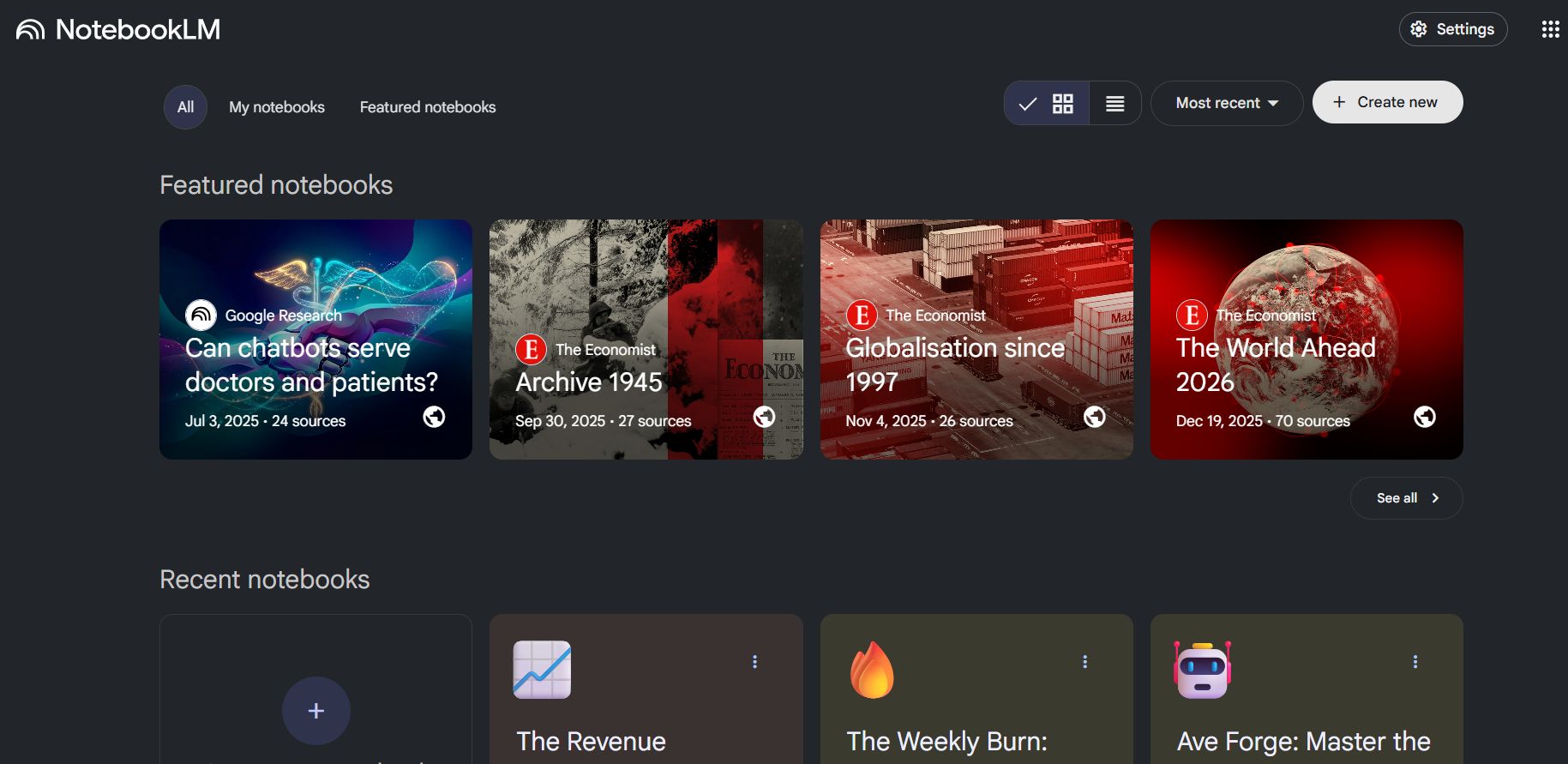
You can use another free tool from Google called NotebookLM. Upload your menu and your story into a new notebook there. This keeps all your ideas organized in one place.
2. Building the Website Step by Step
Now, go back to our main workspace, cconnect your notebook, or you can just copy and paste your information directly into the chat box.
Type this detailed prompt:
Create a simple, modern website for my new coffee shop called Morning Bean. Use the menu and address I provided.

Please make the main color warm brown. Make sure the website looks good on mobile phones.
Press enter and let the AI do the hard work.
3. Reviewing Your Beautiful New Site
In a few minutes, it’ll write all the complex code. You can click the preview button to see a complete, working website. It has a big welcome text, a beautiful menu section with your actual coffee prices, and a contact section at the bottom with your address.
By using your actual menu and real-world data instead of placeholders, we’ve created a genuine first draft of your business website that you can proudly share with your family.
VI. Gemini Canvas Use Case #4: Copy and Recreate Existing Tools
This feature feels like real magic. You can show Gemini a tool you like on the internet, and it will build a similar one just for you.
1. Finding a Useful Tool You Want to Copy
Instead of working until you’re exhausted, a Pomodoro timer breaks your day into manageable 25-minute sprints, punctuated by 5-minute breathers to keep your momentum high.
You may like it, and you want your own version with different colors and a louder alarm sound. Move on.
2. Making a Short Video to Show Gemini
First, open your screen recording program and start the capture. Then, navigate to the timer website while explaining the process out loud into your microphone.
Look at this website. It is a focus timer. When I click the start button, it counts down from 25 minutes. When it reaches zero, it plays a bell sound.

I want you to build this exact same tool for me, but please make the background color bright blue.
Then, just stop the recording and save the short video file to your computer.
3. Fixing Small Problems Together
Maybe the start button is too small, or the bell sound does not play when it reaches zero. Just tell the AI what is wrong.
The timer looks very good, but the start button is too small to click easily. Also, please add a new button to pause the time.
So, you’ve just cloned a fully functional tool simply by recording a video of it. Once the AI quickly fixes the code, you can test it again – saving you hours of manual development.
VII. Gemini Canvas Use Case #5: Create Visual Data Dashboards
If you work in an office or manage your own money at home, you probably look at spreadsheets a lot. Staring at rows of tiny numbers is boring and very hard to understand. We can change those numbers into beautiful visual charts easily.
1. Preparing Your Data the Right Way
For example, with a list of your personal expenses from the last month, you can organize your spending into columns like this: food, rent, gas, and entertainment.

Oh, there is a small bug you need to know before doing anything else.. If you try to upload an Excel file or Google Sheet directly into the chat, AI might get confused and just show you raw computer code.
So just open your spreadsheet, highlight all your rows and columns with your mouse, right-click, and select copy.
2. Creating the Visual Board
Now, go to the AI chat box and type this prompt:
Create an interactive data dashboard using the financial numbers I provide below.

Show me a pie chart for my spending categories. Also, give me a summary of my total costs for the month.
Then, paste all your numbers right under the prompt, press enter.

The side panel will open and build a beautiful dashboard. You will not see boring cells of numbers anymore.
You will see colorful pie charts. When you move your mouse over a slice of the pie, a small box pops up and tells you exactly how much money you spent on food.
You might see different tabs at the top of the screen. One tab says Overview. Another tab says Monthly Details. You can click these tabs to see different views of your money.
This is much better than a spreadsheet because it helps you see the big picture immediately. If you need to show this information to your family or your boss, a visual board looks very professional. And it only took you 2 minutes to make.
VIII. Gemini Canvas Use Case #6: Create Playable Games
You can absolutely use Gemini to make fun games to relax after a long day, or you can just build educational games for young kids to help them learn.
Imagine a little square block that runs automatically across the screen from left to right. Boxes fall in its way. To jump over a box, the player has to solve a simple math problem very quickly.
Sound simple, right?
Build a web browser game where a blue square character runs automatically from left to right.

Obstacles appear in the path. To jump over an obstacle, a simple addition math problem appears on the screen like 5 plus 3.

The player must type the correct answer to jump. If they type the wrong answer, they hit the obstacle and lose one life.

Give the player 3 lives total. Keep the score at the top.
Gemini AI will generate the game code in the side panel. Just click the preview button. Your game will appear right inside the window.
You can actually play it.
When you play it the first time, you might feel the character runs way too fast. You can’t read the math problem and type fast enough.
You just go back to the chat on the left and say:
The game is very fun, but the character runs too quickly. Please slow down the running speed by half so I have more time to read the math problem and type.
The AI updates the code instantly. Now the game is easier to play.
IX. Gemini Canvas Use Case #7: Turn Research into New Formats
We talked a little bit about this in the learning section earlier, but it’s so important that we need to look at it closely again. You can take any big piece of information and change it into the format that fits your brain best.
1. Why We Need Different Formats for Learning
Everyone learns differently. Some people like to read lists. Some people need to see pictures and charts. Some people learn best by listening to someone talk.
When you do research, like reading a long article about healthy eating or a history book, you usually just get a giant wall of text. It is hard to remember all those words.
2. Generating Multiple Options from One Single Source
With this tool, you can put that long article into the side panel. Then, you can ask the AI to change it into whatever format you want to use.
If you have a big presentation at work tomorrow, you can say:
Turn this long article into a short, simple bullet-point list so I can memorize the main ideas quickly.
If you want to test yourself before an exam, use the quiz feature. If you want to listen on the bus while you go to work, make the podcast audio file.
You only have to find the good information once. Then, you can shape it like soft clay into many different forms. This saves you many hours of studying, copying, and rewriting notes by hand.
X. Common Mistakes When Using Gemini Canvas
1. Uploading files instead of pasting data
Attaching large Excel files directly can confuse the AI and give you errors. It is much better and safer to simply copy your data from your spreadsheet and paste it directly into the chat box.
2. Giving vague instructions
The AI cannot read your mind. Instead of a short prompt like “Make a cool website,” you must give specific details. Tell it the exact colors, the buttons you need, and the clear purpose of your project.
3. Forgetting to iterate (improve step-by-step)
Your first result will rarely be perfect, and that is completely normal! Don’t quit. The real secret to success is to talk back and forth with the AI. Just tell it exactly what to fix or change until you get the perfect result.
Conclusion
This tool completely changes what we can do with artificial intelligence on our computers at home. We are no longer just asking silly questions and getting long text replies.
We are acting like real software developers, web designers, and game creators. We use simple everyday language to build things that used to take months of hard work to learn.
You can make a habit tracker for your daily life. You can study photography by listening to an AI podcast. You can build a professional page for your small coffee shop. You can even create a funny math game for your kids.
Start small today. Open the tool on your computer. Ask it to build a simple digital flashcard deck for a topic you like. Look at how the side panel works. Once you feel comfortable, you can try building a small app or a simple game.
You will soon realize that this tool is a powerful creative partner that sits right on your desk, ready to help you anytime.
If you are interested in other topics and how AI is transforming different aspects of our lives or even in making money using AI with more detailed, step-by-step guidance, you can find our other articles here:
-
Building Apps with Bolt: A No-Code Guide to Turning Ideas into Reality
-
Detailed Guide: How To Automatically Get Unlimited High-Quality LinkedIn Jobs*
-
Prompt Engineering Automation: Build a Mini AI Assistant with n8n
-
Discover My Ultimate AI Tools Productivity Kit for 2024*
*indicates a premium content, if any
Leave a Reply