
Most people use Gemini Advanced like a basic text bot. Learn how to combine video, images, and custom Gems to finish your work three times faster.. Ai Tools, Prompt Engineering.
TL;DR
Google Gemini has experienced a fourfold increase in usage due to its powerful multimodal capabilities and deep integration with Google Workspace. In 2026, the platform stands out by allowing users to “stack” features combining long-document analysis, video processing, and custom AI agents called “Gems” – to create high-efficiency personal workflows. By utilizing a 1-million-token context window and specialized “Thinking” models, Gemini Advanced transforms from a simple chatbot into a comprehensive digital assistant that can plan complex projects, automate repetitive tasks, and visualize data in real-time.
Key points
-
Multimodality: Gemini can process images, videos, audio, and text simultaneously to eliminate manual data reformatting.
-
Massive Context: A 1-million-token memory allows the AI to analyze documents as long as the entire Harry Potter book series in one go.
-
Custom Automation: “Gems” allow users to save specific instructions and roles, such as an automated “Accountant” or “Garden Expert,” for recurring tasks.
Critical insight
The true power of Gemini Advanced lies not in its individual features, but in “feature stacking” connecting various tools into a single, seamless workflow that handles everything from research to execution.
Table of Contents
Introduction
Google Gemini is growing very fast. In just one short year, the number of people using it has increased 4 times. That is not by luck.
The truth is, this platform is full of very useful features. They help you work faster and smarter. But knowing a feature exists is one thing. Actually using it in your daily work is another thing. That is where the magic happens.
This article won’t just be a boring list of features. Instead, I’ll walk you through real examples, step by step. We’ll see how these tools work together.
By the end, you’ll understand what Gemini advanced can do, and know exactly how to make it your own personal assistant.
I. Why Is ‘Multimodality’ So Important?
Multimodality allows Gemini to act like a human by seeing, hearing, and reading various types of information at the same time. You no longer need to manually describe a photo or transcribe a video; you can simply show the content to the AI. This capability saves hours of work by removing the need to convert files into different formats before processing them.
Key takeaways
-
Fact: Gemini can look at photos and analyze what is happening on screen without written descriptions.
-
Comparison: Unlike text-only models, Gemini processes video, audio, and images natively within the same chat.
-
Detail: This feature allows you to send a YouTube link or a receipt photo and get instant, context-aware feedback.
-
Tool: Use the “camera” and “upload” icons to feed the AI real-world visual context immediately.
This word sounds technical, but it is simple. It means the AI is like a human. It does not just read words. It can see videos, look at photos, hear sounds, and read text all at the same time.
-
You don’t need to describe a photo; just show it to Gemini.
-
You don’t need to write down what a video says; just send the link.
This helps you save hours every day because you don’t have to change your files into different formats. Let’s look deeper at how it handles documents.
II. Is Working With Long Documents Actually Effective?
Gemini Advanced features a massive “context window” capable of holding up to 1 million tokens, which is equivalent to several thick novels. This allows the AI to analyze complex, 50-page contracts or research papers without “forgetting” the beginning while it reads the end. You can also move beyond text by asking the AI to turn these long documents into interactive tools or visual infographics for better understanding.
Key takeaways
-
Stat: A 1-million-token memory can handle information as dense as the entire Harry Potter book series at once.
-
Contrast: While basic summaries are common, Gemini can build interactive clicking tools to explain hard topics like quantum physics.
-
Detail: You can drag and drop 79-page PDFs directly into the interface for instant analysis and role-play.
-
Action: Ask the AI to “explain this like I’m 5” to simplify complex technical whitepapers in seconds.
We all have to read long, boring files sometimes. It could be a 50-page contract, a long book, or a difficult research paper.
You can drag and drop these files right into the chat or use the upload button. Imagine you have a 79-page PDF about quantum computers (a very hard topic).
You upload it and ask: “Explain this to me like I am a 5-year-old.”

1. The Power of a Large Memory
Most AI tools can summarize text. But Gemini advanced is special because it has a huge “context window” (memory). It can handle 1 million tokens at once.
To make it easy to understand: 1 million tokens is like the length of all the Harry Potter books combined.

You might not use all that space often. But it feels good to know you can put a whole library in there. It ensures the AI won’t “forget” the beginning of the document when it is reading the end.
2. Turning Text Into Pictures
Text is good, but we learn better with pictures. After it explains the text, don’t stop there. You can ask: “Help me understand this better with a picture chart (infographic).”
It will create a picture for you. But we can go even further. Try asking this:
Create an interactive tool to help me understand the basics of quantum computers.
The result is not just text. It is a tool with buttons you can click to test things. This is 100 times better than just reading boring theory.
Processing text is good, but its ability to watch videos is the real surprise. Let’s look at the next part.
Learn How to Make AI Work For You!
Transform your AI skills with the AI Fire Academy Premium Plan – FREE for 14 days! Gain instant access to 500+ AI workflows, advanced tutorials, exclusive case studies and unbeatable discounts. No risks, cancel anytime.
Start Your Free Trial Today >>
III. Understanding Video Content with Gemini Advanced
This is one of the features I use the most. There is one important thing to remember: Gemini advanced actually “watches” the video. It looks at what is happening on the screen.
It is not like other tools that just read the subtitles (transcript). This makes a big difference.
1. Learning From YouTube
Imagine you find a video on the internet about how to make videos with AI. You want to follow it, but the video is too fast. You can paste the link and ask:
Watch this video, then write a command for me to make a video just like that.
If you use the free plan, it gives you the text command. If you use the paid plan, it can create that video for you right away. The result might be a bit slow, but it works very well.
2. Analyzing Your Own Content
Imagine you are a YouTuber or you make videos for work. You want to know why your old videos were successful? You can drop the links of your best 5 videos and ask:
Look at these videos and find the common points that made them successful.
It will point out things like:
-
The structure of your script.
-
How you grabbed attention in the first 3 seconds.
-
The speed of your editing (fast or slow).
Just like with documents, you can ask it to draw a chart to track these numbers clearly.
But to do deep analysis like that, sometimes a chat box is not enough. We need a better place to keep our data. That is why we use NotebookLM.
IV. The Benefits of Combining NotebookLM with Gemini Advanced
If you haven’t used NotebookLM, you should try it. It’s a smart notebook tool from Google. The good news is you can connect it directly to Gemini advanced.
Why is this combination powerful?

Imagine you have a notebook with all your best video scripts and data about your channel from the past year.
Instead of copying and pasting that data every time you chat, you just connect this notebook to Gemini and ask: “What should my next video be about?”
Because it already has all your past information, the answer will be perfect for you. For example, if your video about “AI Agents” was very popular, it will suggest you make Part 2, or talk about a specific detail of it.
This is the key to using advanced AI: Don’t make it guess, give it context.
Speaking of context and personalization, there is a new feature that helps you save these processes to use again. Let’s talk about Gems.
V. Saving Time with Gems in Gemini Advanced
By now, you might feel a bit overwhelmed because there are too many features: text, images, video, documents, charts… How do you remember to use them all?
That is why Gems were created. Gems let you turn all those features into a personal system that you can use again and again.
1. Real Example: Creating an Expense Tracker
Let me show you the difference between normal chat and using a Gem. Imagine you just came back from a work trip. You have many messy receipts in your bag. You take a photo and send it to Gemini with a request:
Take all the transactions from these receipts and put them in a report table. Include date, item, amount, and category.
It does a great job. But next week, you go on another trip. Do you want to type that long command again? Definitely not.
2. How to create your first Gem
Instead, create a Gem called “Accountant“:
-
Go to “Gems” and click “New Gem”.
-
Name it “Expense Helper” or any other names you like.

-
Write Custom Instructions: like this:
Every time I upload a photo of a receipt, your job is to automatically take the numbers and put them in an Excel table. Always group the costs into: Food, Travel, Hotel. Do not wait for me to ask.
Save it. That’s it.
Next time, you just open this Gem, drop the photo in, and say nothing. It knows what to do. It is like you hired an accountant who understands you perfectly and never gets tired.
But sometimes, getting the data is just the first step. You need a space to edit, write, or calculate. That is when we need a “whiteboard” to work.
VI. Changing the Way You Write with Gemini Advanced Canvas
Canvas opens a separate editing space right next to your chat. Think of it as a mix between Google Docs and a code editor. This is a great place for work that needs details.
Using It for Writing Scripts
Imagine you are writing a script for a new video. You have the idea from your Gem. Now you order: “Write the intro for this video, but open it in Canvas.”
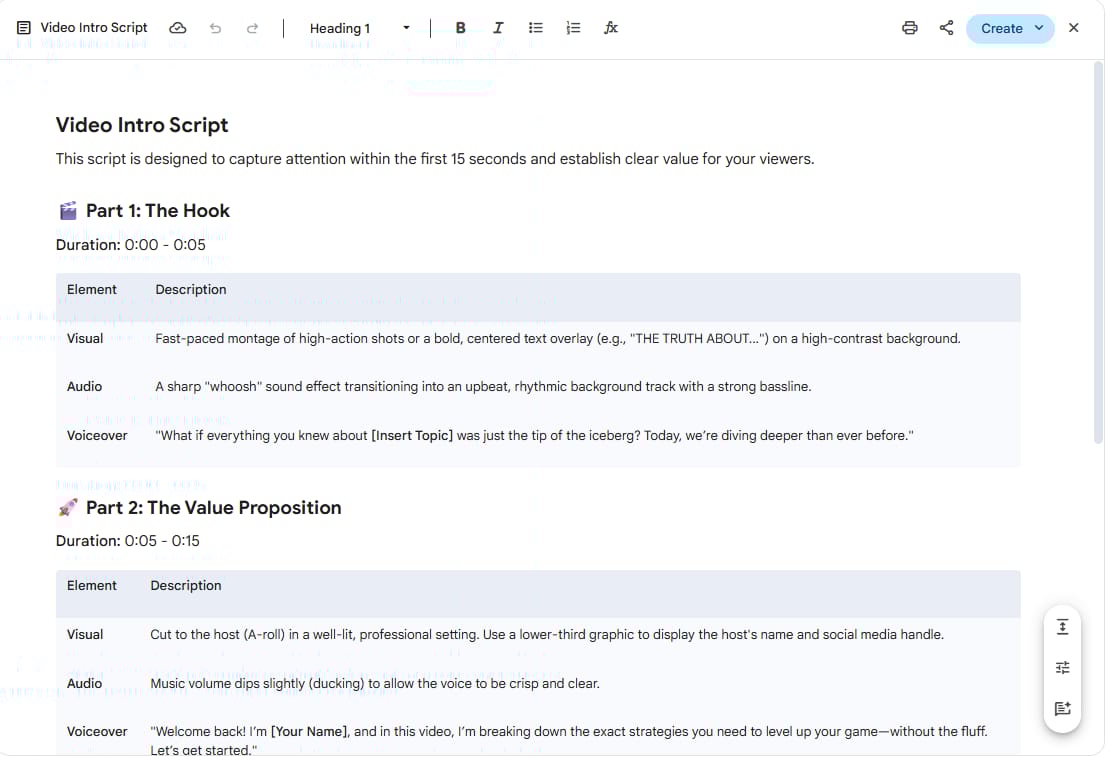
The script will appear on the right side. Here, you have full control:
-
You can ask it to change the whole text: “Remove the descriptions, just keep the spoken words.”
-
You can fix specific sentences yourself.
-
You can highlight a part and ask AI to rewrite just that part to make it smoother.
From Canvas, you can also ask it to create flashcards to help you remember, quizzes for your viewers, or even a simple website. But to do all these complex things, sometimes the “Fast” chat mode is not enough. You need the AI to “think” deeper.
VII. Using the Thinking Model in Gemini Advanced for Complex Tasks
In the menu of Gemini, you will see different model options. Choosing the right model is like choosing the right tool to fix a car.
-
Fast: Answers instantly. Good for normal chats and quick questions.
-
Thinking: Takes a bit longer to answer, but the answer is much more accurate and complete.

Why I always keep “Thinking” as default
I suggest you keep “Thinking” mode on. When you ask hard questions about logic, math, or planning, this model will plan its steps before giving the final answer.
If you use the free plan, this mode might have a limit. So use it carefully for hard problems. But if you use Gemini advanced, use it as much as you can.
Now, we have looked at each piece of the puzzle. Let’s put them all together in a real example.
VIII. Real Workflow: Building a Smart Garden
To see the power of combining tools, let’s try a new project where you have zero knowledge. Example: You want to grow vegetables at home but don’t know where to start.
Step 1: Check the Area (Multimodality)
Don’t type a description of your garden. Go outside, take a photo of your balcony or land. Send the photo to Gemini and ask:
Look at this photo. Research the best vegetables I can grow in these boxes in California. Think about the local weather and the current season. I want to use the space well.
Step 2: See the Result (Image Generation)
After it suggests growing strawberries and lettuce, you want to see how it looks right?
I want to see what this garden will look like when the plants grow. Create a picture for me.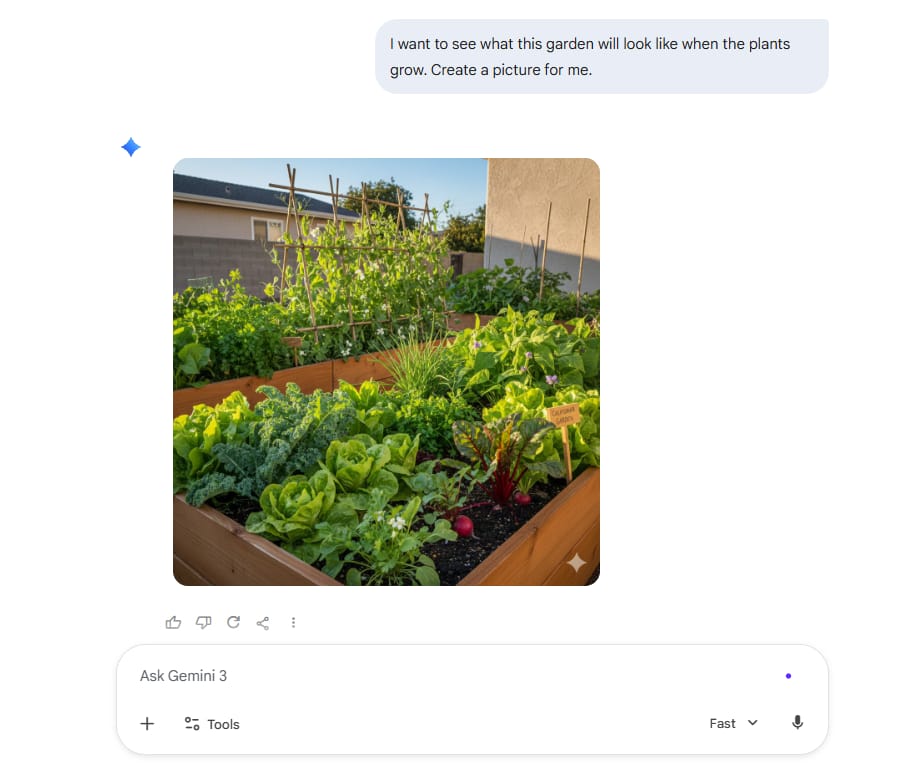
It will draw a picture of a green garden, giving you motivation to start.
Step 3: Make a Detailed Plan (Deep Research & Infographic)
Now you need a process.
I know nothing about gardening. Give me a full system of what to do. Create an infographic to show the timeline and steps clearly.
The result is a weekly plan: when to plant seeds, when to add fertilizer, when to harvest.
Step 4: Create a “Garden Assistant” (Gem)
Don’t let this information disappear. Create a Gem named “Garden Expert“.
-
Knowledge base: Upload the photo and the plan you just made.
-
Instruction: “You are my garden assistant. You know my location and weather. Every time I send a photo of a sick plant, tell me what is wrong and how to fix it naturally.”

Step 5: Track and Manage (Canvas)
Finally, create a tracking table.
Create a visual dashboard with a planting calendar, watering reminders, and harvest predictions.
It will open a table in Canvas that you can update every day. You see, in just a few minutes, from knowing nothing, you now have:
-
A real plan based on your home.
-
Pictures to visualize.
-
A personal assistant who knows your context.
-
A tool to manage the work.
That is the power of combining Gemini advanced features together.
Conclusion
The most important thing I want you to remember is: Don’t think like you are chatting with a robot. Think of Gemini advanced as a multi-skilled assistant.
-
When you need to see, send a photo.
-
When you need to hear, send a video.
-
When you do a task often, create a Gem.
-
When you need to edit carefully, use Canvas.
-
And most importantly, combine them into a workflow.
Here is my advice for you right now: Don’t try to do everything at once. Pick one thing you do every day like planning meals or writing work reports and try to build a simple Gem for it.
Once you do it for the first time and see how much time it saves, you will start seeing chances to use it everywhere. Good luck!
If you are interested in other topics and how AI is transforming different aspects of our lives or even in making money using AI with more detailed, step-by-step guidance, you can find our other articles here:
-
Building Apps with Bolt: A No-Code Guide to Turning Ideas into Reality
-
Detailed Guide: How To Automatically Get Unlimited High-Quality LinkedIn Jobs*
-
Prompt Engineering Automation: Build a Mini AI Assistant with n8n
-
Discover My Ultimate AI Tools Productivity Kit for 2024*
*indicates a premium content, if any
Leave a Reply