
You are wasting money on too many tools. Learn how to link ChatGPT, Gemini, and Claude to do 8 specific jobs. Save time and cash today with this system.. Ai Tools, Prompt Engineering.
Table of Contents
Do you feel tired of seeing a new AI tool every single day?
I know exactly how that feels. A few months ago, I looked at my credit card bill. I was paying for five different AI writing tools, three image generators, and two research bots. It was a mess. I thought that if I bought the “newest” thing, my work would get easier.
But actually, my work got harder. I was jumping between tabs, losing my passwords, and forgetting which tool did what.
Here is the truth I learned the hard way: You do not need more tools. You just need to think differently about the ones you already have.
I realized that the big tools – ChatGPT, Gemini, Claude, NotebookLM, and Perplexity are enough if you know how to connect them.
Think of it like building a house. You don’t need 50 different types of hammers. You need a hammer, a saw, a drill, and a plan to use them together.
In this article, I will share 8 specific ways (I call them “workflows”) to combine these tools. I have used these methods personally to save hours of work. I will explain everything like I am sitting right next to you, step-by-step.
Part I: Research And Analysis
The biggest mistake I see people make is asking one AI to do everything. ChatGPT is smart, but it does not know everything about the news today. Perplexity is great at news, but it cannot write a long book well. We need to use them as a team.
1. The “Smart Brain” Method With ChatGPT Projects
Most people open ChatGPT, type a question, get an answer, and then close the tab. Next time they come back, they start from zero. ChatGPT forgets who you are and what you do.
I stopped doing that. Now, I use a feature called Projects.
Think of a “Project” like a physical folder on your desk. Inside that folder, you put all your important papers. When you talk to ChatGPT inside this folder, it already knows everything in those papers.
Here is how I do it:
a. Create the Project
First, I go to ChatGPT. On the left side, I click on “Projects” and then “Create Project.”
Let’s say I want to open a small coffee shop. I will name the project “My Coffee Shop Plan.”

b. Feed it Information
I don’t just ask questions yet. I upload files first. I might upload:
-
A PDF of my menu ideas.
-
A text file listing my competitors in the neighborhood.
-
A note about my budget.
c. The “Deep Research” Prompt
Now, I stay inside this project folder. I ask ChatGPT to help me research, but because it has my files, it is much smarter.
My Prompt:
"Act as a business consultant. Based on the menu and budget files I uploaded, please research current coffee trends in 2025 that fit my specific style. Do not give me generic advice. Look for trends that fit my budget."
d. The “Loop” Effect
This is the best part. When ChatGPT gives me a good report, I download that report as a PDF. And this is the secret, I upload that same report BACK into the project folder.
Now the folder is even smarter. It knows my original ideas plus the new research.
Learn How to Make AI Work For You!
Transform your AI skills with the AI Fire Academy Premium Plan – FREE for 14 days! Gain instant access to 500+ AI workflows, advanced tutorials, exclusive case studies and unbeatable discounts. No risks, cancel anytime.
Start Your Free Trial Today >>
e. Creating Content
Because the AI knows my coffee shop so well now, I can ask for very specific things.
My Prompt:
"Write 5 Instagram captions for my opening day. Use the tone of voice from my brand document."
If I did this in a normal chat, the captions would sound boring. But inside the Project, they sound exactly like me.
2. The “Trustworthy Researcher” With Perplexity And NotebookLM
Sometimes, I am scared to use AI for serious facts. What if it lies? What if it makes up a number?
When I need to be 100% sure about my facts like planning a travel itinerary or checking health supplements, I use this combination.
a. The Hunter (Perplexity)
I use Perplexity to find the information. It is like a very fast librarian.
Let’s say I am looking for the best laptops for graphic design under $1000.
My Prompt in Perplexity:
"Find the top 10 reviews for graphic design laptops under $1000 from the last 3 months. Please give me a list of the URL links only."
I ask for links because I want to read the real sources, not just a summary yet.
b. The Reader (NotebookLM)
I copy those links. Then I go to NotebookLM. This is a tool from Google that is amazing at reading. It does not make things up. It only looks at what you give it.
I create a new notebook called “Laptop Research.” I click “Add Source” and paste all the links from Perplexity.
c. The Analysis
Now, NotebookLM has “read” all 10 websites. I can ask it questions, and I know the answers are true because they come from those websites.
My Prompt in NotebookLM:
"Look at all these sources. Create a table comparing the battery life and screen quality of these laptops. Which one is mentioned most often as the 'best value'?"
d. The Persona Trick
To get an even better answer, I go to the settings in NotebookLM and tell it who to be.
My Instruction:
"You are a strict technology expert who hates wasting money. Be critical."
Now, when it answers, it will tell me the hard truth about the laptops, not just the nice marketing words.
Part II: Making Pictures from Data (Strategic Visualization)
Reading long text is boring. I often need to show my boss or my friends a chart or a diagram. But I am not a designer. I found a way to do this in seconds.
3. Turning Boring Reports Into Cool Infographics (Perplexity + Gemini)
Imagine you have a long PDF report about “Skincare Trends.” You want to show the main points on one page.
a. Get the Data
First, I use Perplexity to find the info.
My Prompt:
"Find a detailed report on Korean Skincare trends for 2025. Search for PDF files."
I download the PDF.
b. The Canvas Magic
I go to Gemini. I switch to a mode called “Gemini Advanced” (if you have it) or just look for the “Canvas” feature. This opens a separate window for writing and coding.
I upload my PDF.
c. The Visual Prompt
I don’t just ask for a summary. I ask for a picture.
My Prompt:
"Read this report. Create a visual infographic structure that shows the top 3 trends. Use a flowchart style to show how a customer chooses a product."
Gemini Canvas will draw a code-based version of a chart.
4. Making Beautiful Dashboards With Claude
Gemini is fast, but Claude is better at making things look beautiful. I use this when I need a report that looks professional.
a. Set up a Claude Project
Just like ChatGPT, Claude has “Projects.” I create one called “Monthly Report.”

b. Teach it Style
I upload a screenshot of a color palette I like. Maybe a picture of a nice website with blue and gold colors.
My Prompt:
"Look at this image. I like these colors. Use these color codes for all charts you make for me."
c. The Dashboard Prompt
I upload my data (maybe a CSV file of my website visitors).
My Prompt:
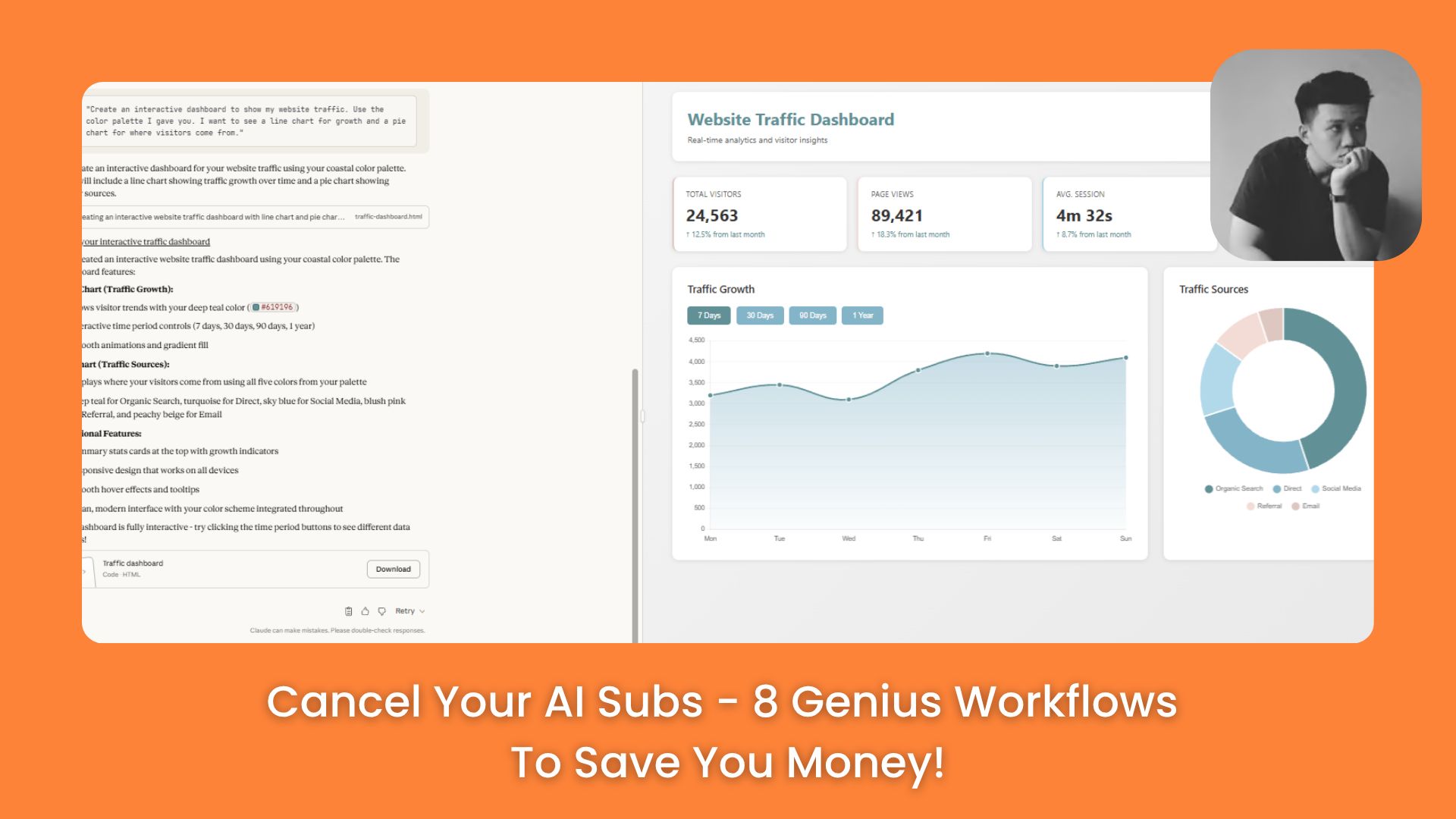
"Create an interactive dashboard to show my website traffic. Use the color palette I gave you. I want to see a line chart for growth and a pie chart for where visitors come from."
Claude writes code (called a “Artifact”) that pops up on the side. It looks like a real app.
d. Save for Later
Because this is a Project, I can come back next month, upload a new CSV file, and say “Do it again.” It will make the exact same style of dashboard with the new numbers. I never have to explain the colors again.
5. Creating Social Media Images With Claude SVG
I used to pay a designer to make simple graphics for my LinkedIn or Facebook. Now I do it myself with Claude.
a. Get the Content
I use Perplexity to find something interesting.
My Prompt:
"What are the 5 benefits of drinking green tea? Give me a short list."
b. The SVG Prompt
I take that list to Claude. I want to make a simple image to post on Instagram.
My Prompt:
"Create an SVG graphic suitable for Instagram (square format). Show the 5 benefits of green tea. Make it look modern and clean. Use a light green background."
Why SVG?
SVG is a special type of image file. It is not like a JPG photo. It is made of math. This means I can edit it easily.
c. Edit in Figma
I download the SVG file from Claude. Then I go to a free tool called Figma. I drag the file in.
Because it is an SVG, I can click on the text and change the font. I can click on the background and change the green to blue. If Claude made a spelling mistake, I can fix it in one second.
This gives me total control. I get the design speed of AI, but I can fix the small details myself.
Part III: Building Real Things (Asset Creation)
This is where we stop just “thinking” and start “making.” I use these workflows to build presentations and websites.
6. Instant Presentations With Gemini Gems
Making PowerPoint slides takes me hours. I hate moving the text boxes around. Gemini makes this much faster.
a. Create a “Gem”
A “Gem” in Gemini is like a custom robot helper. You set it up once, and it remembers its job forever.
I go to the Gems manager and click “New Gem.”
Name: Slide Maker
Instructions:
"You are an expert at making presentation outlines. Whenever I give you a topic, you will create a structure with: Slide Title, Bullet Points, and Image suggestions."
b. The Process
I have a meeting about “Company Safety Rules.” I simply tell my Gem: "I need a 10-slide deck about safety rules."

It spits out the perfect outline because I trained it to do that.
c. The Magic Export
Then I ask Gemini (in the main chat window, using the outline):
My Prompt: "Create these slides for me."

Gemini will generate a file that I can open directly in Google Slides. I don’t have to copy and paste the text. I just click “Export to Google Slides,” and it opens a real presentation. I can then change the colors or add my company logo.
7. Creating A Full Training Course (NotebookLM + Gemini)
Imagine you need to teach a new employee how to use Excel. You need a video, a handbook, and a quiz. This usually takes weeks. I do it in one afternoon.
a. Gather the Knowledge
I go to NotebookLM. I search for “Excel basics for beginners” using the source finder, or I upload my own PDF manual.
b. Make the Audio Lesson

NotebookLM has a crazy feature called “Audio Overview.” It turns my documents into a podcast where two people discuss the topic.
I click “Generate Audio.” Now I have a 10-minute MP3 file of two people explaining Excel clearly.
c. Make the Video
I take that audio file. I can put it into a video editor, or I can ask Gemini to help me visualize it.
But here is a better trick inside NotebookLM: I can select a specific note (like “Chapter 1: Formulas”) and tell it to help me write a script for a video.
d. The Quiz and Handbook
I stay in NotebookLM.
My Prompt:
"Based on these documents, create a 10-question quiz for a beginner. Also, create a one-page 'Cheat Sheet' summary."
Because NotebookLM sticks to the facts, the quiz will be perfect. It won’t ask questions about things that are not in the documents.
e. Put it Together
I take the text for the Cheat Sheet and put it into Gemini Canvas (like in Workflow #3) to make it look pretty.
Now I have: A podcast/audio lesson, a quiz, and a nice summary sheet.
8. Building A Landing Page Website (NotebookLM + Gemini)
I wanted to start a side business walking dogs. I needed a website, but I didn’t know what to write on it.
a. Research the Pain
I went to Reddit and searched for “dog walker complaints.” I copied the text where people were complaining about bad dog walkers.
I pasted this text into NotebookLM.
b. The Strategy Brief
I asked NotebookLM:
My Prompt:
"Read these complaints. Write a plan for a website for a new dog walking service. Focus on solving these specific complaints. What should the headline be?"
It told me that people hate when walkers are late. So it suggested a headline: “The Only Dog Walker Who Is Always On Time.” Smart.
c. Writing the Code
I copied that plan. I went to Gemini.
My Prompt:
"You are an expert web developer. Here is a plan for a landing page. Please write the HTML and CSS code for a modern, mobile-friendly website based on this text. Make the 'Book Now' button big and red."
d. Seeing the Result
Gemini writes the code. In the “Canvas” view, I can see a preview of the website instantly. I can click on the text and change it.
Writing the Code
I am not a tech wizard, but Gemini makes it easy. I can take that code and paste it into free hosting sites like Netlify or WordPress.
Summary: How To Start
I know I just shared a lot of information. Please do not try to do all 8 things today. You will get a headache.
Here is my advice on how to start:
-
Pick ONE problem. Do you hate writing emails? Or do you hate making slides?
-
Choose the workflow that fixes that problem.
-
Try it 5 times. The first time will feel slow. The fifth time will be fast.
Remember the roles of the tools:
-
ChatGPT is your general helper for writing and text.
-
Perplexity finds the facts and links.
-
NotebookLM reads and studies documents deeply.
-
Gemini builds things (charts, slides, code).
-
Claude makes things look beautiful.
I stopped paying for 10 different tools because these 5 can do almost everything if you connect them correctly. Start with one, and you will see how much time you can save.
If you are interested in other topics and how AI is transforming different aspects of our lives or even in making money using AI with more detailed, step-by-step guidance, you can find our other articles here:
-
Building Apps with Bolt: A No-Code Guide to Turning Ideas into Reality
-
Detailed Guide: How To Automatically Get Unlimited High-Quality LinkedIn Jobs*
-
Prompt Engineering Automation: Build a Mini AI Assistant with n8n
-
Discover My Ultimate AI Tools Productivity Kit for 2024*
*indicates a premium content, if any
Leave a Reply